Set Space-Level Autopost Defaults
Last updated: June 8, 2026
Space-level Autopost Defaults let you pre-configure per-platform publishing settings for a Social Space so every new post starts with the right values already filled in.
About Autopost Defaults
Autopost Defaults are configured once at the Social Space level and automatically applied when new Content is created in that space. Instead of setting TikTok privacy, YouTube category, Pinterest board, or other platform-specific fields post by post, you define them once and let the space do the work.
Defaults apply to new content only. Existing posts in the space are not affected when you save or update these settings.
Before You Start
You must have the Manager role or above in the Social Space to edit Autopost Defaults. Other members can view the settings but cannot make changes.
Platform-specific defaults (such as Pinterest board or TikTok privacy level) require the relevant social account to be connected to the space. If no account is linked, those fields fall back to Choose per post when content is created.
For help connecting accounts, see Link & Manage Social Media Accounts in Rella.
How to Set Autopost Defaults
Open the Social Space you want to configure.
Navigate to Space Settings.
Select Autopost from the settings sidebar (look for the calendar clock icon).
Review the platform sections listed. Each platform shows its configurable default fields.
Edit the fields for the platforms you use (see Platform Default Fields below).
To turn on auto-publishing for all new content in this space by default, toggle on Turn on Auto Post for new content in this space.
Save your changes.
If a platform account isn't connected, you'll see a Connect account prompt inline next to that platform's settings.
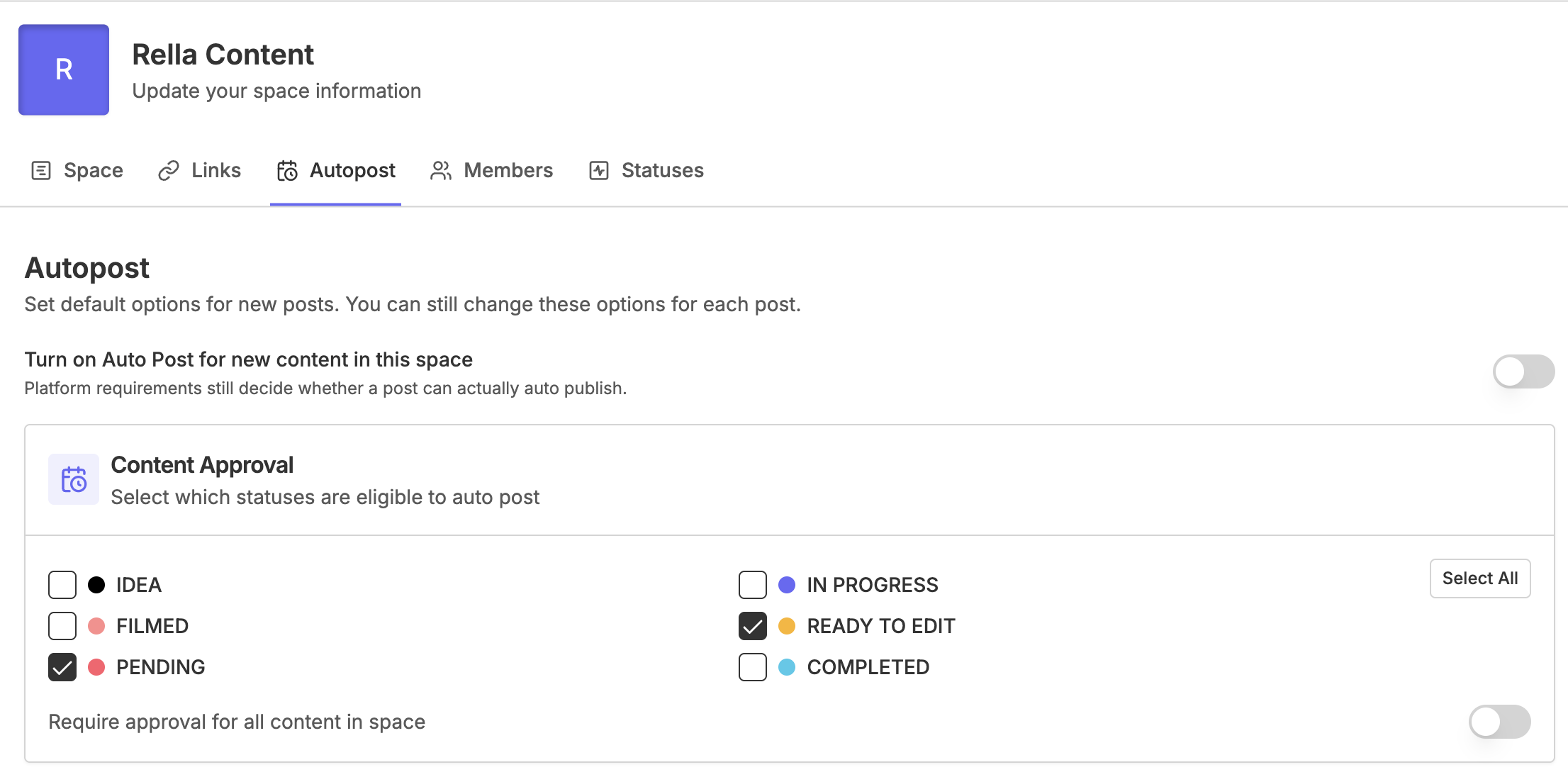
Platform Default Fields
First comment — Pre-fill a first comment (useful for hashtag sets) that posts automatically after publishing.
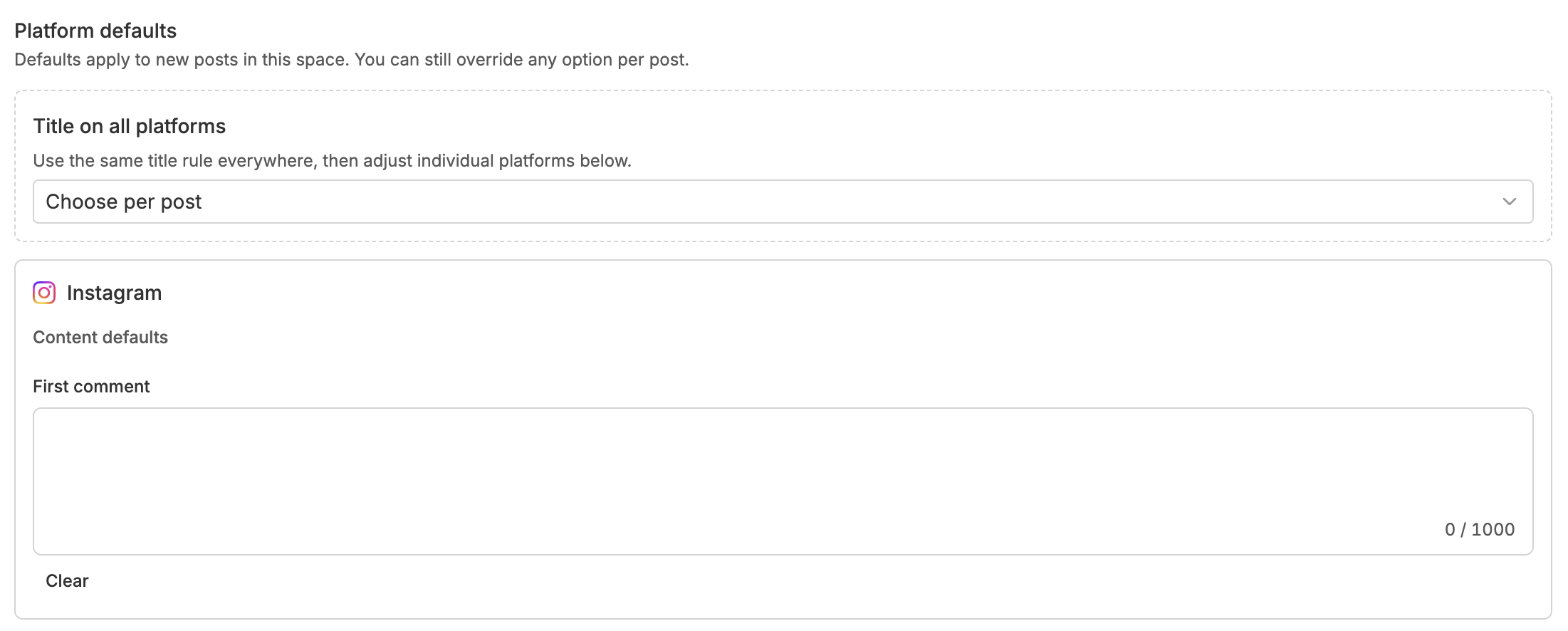
Video title — Set a default video title, or choose Inherit from caption or Choose per post.

Video title — Set a default video title, or choose Inherit from caption or Choose per post.
Visibility — Set the default audience visibility for posts.
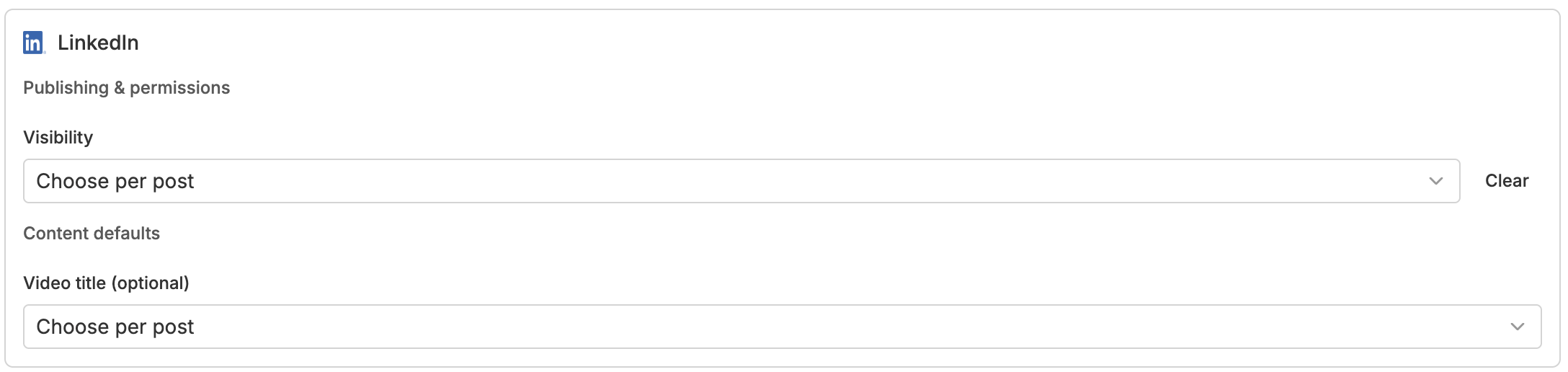
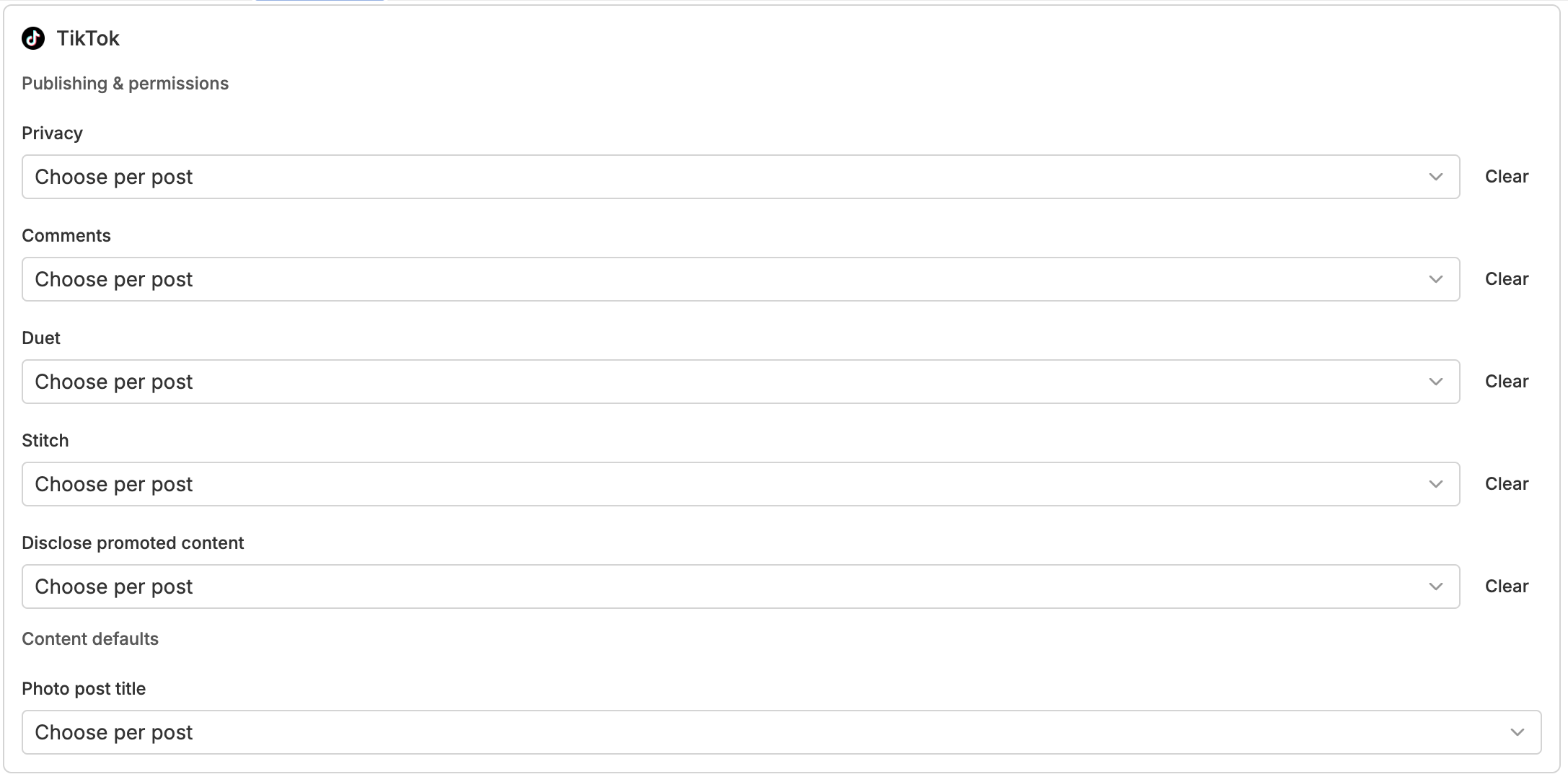
TikTok
Photo post title — Default title for TikTok photo posts.
Privacy level — Default privacy setting for TikTok posts.
Comments — Allow or disable comments by default.
Duets — Allow or disable duets by default.
Stitch — Allow or disable stitch by default.
Disclosure toggles — Set default branded content or paid partnership disclosure settings.
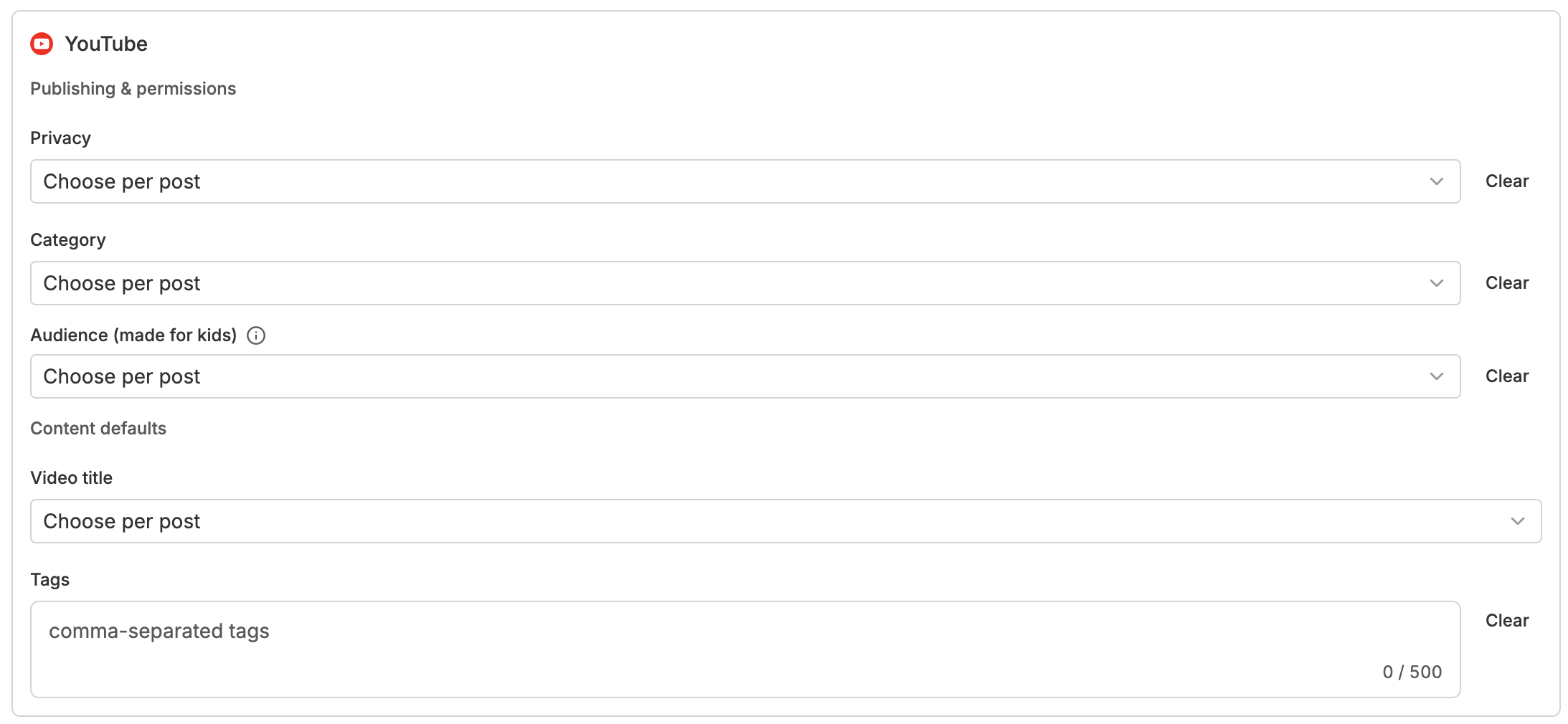
YouTube
Category — Default video category.
Audience (made for kids) — Set the default audience designation.
Video privacy — Default privacy level (public, unlisted, or private).
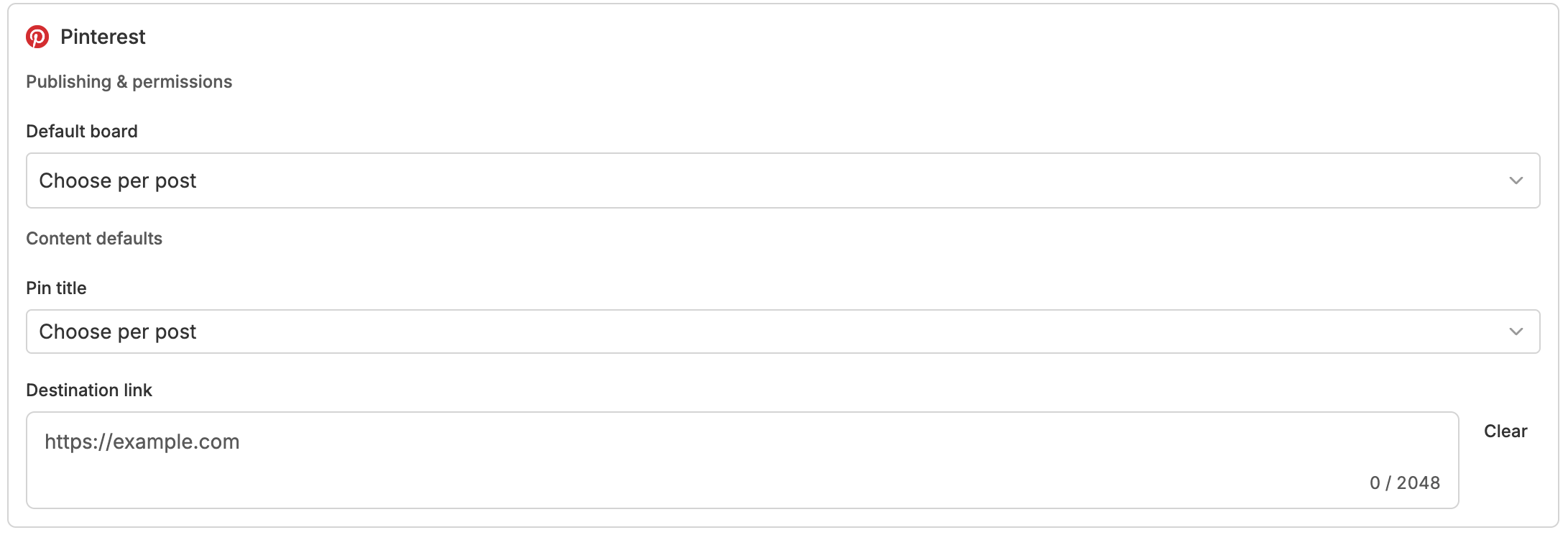
Default board — Choose a default board using the searchable board picker. Requires a connected Pinterest account.
Google Business
Default title — Configure defaults for Google Business post titles.

Resetting Defaults
To remove all configured defaults for the space, select Clear in the Autopost settings. You'll be asked to confirm before the reset takes effect.
Autopost Defaults FAQs
Can team members override defaults on individual posts?
Yes. Defaults pre-populate fields when new Content is created, but anyone with edit access can change those values on a per-post basis before publishing.
Do defaults apply to posts I've already created?
No. Autopost Defaults apply only to new Content created after the defaults are saved. Existing posts are not updated.
I'm not seeing the Autopost tab in Space Settings. What should I check?
Confirm you're inside a Social Space (not the Organization level) and that you're navigating to Space Settings. The Autopost tab exists at the space level only.
What happens if the connected account for a platform is disconnected after I set defaults?
If no account is linked when a post is created, platform-specific fields that depend on a connected account (such as Pinterest board or TikTok privacy level) fall back to Choose per post. Reconnect the account to restore default behavior. See Prevent & Resolve Social Media Account Disconnections.
What is the AutoPost rule in this tab?
The AutoPost rule section within the Autopost tab lets you set a trigger that automatically enables auto-publishing for content. This feature requires a Premium plan.