Tag People and Pages on Social Media
Last updated: October 23, 2026
Tagging accounts increases engagement and makes sure the right people see your posts. With Rella, you can tag users and pages directly on your media or mention them in your captions depending on the platform requirements.
Direct Media Tagging (Instagram)
Direct media tagging lets you attach specific Instagram accounts to your photos, videos, or Reels. This is handled on the media files themselves.
How to Tag Instagram Feed Posts & Carousels (Images)
Select your Instagram Content on the Calendar or Board.
Make sure you have selected Post as your content type (tagging is not supported for Instagram Stories).
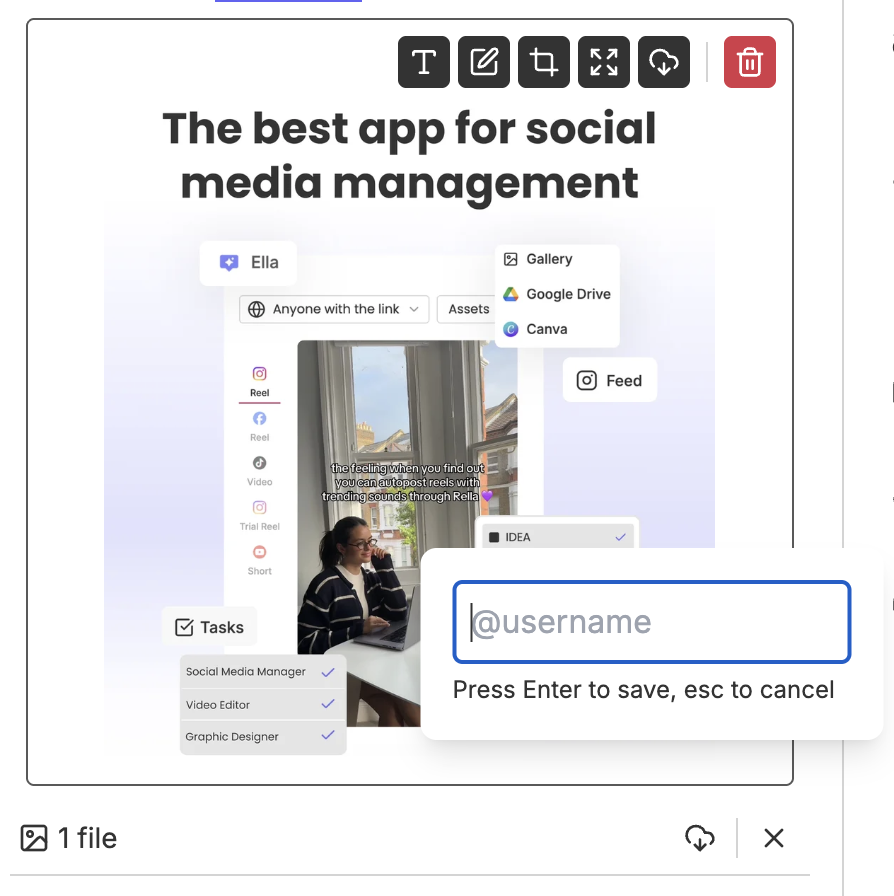
Hover over your uploaded image in the main preview area and click anywhere on the image where you want the tag to appear.
A popup text input will appear at that exact spot. Type the account username (for example,
@usernameor justusername) and press Enter.To view or hide your tags on the preview, click the User Icon button on the bottom-left of the image preview.
How to Tag Instagram Reels (Videos)
Select your Reel Content and navigate to the Tagged Users section in the right-hand sidebar.
In the username input field, type the exact handle you want to tag.
Press Enter or Space to save the tag.
If you have not uploaded a video yet, the sidebar will show a message saying Add a video to tag users.

How to Add Instagram Collaborators
Collaborators are accounts that co-author your post, allowing the post to appear on both of your feeds.
Navigate to the Collaborators section in the right-hand sidebar of your Instagram post.
In the input field, type the exact handle of the account you want to invite.
Press Enter or Space to add the user. You can add up to 3 collaborators per post.

Caption Mentions (Facebook & LinkedIn)
For Facebook and LinkedIn, tagging is handled inside the post caption. Rella queries live database connections to help you find the exact page or profile you are looking for.
How to Mention Pages & Connections in Your Caption
Select your Facebook or LinkedIn Content.
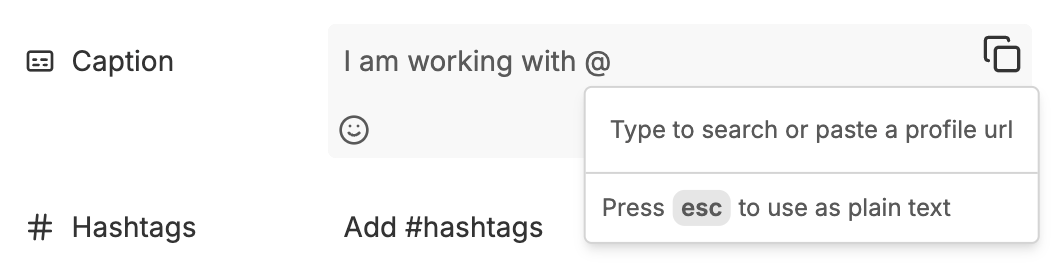
Click inside the Caption text area and begin typing your text.
Type the
@symbol followed by the first few letters of the page or account you want to mention.Rella will open a live search dropdown list:
Facebook Pages: Searches Meta's database for public Facebook pages.
LinkedIn Pages: Searches for LinkedIn Company Pages. Tagging is available when you publish from a connected Company Page.
Use your keyboard's Arrow Keys to highlight the correct page, then press Enter or Tab to select it. (Alternatively, click the page directly from the list).
The tag will be styled in your caption editor inside a highlighted background. Hovering over the styled tag will display a card with the account's avatar, name, and platform type.
Note for LinkedIn: LinkedIn’s API for third-party scheduling tools doesn’t currently support tagging when the LinkedIn account connected to Rella is a personal profile, even if the accounts you’re tagging are company Pages. If you’d like to tag Pages, connect a LinkedIn Company Page you have an admin role on, and publish from it instead.
Caption Mentions (X / Twitter)
For X (formerly Twitter), tagging accounts is handled by including mentions directly inside your post text.
How to Mention Accounts on X / Twitter
Select your X Content on the Calendar or Board.
Click inside the Caption text area.
Type the
@symbol followed immediately by the account handle (for example,@rella).Continue typing your post copy as normal.
Note: a live search dropdown menu when typing mentions for X is not currently available. Type the exact handle directly into your Caption, and X will parse it as an active account link when published.
Platform Tagging FAQs
What are the account tagging limits?
Instagram Tagged Users: Up to 20 accounts per post.
Instagram Collaborators: Up to 3 accounts per post.
Caption Mentions (Instagram, Facebook, LinkedIn): Up to 20 mentions in your caption.
Caption Mentions (X / Twitter): You can include account handles in your text up to X's character limit.
Why is the Facebook/LinkedIn mention dropdown not appearing?
To protect API rate limits and ensure accuracy, the live search dropdown for Facebook and LinkedIn mentions is only active when your Content has exactly one platform connected. If you have multiple platforms connected to a single post, we recommend you repurpose the post to separate platforms to tag users on them individually. On LinkedIn, the dropdown also depends on the account you’ve connected. See the LinkedIn note below.
Why can’t I tag a LinkedIn Company Page when I post from my personal profile?
If the LinkedIn account connected to Rella is a personal profile, LinkedIn’s API for third-party scheduling tools doesn’t currently support tagging accounts, even when the accounts you’re tagging are company Pages. If LinkedIn changes this, we’d love to offer it. To tag Pages today, connect a LinkedIn Company Page you have an admin role on and publish from it.
Why doesn't a search dropdown appear when I type @ for X / Twitter?
A live database lookup for X handles is not currently available. Type the @ symbol followed by the exact account handle directly in your Caption, and X will automatically link the account upon publishing.
Will tagging a private or misspelled account cause publishing to fail?
Yes. If you are using auto-publish, the platform APIs will reject your post if a tagged account is private, does not exist, or has disabled public tagging permissions. Double-check your spelling before scheduling your post.
Can I search for Instagram accounts when tagging media?
No. Due to Meta API security limitations, Rella cannot perform a live search for Instagram usernames. You must manually type the exact username in the input field when clicking on the image or adding a Reel tag.
How do I remove a tag?
Instagram Images: Toggle your tags on using the User Icon on the bottom-left of the image preview, then click the X on the tag badge. You can also click the account tag's trash/remove button in the sidebar list.
Instagram Reels & Collaborators: Click the tagged account in your sidebar list to remove it.
Captions (Facebook/LinkedIn): Highlight the tagged text or press Backspace over it inside the caption area. Alternatively, press Escape while the mention dropdown is open to clear the mention state and leave the handle as plain text.
Captions (X / Twitter): Delete or backspace over the @username text inside your Caption.