Set a Default Time Zone for a Social Space
Last updated: November 18, 2026
Set a default time zone on a Social Space so the scheduler starts in that zone for every post and Task in the space. Use it when you plan content for a client, brand, or location in a different time zone than yours.
About the Default Time Zone
The default time zone sets which zone the scheduler's Time zone picker starts in when you schedule Content or a Task in this Social Space. It does not change how times display.
Everyone sees times in their own zone. Your Calendar, lists, and the main time on a post always use your browser's time zone.
The picker's zone is the zone of the time you type. If the picker shows Eastern Time and you pick 9:00 AM, the post publishes at 9:00 AM Eastern, even if that is 6:00 AM for a teammate in Pacific Time.
A second line shows the scheduled zone when it differs from yours. For example, a post scheduled for 9:00 AM Friday in Tokyo shows your local time first, with "Fri 9:00 AM" and the Tokyo zone abbreviation under it. The day appears only when it differs from your own day.

Changing the default never moves scheduled posts. Posts and Tasks keep the exact moment they were scheduled for.
"Follow your browser's time zone" means no default. The picker starts in each person's own zone.
How to Set the Default Time Zone
Only members with the Manager role in a Social Space see and change this setting.
Open the Social Space.
Click Space Settings (the gear icon) in the space header.
Select Space details.
Under Default time zone, open the picker and search for a city or zone.
Select the zone. It saves right away.

To remove the default, open the picker and select Follow your browser's time zone.
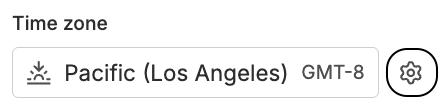
Managers can also reach this setting from the scheduler. Click the gear next to the Time zone picker (Change the space's default time zone) to open Space details.
Set It When You Create a Social Space
The create form includes a Default time zone field, filled in with your own time zone. Pick a different zone, or select Follow your browser's time zone, before you create the space.
How to Schedule in a Different Time Zone
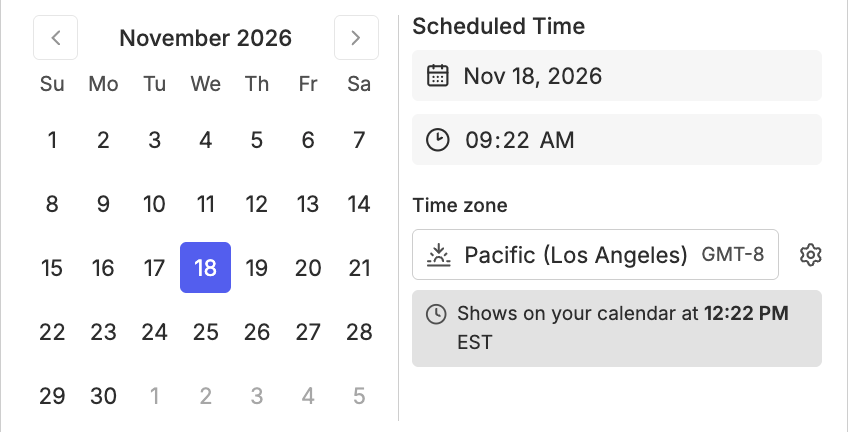
The Time zone picker in the scheduler controls which zone the date and time you pick belong to.
Open the Content or Task.
Click the scheduled date, or Add time if it has none.
Check the Time zone picker. It starts in the zone the item was last scheduled in. If there is none, it starts in the space's default, then in your own zone.
To use another zone, open the picker. Space default and Your time zone appear as suggestions, or search for any city or zone.
Pick the date and time as a time in that zone.
When the picker's zone differs from yours, a grey box reads Shows on your calendar at followed by the same moment in your own time.
Rella saves the zone with the post or Task. If the space's default changes later, the item keeps the zone it was scheduled in.
Switching Zones Keeps the Clock Time
If you change the zone after picking a time, the clock time stays the same and the publish moment moves. A post set for 2:00 PM Eastern becomes 2:00 PM Pacific, which publishes 3 hours later. Check the time after you switch zones.
How Ella Handles Time Zones
Ella, Rella's AI-powered teammate, works in your own time zone, not the space's default.
Times without a zone are read in your zone. If you're in New York and ask Ella to schedule a post for 9 AM Friday in a space set to Tokyo, she schedules it for 9:00 AM Friday New York time (11:00 PM Friday in Tokyo).
Name the zone to schedule in another one. Ask for "9 AM Friday Tokyo time" instead.
Ella doesn't save a zone with the times she sets. The line under the time shows the space's default zone instead, when one is set and it differs from yours.
Editing a Task's time keeps its zone. When Ella changes a Task's time, the Task keeps the zone it was scheduled in.
Ella can't change a space's default time zone. Set it in Space details.
Default Time Zone FAQs
Does changing the default time zone move my scheduled posts?
No. Scheduled posts and Tasks keep the exact moment they publish or are due. The default only changes where the picker starts for the next time you schedule.
Why does my teammate see a different time for the same post?
Each person sees times in their own time zone. A post at 9:00 AM Eastern shows as 6:00 AM for a teammate in Pacific Time, and it publishes at the same moment for both.
Why don't I see the Default time zone setting?
Only members with the Manager role in the Social Space can see and change it. Ask a Manager to set it for you.
Why does a post show a second time under the main time?
The second line shows the time in the zone the post was scheduled in, or the space's default when no zone was saved. It appears only when that zone's clock differs from yours.
Does the time zone change a Task's date when it has no time?
No. A Task with a date and no time shows the same date for everyone, in every zone.
What does "Follow your browser's time zone" mean?
The space has no default. The picker starts in each person's own time zone, based on their device settings.