Link & Manage Social Media Accounts in Rella
Last updated: July 13, 2026
Linking your social media accounts to Rella enables direct drafting, interactive Previews, and automated publishing so you can execute your publishing schedule with confidence.
Steps to Link a Social Account
1. Open Space Settings
Hover over your active Social Space name in the left navigation sidebar. Click the More Options (...) icon next to the space name and select Space Settings.
2. Navigate to Links
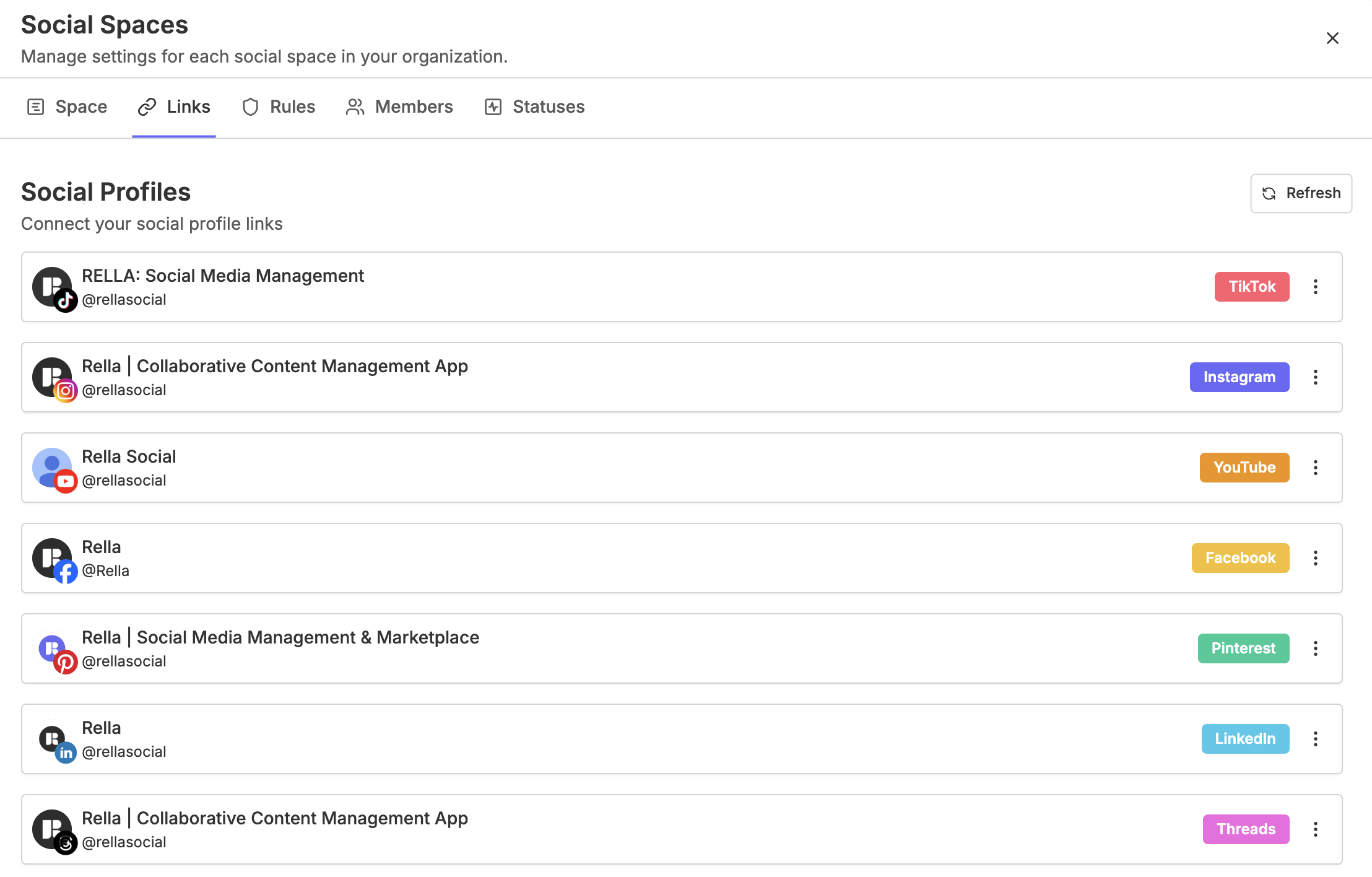
Inside the settings sheet, click the Links tab at the top. This tab displays all supported social platforms. Connected accounts are listed at the top, while unlinked platforms show a Connect option.
3. Authorize the Platform
Locate the platform you want to add and click Connect. Rella will launch a secure OAuth popup window redirecting you to that social platform. Log in with your credentials and grant Rella permission to publish content on your behalf.
Platform Connection Guidelines
While most platforms connect with a simple direct login, some networks have unique requirements:
When you click Connect next to Instagram, Rella presents you with two separate connection methods:
Option 1: Connect directly with Instagram:
Setup: This is the fastest method and does not require a Facebook Page.
Requirement: A Professional Instagram Account (Business or Creator).
Option 2: Connect with Facebook:
Setup: Best for agencies managing complex Meta assets.
Requirements: A Professional Instagram Account (Business or Creator) that is explicitly linked to a Facebook Page you manage.
Permission errors and relink prompts: If an Instagram autopost fails due to a permission error, Rella automatically marks the connection as expired and prompts you to relink — even if the account appeared connected before the publish attempt. This covers permission-related failures beyond simple token expiry. The failed post is recorded as failed and will not retry automatically; once you reconnect, future scheduled posts will publish normally.
To relink, open the autopost readiness panel on the affected Content, where a Connect action or Fix prompt will appear. Follow the steps to reconnect your Instagram account.
Setup: Connect your Facebook Page.
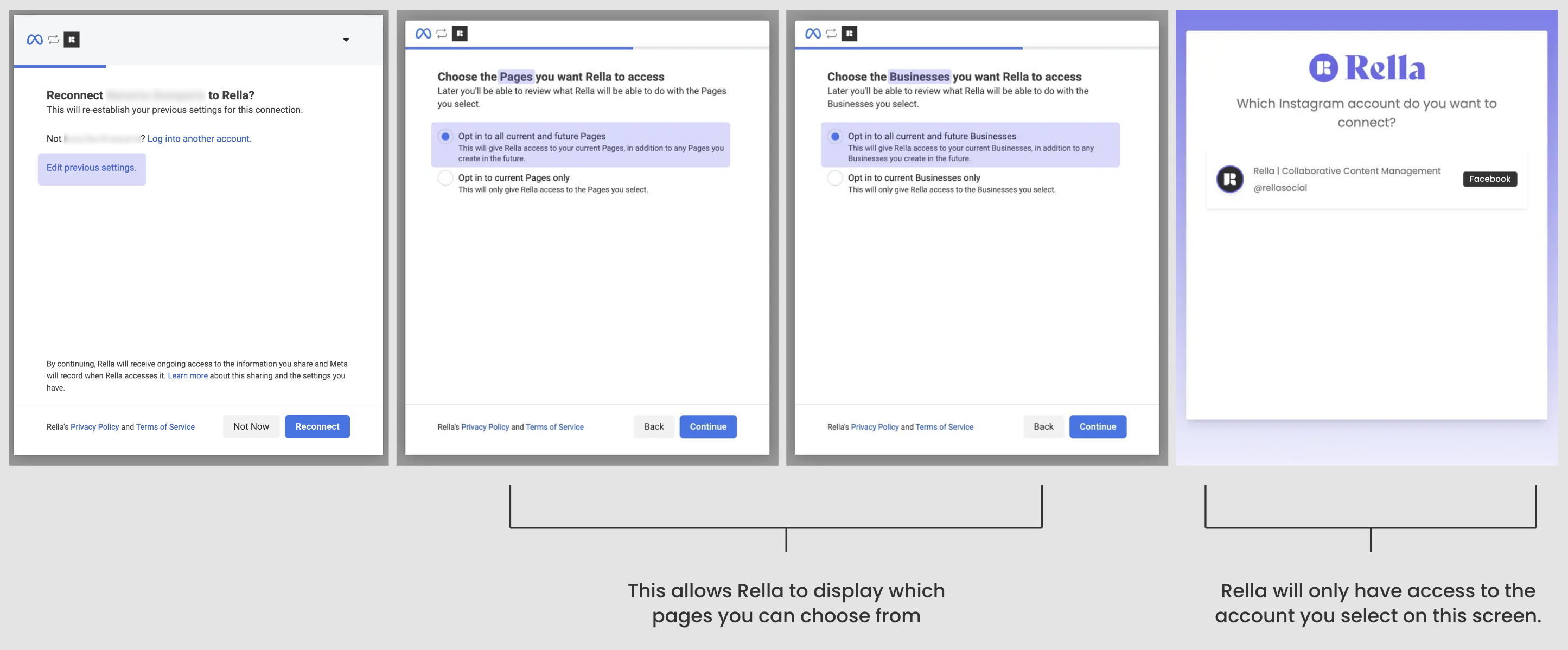
Requirement: You must log in using a Facebook profile that holds Administrator permissions for the target Page.
To prevent accounts from disconnecting and avoid any auto post issues, you must select “Opt in to current and future Businesses & Pages.” Choosing this option does not give Rella access to all pages connected to your profile. It simply allows Rella to display the accounts you manage so you can choose the correct one.
TikTok, LinkedIn, YouTube, Pinterest, Threads, & X
Setup: Direct authorization.
Guidelines: Ensure you are already logged into the correct brand account in your web browser before clicking Connect to avoid automatically linking to the account logged into your browser.
How to Refresh or Disconnect Accounts
Social networks issue security tokens to Rella to publish content on your behalf. These tokens automatically expire every 60 to 90 days, or when your account password is changed.
When a connection expires, your scheduled posts are blocked from publishing, and the account card will display an Expired badge.
How to Refresh an Expired Connection
Open your Space Settings sheet and click the Links tab.
Find the expired account card and click the More Options (...) button on the right side of the card.
Click Refresh.
Log into the platform in the secure popup window to renew your credentials.
How to Disconnect and Remove an Account
Open your Space Settings sheet and click the Links tab.
Find the account you want to disconnect and click More Options (...).
Click Remove. This instantly revokes Rella's access and deletes the channel from your Social Space.
Security Warning for Shared Social Spaces
Important Security Notice: Sharing a Social Space will also make your connected social accounts manageable by anyone who accesses that shared public link. Always ensure you only send public space links to trusted clients and collaborators.
Social Account Connection FAQs
Why does my connection say "Expired"?
For your security, social media networks expire third-party tokens after a set time (usually 60 to 90 days), or whenever an account password is changed. Simply click Refresh on the account card inside Rella to renew the token.
Can I connect a personal Instagram account to Rella?
You can connect personal profiles to draft and organize content, but Instagram's API restricts personal accounts from using third-party auto-publishing tools. To enable automated publishing, switch your Instagram account to a free Business or Creator profile.
I don't have my clients password, can they connect their own account?
Yes! Navigate to Links > Share Social Links. You will be able to copy the link or share via email. Your client or external collaborator will be ale to connect their own accounts.
Resource: 📄 Request Social Links from Clients