Manage Community Engagement
Last updated: June 4, 2026
Manage Social Inbox & Comments
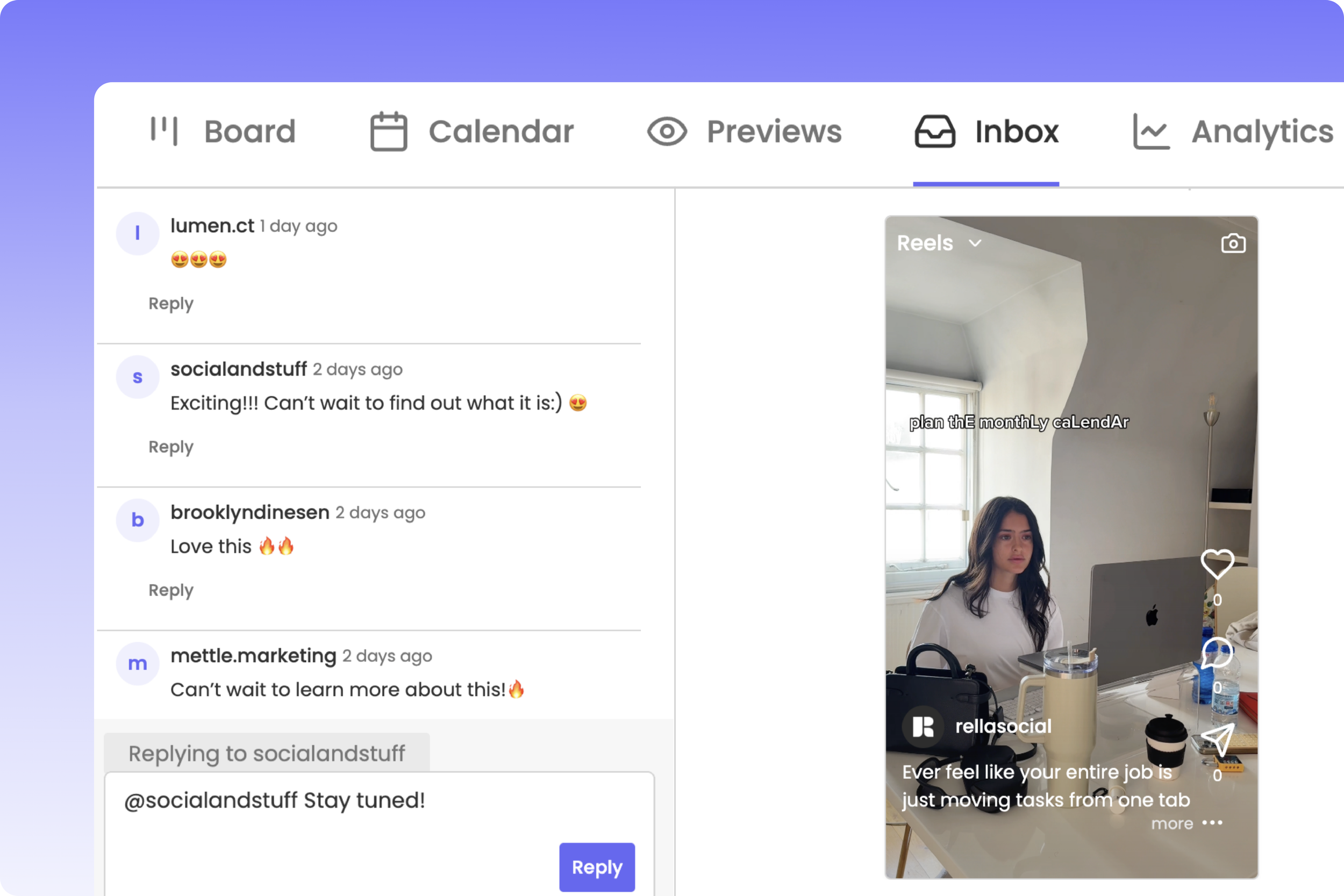
Monitoring comments and private messages across client profiles can get messy when logging in and out of different social accounts. Rella’s Social Inbox centralizes all customer direct messages (DMs) and post comments into a single, unified dashboard so you can respond to your audience directly.
Before You Start
Social Inboxing is available on Rella’s Premium and Premium Plus plans. If your organization is on a lower plan tier, you will see an upgrade prompt when attempting to open the inbox.
You must have an Admin, Organization Owner, or Manager role to view and respond to messages.
Rella’s Social Inbox currently supports Instagram (including direct messages, story replies, and feed post comments). Ensure your Instagram Business account is fully connected in your space settings.
Exploring the Social Inbox Layout
To open your inbox, click Social Inbox (or the inbox tab) in the left sidebar menu. On desktop, Rella displays your inbox in a clean, side-by-side layout:
Left Column: Conversations List
This directory lists all active conversations in chronological order. You can use the top dropdown filters to sort the directory:
All: Displays both DMs and post comments.
Comment: Filters the list to show only comments left on your published posts.
Private Message: Filters the list to display only direct messages (DMs) and story replies.
Right Column: Active Conversation Workspace
When you select a conversation, the active workspace opens:
Private Messages (DMs): Displays your text conversation history.
Comments Thread: Displays the original published post media, the caption, and a nested thread of comments and public replies.
Social Post Preview: On desktop, the far-right panel displays a live preview of the original published post so you can see the context behind the comments.
How to Moderate and Reply to Comments
The Comments Thread makes it easy to engage with your followers or moderate spam.
1. View Nested Comment Threads
When a follower leaves a comment, it appears under the conversation thread. If another user replies to that comment, Rella nests those messages together. Click -- X replies under any main comment to expand and read the replies.
2. Reply to a Specific Comment
Locate the comment you want to address.
Click Reply directly under their message. The footer input box will display a label showing who you are replying to (for example: "Replying to @username").
Type your response in the Add or reply to a comment... text area.
Click Send (or press Enter) to publish your reply directly to Instagram.
Social Inbox FAQs
Can clients see my Social Inbox?
No. Clients invited to Rella with a Manager or Editor role can only see the specific Social Spaces you assign to them. External clients accessing shared public guest links have no access to your Social Inbox or private messages.
Why do some messages say "Profile images are not available"?
To protect user privacy, some platforms (such as Meta) restrict third-party developer APIs from downloading profile pictures for certain comment authors. In these cases, Rella displays a placeholder circle with the user's initials.
Can I delete spam comments directly from Rella?
Yes. If you have Admin or Manager permissions, you can click the more menu next to any comment in the thread and select Delete to instantly remove the comment from your live Instagram post.