Track and Manage Paid Ads with Paid Ads Analytics
Last updated: June 9, 2026
Tracking your paid ad performance alongside your organic social calendar keeps your social strategy unified. Rella’s Paid Ads analytics hub lets you monitor active campaigns, analyze specific ad set metrics, view creative previews, toggle campaign delivery, and even draft and launch new campaigns directly within your workspace.

Before You Start
Paid Ads analytics is available to Organizations on the Premium plan and above.
You must connect a valid Meta Ads account to your Social Space under Settings → Space → Links before you can view ad data.

How to Access Paid Ads Analytics
By default, Rella opens your performance data in organic mode. You can switch to your ad dashboard in just two steps.
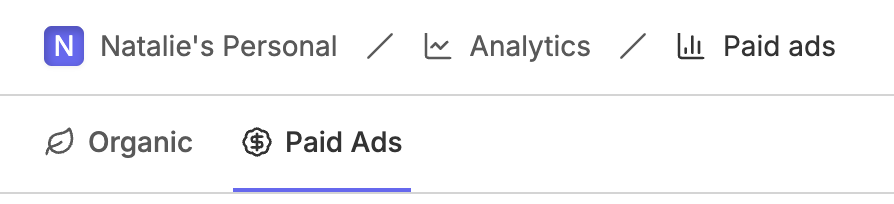
Navigate to the left sidebar, locate your Social Space, and select Analytics (indicated by the LineChart icon).
In the top sub-navigation bar of the analytics hub, click Paid Ads.
Paid Ads data can take longer than other analytics to load. Avoid refreshing the page until loading is complete.
Note: If you have not connected an ad account yet, Rella will prompt you with a connection wizard to link your Meta Ads manager account.
Key Paid Ads Metrics Explained
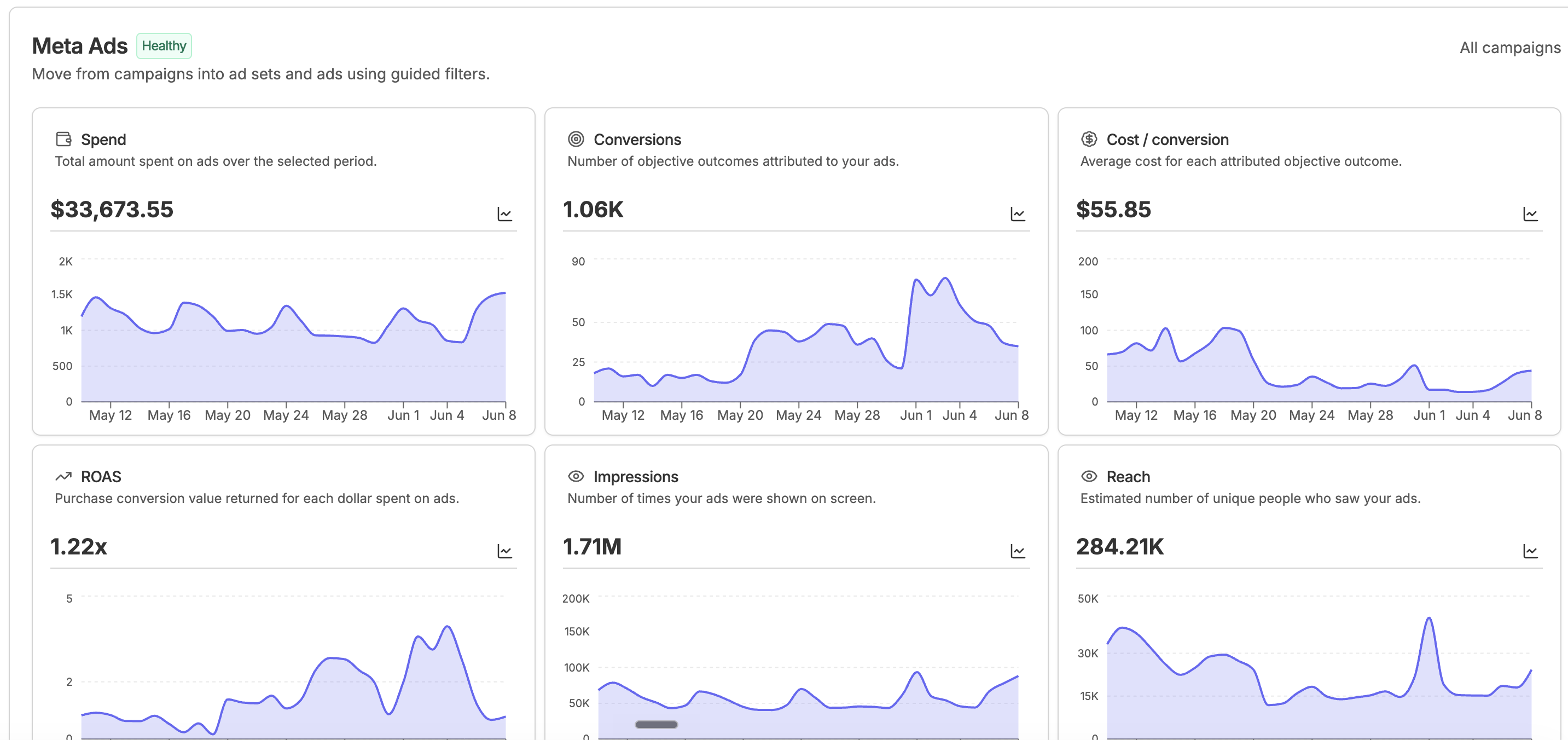
Rella tracks ten critical performance indicators across your paid campaigns:
Spend: The total amount spent on your ads over your selected date range.
Conversions: The total number of objective outcomes (such as purchases or leads) attributed to your ads.
Cost / conversion: The average cost for each attributed conversion.
ROAS: Return on Ad Spend. The purchase conversion value returned for every dollar spent on ads.
Impressions: The total number of times your ads were displayed on screen.
Clicks: The number of clicks recorded on your ads.
Reach: The estimated number of unique individuals who saw your ads at least once.
CPM: Cost Per Mille. The average cost per 1,000 ad impressions.
CPC: Cost Per Click. The average cost for each click recorded on your ads.
CTR: Click-Through Rate. The percentage of total impressions that resulted in a click.
Navigating the Platform Explorer
The Platform Explorer organizes your ad performance into three hierarchical tables, making it easy to drill down from high-level campaigns to individual assets.
Campaigns Table
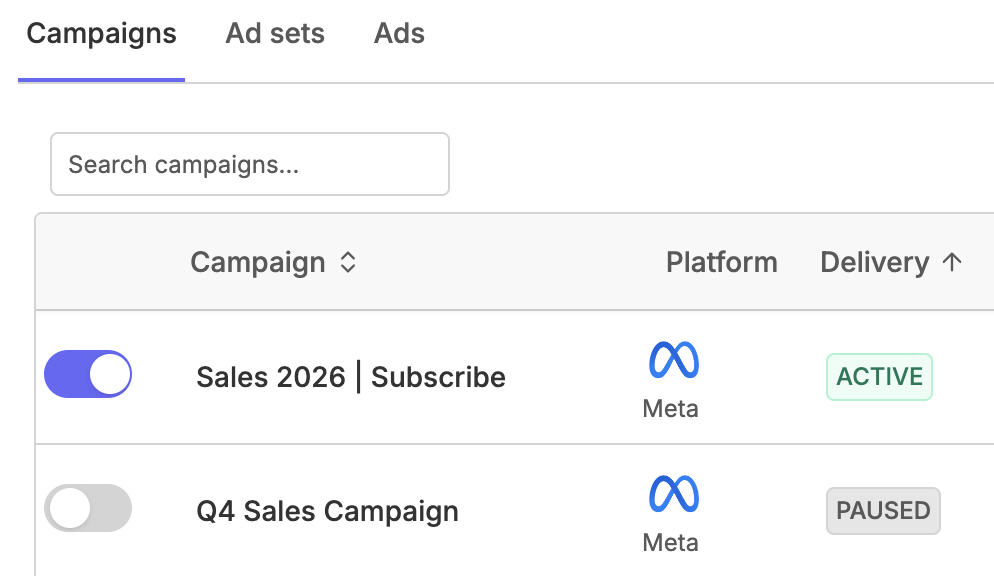
This table displays your overall active campaigns, their budget type, total spend, and attributed conversions. You can use the search bar to filter campaigns by name.
Campaign: The name of the campaign. This column is pinned to the left so it remains visible as you scroll horizontally.
Objective: The campaign objective selected during setup (for example, Conversions or Traffic).
Strategy: The bid strategy configured for ad delivery.
Daily Budget: The average amount of money budgeted to spend each day on this campaign.
Lifetime Budget: The total budget set aside for the entire lifetime of the campaign.
Reach: The estimated number of unique individuals who saw your campaign ads.
Ad Sets Table
Drill down into specific ad sets to analyze performance across different target audiences, demographic placements, and schedule variations.
Ad Set: The name of the ad set. Pinned to the left for easy scrolling.
Strategy: The bid strategy configured for ad delivery.
Daily Budget: The average daily budget allocated to this ad set.
Lifetime Budget: The lifetime budget allocated to this ad set.
Max Bid: The maximum bid cap configured for the ad set.
Reach: The estimated number of unique individuals who saw the ads within this ad set.
Ads Table
Select individual ads to see how different copy variations and media assets perform. Clicking on any ad row opens the Ad Detail drawer.
Ad: The name of the ad. This column displays a visual preview thumbnail of the ad alongside its title and body text. Pinned to the left.
Format: The type of creative format used for the ad (such as an image or video**
Reach: The estimated number of unique individuals who saw this specific ad.
Freq.: Frequency, which measures the average number of times each reached person saw your ad during the selected period.
Link Clicks: Clicks on links within the ad that direct users to destinations on or off the platform.
Video Plays: The total number of times your video ad started playing.
Understanding the Ad Detail Drawer
The Ad Detail drawer slides open from the right to show specific performance details for your creative assets:
Delivery & Engagement: Dedicated KPI metrics for Reach, Frequency (average times one person saw the ad), Link clicks, and Video plays.
Creative Previews: Displays the exact thumbnail or image preview, headline, text description, website link, and call-to-action button used in the ad.
Rella Content Matching: Rella automatically matches your paid ad creatives back to organic Content cards in your workspace using score-based matching. This displays whether the creative has a Linked match or Suggested match with a Rella Content ID, giving you complete visibility into which planned posts were boosted as ads.
Managing Campaigns Directly in Rella
Rella does not just report your ad data; it lets you control and create campaigns without leaving your workspace.
Toggling Campaign Delivery
You can pause or resume campaigns, ad sets, or individual ads directly within their tables.
Locate your campaign inside the Campaigns list.
Toggle the delivery switch in the Status column.
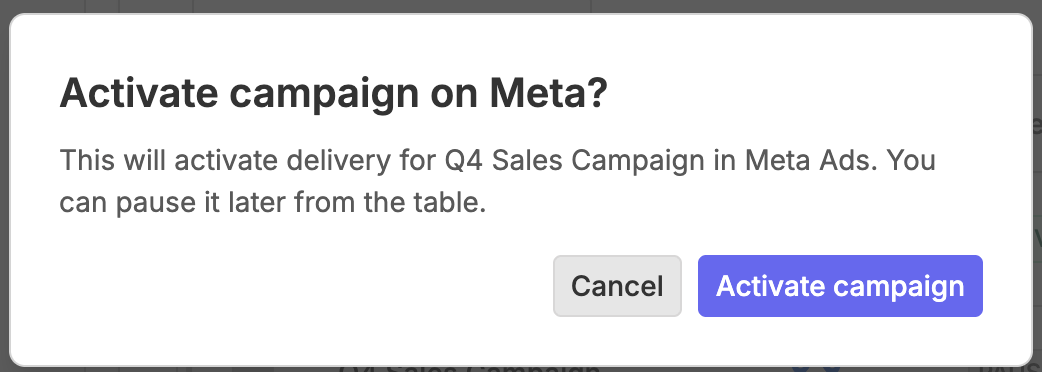
An Alert Dialog will appear asking you to confirm the status change.
Click Confirm to immediately update the status on your ad platform.
Paid Ads FAQs
Why is my Paid Ads tab showing an upgrade CTA?
Paid Ads analytics is an advanced feature reserved for Premium and higher subscription tiers. If you are on a free or basic plan, you must upgrade your Organization to unlock ad tracking.
Can I toggle delivery on any ad campaign?
You can toggle delivery statuses between Active and Paused. If a campaign is flagged with an external error on the platform itself (such as a billing failure), you must resolve that error in your platform dashboard before changing the status in Rella.