Understanding Your Analytics Dashboard
Last updated: June 9, 2026
Monitoring how your social media campaigns perform across different networks can get messy fast, especially when each app has its own separate metrics, charts, and logins. Rella’s Dashboards panel provides a unified Analytics view that aggregates audience reach, follower growth, engagement rates, and content performance across all your connected social profiles in one clear, real-time dashboard.
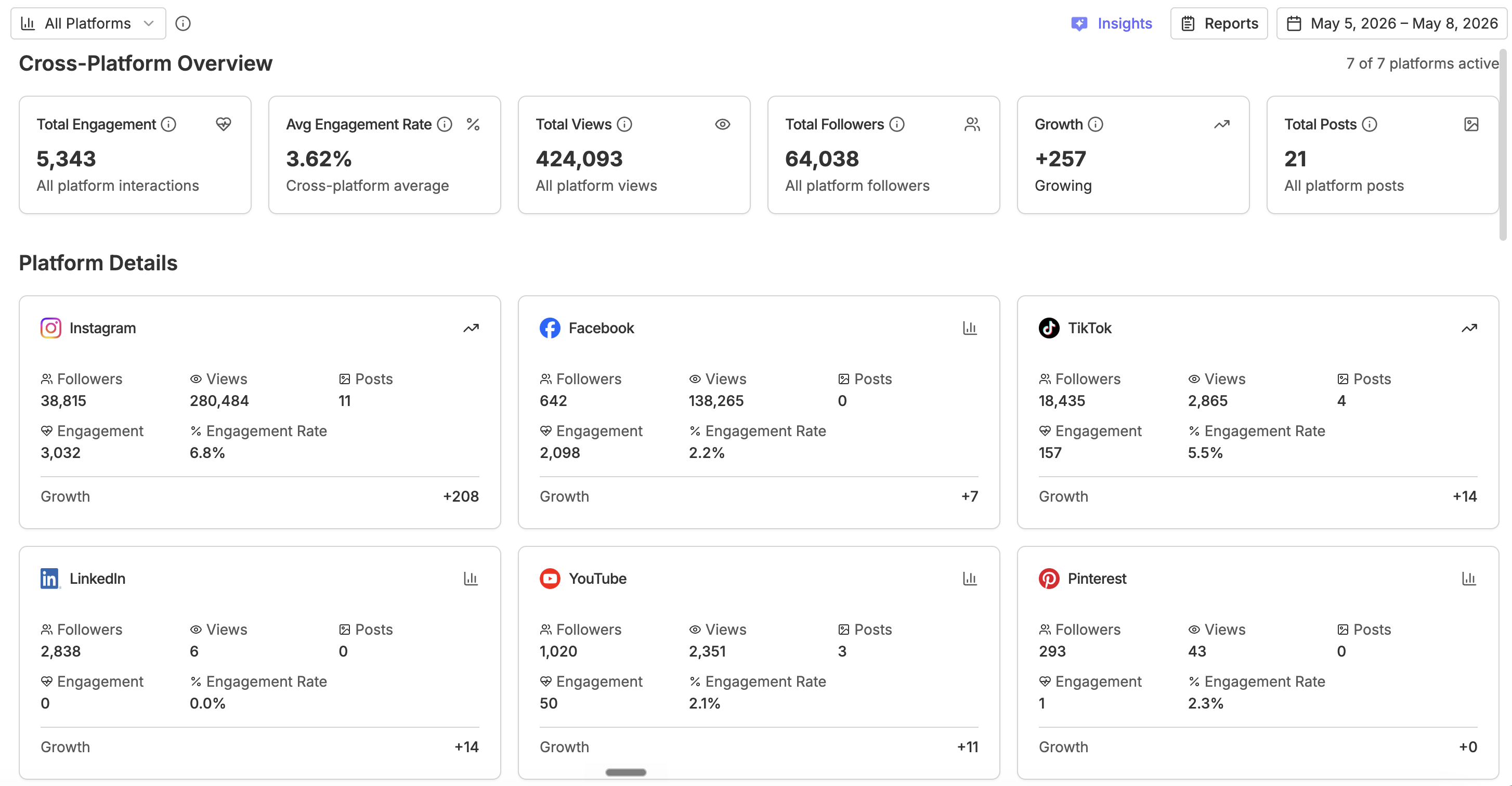
About the Analytics Dashboard
The Analytics dashboard is your command center for performance tracking. Access it by clicking Analytics under your Social Space in the sidebar. It syncs directly with social network APIs (such as Instagram, TikTok, YouTube, and LinkedIn) to collect, process, and display audience data in your active Social Space.
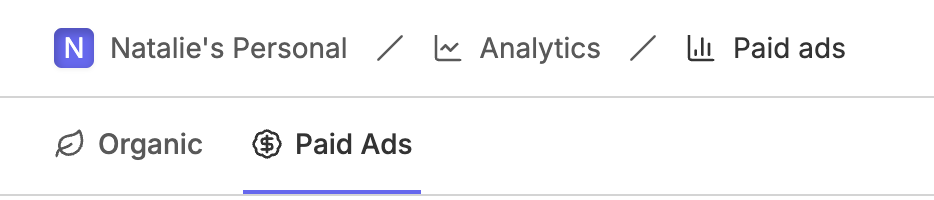
The Analytics hub is organized into two sections, accessible from the top navigation bar:
Organic: Social analytics covering audience reach, follower growth, engagement rates, and content performance across all your connected social profiles.
Paid Ads: Campaign, ad set, and individual ad performance from your connected Meta Ads account. Available on Premium and higher plans with a connected Meta Ads account.
Within the Organic section, you can view your metrics in two ways:
All Platforms (Unified): An aggregated cross-platform dashboard that summarizes your entire digital footprint, compares channel growth, and ranks your top-performing posts across all profiles side-by-side.
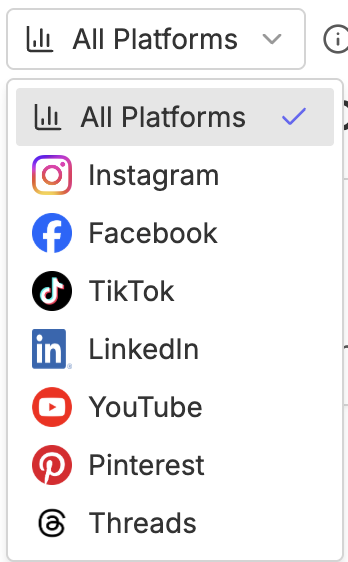
Single Platform View: A deep-dive workspace dedicated to a specific channel (e.g., Instagram only), showcasing platform-specific charts, video-by-video metrics, and detailed audience demographics.
How to Customize Your Date Range
To understand long-term growth or measure a specific weekly campaign's success, you can customize your reporting window.
In the sidebar, select your Social Space and click Analytics.
Click the Date Range Picker button in the top header.
Choose one of the preset ranges:
Last 7 Days
Last 30 Days
Last 90 Days
This Month
Last Month
Alternatively, click the calendar grid to select a custom start and end date.
Once selected, Rella automatically fetches your metrics for that period and compares them directly to the previous equivalent period. You will see green (positive growth) or red (negative drift) percentage indicators next to every primary metric card.
Navigating the Cross-Platform Unified View
If you manage a brand across multiple channels, the All Platforms dashboard provides an overview of your combined digital reach.
Aggregated Metrics
At the top of the dashboard, Rella displays your total audience footprint, summarizing:
Total Followers: Your combined audience across all connected profiles.
Total Views: Combined video, story, and post impressions.
Total Engagement: Combined likes, comments, shares, and saves.
Average Engagement Rate: The average engagement percentage calculated across your active profiles.
Platform Details
Below the main summary, Rella lists individual cards for each active channel. Each card summarizes that platform's specific Followers, Views, Posts, Engagement, Engagement Rate, and Growth (e.g., net new followers gained) during your selected date range.
Unified Content Performance
This is a master table that ranks your posts across all social networks. You can sort this list by Views, Engagement, or Engagement Rate to identify exactly which piece of Content—whether an Instagram Reel, a TikTok video, or a LinkedIn article—gained the highest traction.
Navigating Single Platform Views
If you want to focus on a specific network, you can switch from the cross-platform view to an individual channel dashboard.
Locate the platform navigation bar at the top of your Analytics dashboard.
Select your target platform (e.g., TikTok).
The dashboard will filter and reload to display channel-specific metrics:
Time-Series Charts: Visual line and bar charts tracking daily reach, video views, or audience interactions.
Demographics: Charts detailing your audience splits by age group, gender, and top geographic cities.
Individual Post Insights: Detailed metrics for every post on that channel, including saves, shares, and watch-time durations.
Viewing Paid Ads Analytics
Once inside the Analytics hub, you can toggle between your organic reach and paid campaign performance using the top sub-navigation bar:
* Organic: Shows your standard performance (impressions, follower growth, engagement) by default.
* Paid Ads: Displays complete campaign, ad set, and individual ad performance metrics.
If you have already linked your Facebook account, you will be prompted to relink and choose the specific Meta Ads account
Analytics Dashboard FAQs
Why is there a "No Connected Platforms" message on my dashboard?
If you see this screen, it means no valid social link supporting analytics has been authorized in your active Social Space. An account owner or Admin must go to your space settings and link your business profiles (e.g., Instagram Business or TikTok Creator accounts) to enable data fetching.
How often does Rella update my analytics?
Rella syncs with platform APIs automatically to fetch fresh data. To check the status of your data sync or trigger a manual update immediately, locate the Ella Usage or analytics header, click the Refresh button (represented by the circular arrows icon), and wait for the loading skeleton to complete.
Why can't I see demographics data for a specific channel?
Some social networks (such as Instagram or TikTok) require you to have a verified business, professional, or creator account to access demographic metrics like age, gender, and location splits. If you are linked via a standard personal profile, platform constraints prevent Rella from collecting this information, and the demographics section will remain hidden.
Can clients see my Analytics dashboards?
By default, clients do not have access to your internal analytics. However, if you want to share performance reports with stakeholders, you can use our Share dialog to compile and share a secure, public Analytics Snapshot link that they can review without logging in.