Create Custom Automated Workflows
Last updated: September 8, 2026
Automate Routine Content Tasks with Ella Workflows
Drafting copy, coordinating client reviews, and tracking deadlines across multiple brands can create bottlenecks for social media managers. Rella's custom Workflows allow you to build automated, multi-step sequences of triggers, branches, and outcomes to handle repetitive operational tasks.
About Ella Workflows
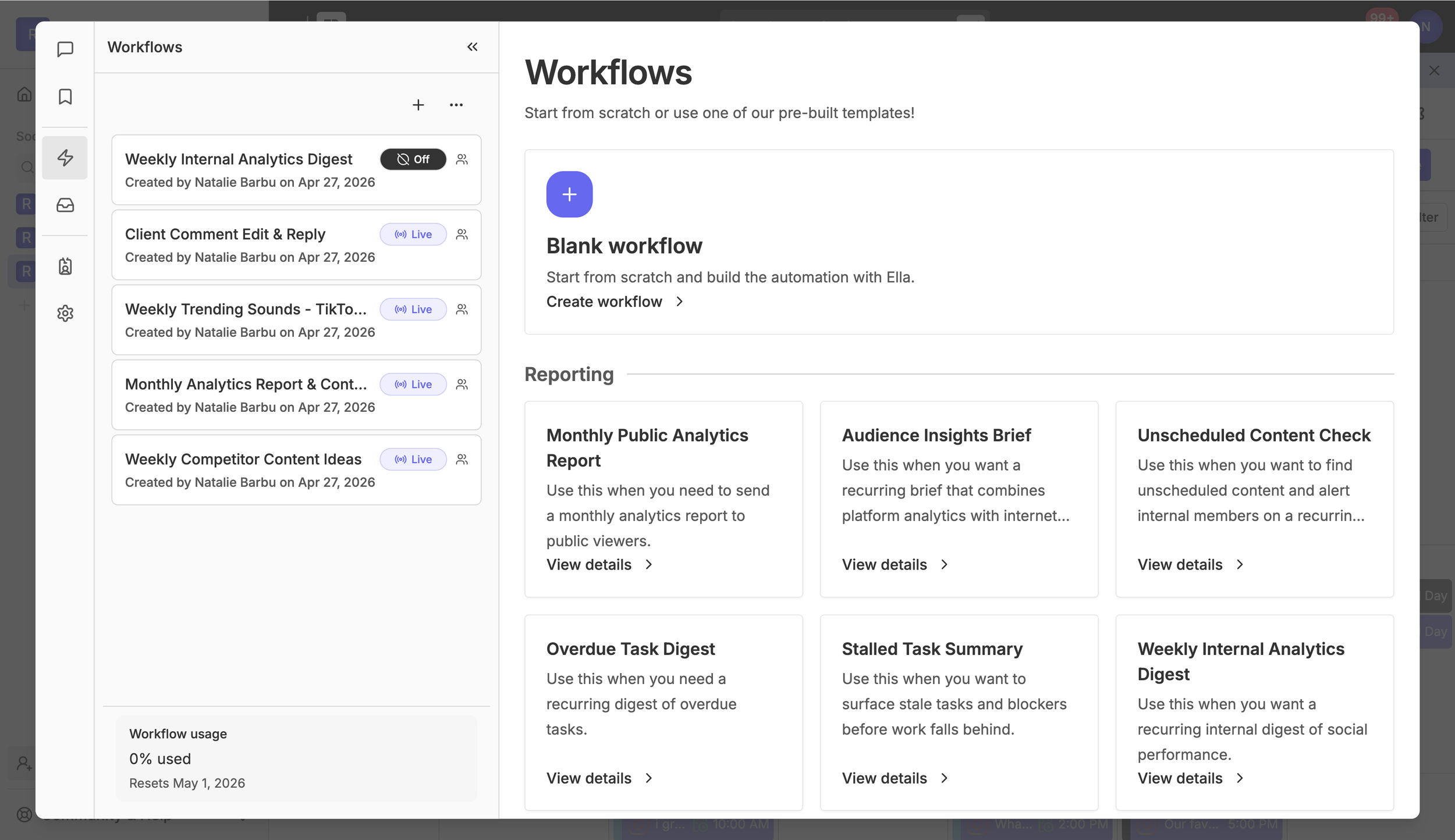
An Ella Workflow is a custom, automated sequence of steps—called phases—that runs when a specific event (or trigger) occurs in Rella. Using our AI teammate, Ella, you can describe the process you want to automate in plain English, and she will draft, refine, and build the steps for you.
You can set up workflows to handle tasks like:
Automatically generating alt-text when new media is uploaded.
Sending content checklists to team members when a post enters a specific status.
Triggering an approval email to a client as soon as draft content is complete.
Alerting your team when a connected social account is about to expire.
How to Create a Workflow with Ella
To start building a workflow, you must use Rella on a desktop web browser. Ella Workflows and their run history are currently only available on desktop.
Open Ella by expanding her sidebar on the right side of the screen.
Select the Workflows tab (represented by the Zap icon) in the navigation menu.
If you want to start from scratch, click Create Workflow in the empty state, or choose from one of Rella's 25 pre-configured options in the Template Gallery
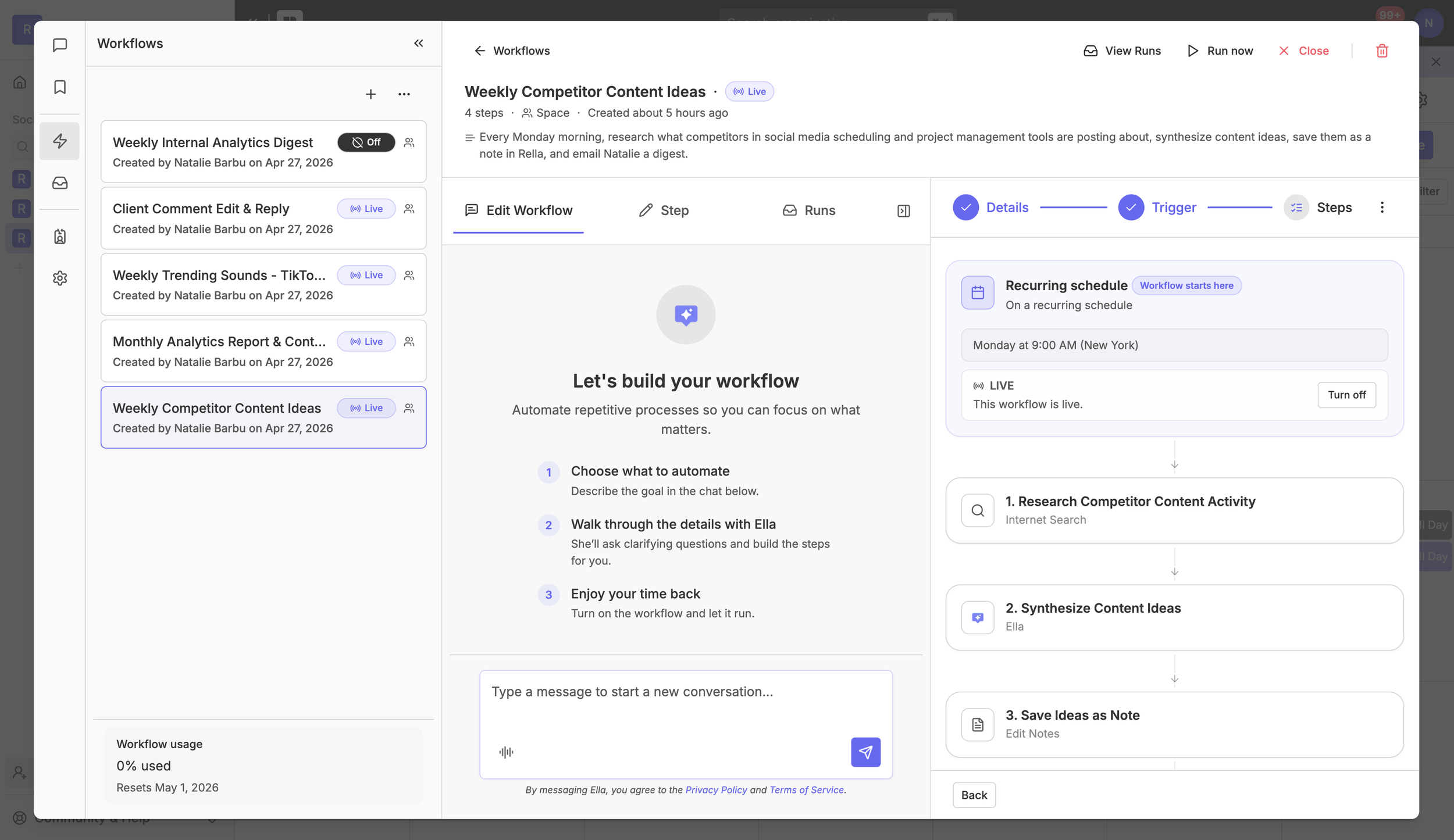
Ella will initialize a builder session and display a three-step configuration stepper on the screen.
How to Create a Workflow with Ella
Navigate to Workflows in the main Rella sidebar menu.
Click Create Workflow.
Select Talk to Ella to launch the AI Workflow Builder chat console.
Tell Ella what you want to automate. For example:
"When an Instagram Reel changes to Pending Approval, email the review link to client@brand.com."
"If a LinkedIn post stays in Review for more than 3 days, notify Connor and add a task to check in."
Answer any clarifying questions Ella asks to resolve ambiguity (such as specific status names, assignees, or fallback paths).
Once the plan is ready, click Create Workflow on the AI handoff card. This opens Rella's visual builder with your trigger, filters, and phases pre-configured.
Review the mapped steps, adjust any inputs, and click Save in the top-right corner to activate your Workflow.
Workflow Building Blocks
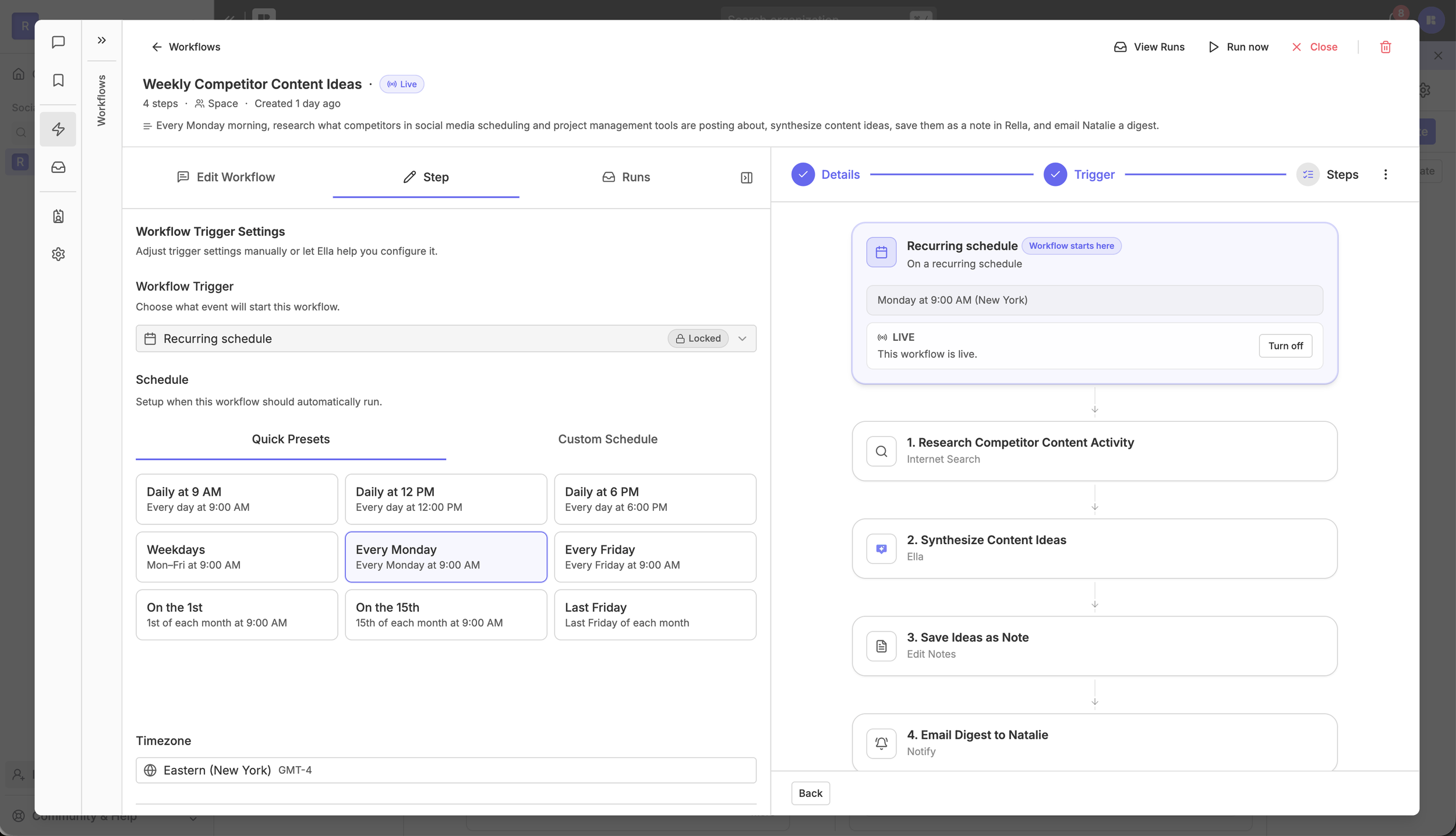
Rella's visual builder supports the following triggers and actions to help you customize your processes:
1. Workflow Triggers
Entity Change: Automatically fires when a post, Task, or Note is created or moves into a specific Status (such as "Blocked" or "Approved").
Status Staleness: Fires when a piece of Content remains in a single Status for a specified duration (such as "Pending" for more than 3 days).
Scheduled: Runs on a recurring calendar schedule (such as every Monday at 9:00 AM) to audit work or generate weekly draft summaries.
New Comment: Fires when a teammate or client leaves a comment on a draft post.
Note on auto-published content: The Entity Change trigger fires whether a status change is made manually or by Rella's auto-publish scheduler. If you have a workflow configured to run when content moves to a published or closed status, it will fire for scheduled content that auto-publishes on its scheduled date — no extra setup required.
2. Workflow Actions (Phases)
Notify: Sends customized email notifications to Social Space members, Organization users, or external email addresses.
Ella Synthesis (AI Phase): Directs Ella to analyze search results, draft post copy, summarize information, or translate client feedback into actionable tasks.
Media Interpretation: Allows Ella to "view" and analyze raw media assets (photos and videos) and provide visual optimization feedback.
Structural Actions: Automatically generates brand-new Projects, drafts a Note, or appends a series of checklist tasks to an active piece of Content.
Workflow Emails
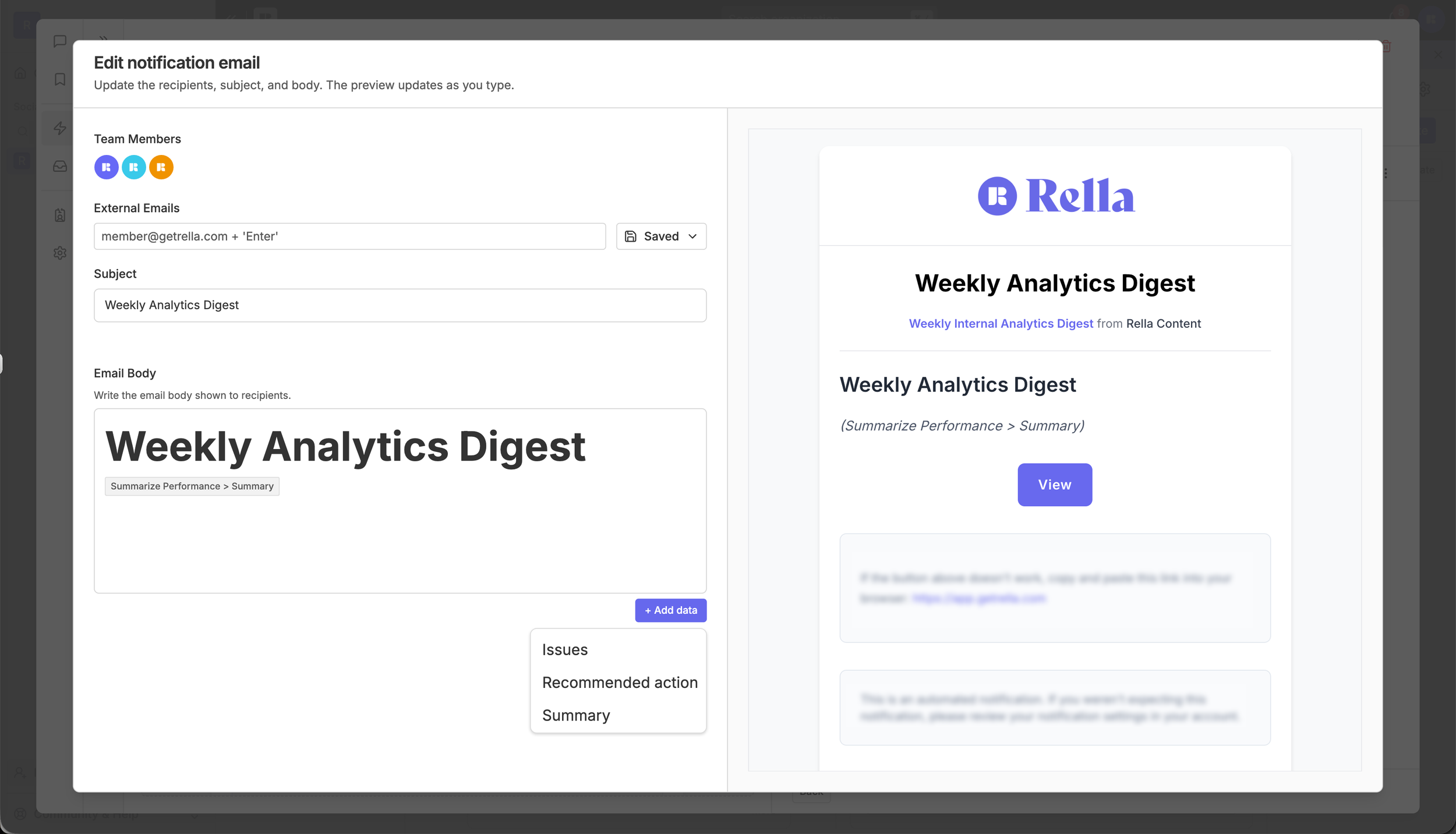
Workflows can automatically send emails to internal members and public viewers as part of any step sequence. No manual sending required. This is useful for delivering recurring reports, surfacing weekly insights, sharing content ideas, or keeping contacts informed without adding it to your to-do list.
Workflow Email Set Up
When editing an email step, you'll define three things:
Recipients. Select internal members directly from your Space or add external email addresses. Both can be included in the same email list.
Subject line. Write a static subject or make it dynamic by adding data from earlier workflow steps using the + Add data button. For example, a monthly report email can automatically include the month name in the subject line to auto update every time an email is sent.
Email body. Edit the body of the email directly in the editor. The preview updates in real time as you type, so you always see exactly what recipients will receive.
Dynamic Data
The real power of workflow emails is the ability to pull in live output from earlier steps. Use + Add data to insert fields from any previous step (ex: performance highlights, content ideas, engagement trends, or recommendations) directly into the email body. Each section maps to a specific output from the workflow, so the email assembles itself automatically each time it runs.
This means a weekly analytics digest, for example, can arrive in a client's inbox fully populated with that week's actual data — written, formatted, and sent by Ella without anyone lifting a finger.
Email Previews
A live preview panel sits alongside the email editor so you can see the fully formatted email as you build it.
Sent Emails
White label emails on Rella Premium Plus!
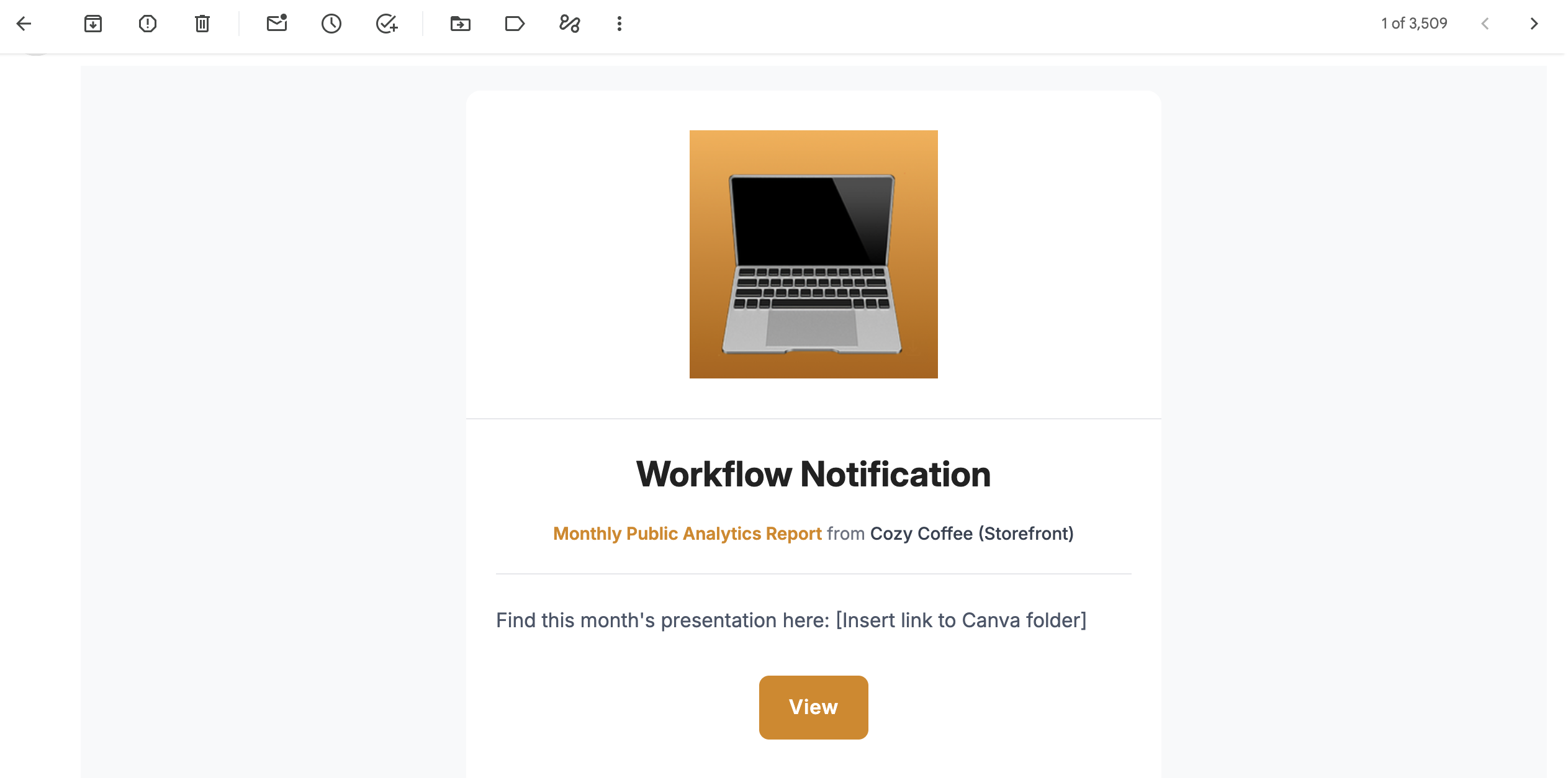
Tip: Workflow emails triggered by content status changes — including notifications sent when content reaches a published or closed status — are delivered whether the status change happens manually or through Rella's auto-publish scheduler. If you set up a notification email for auto-published content, expect it to arrive as soon as all connected platforms confirm a successful publish.
Managing and Monitoring Runs
Once a workflow is configured, it must be turned on to begin running.
Activating a Workflow
At the top of the workflow canvas, you will see a status badge. Clicking the trigger card allows you to toggle its activation button:
Turn on: This switches the workflow to Live. The automation will now listen for incoming triggers.
Turn off: This pauses the workflow. No new runs will start, though active runs will continue executing.
Draft: Workflows without any steps configured are kept in Draft status and cannot be turned on yet.
Reviewing Run History
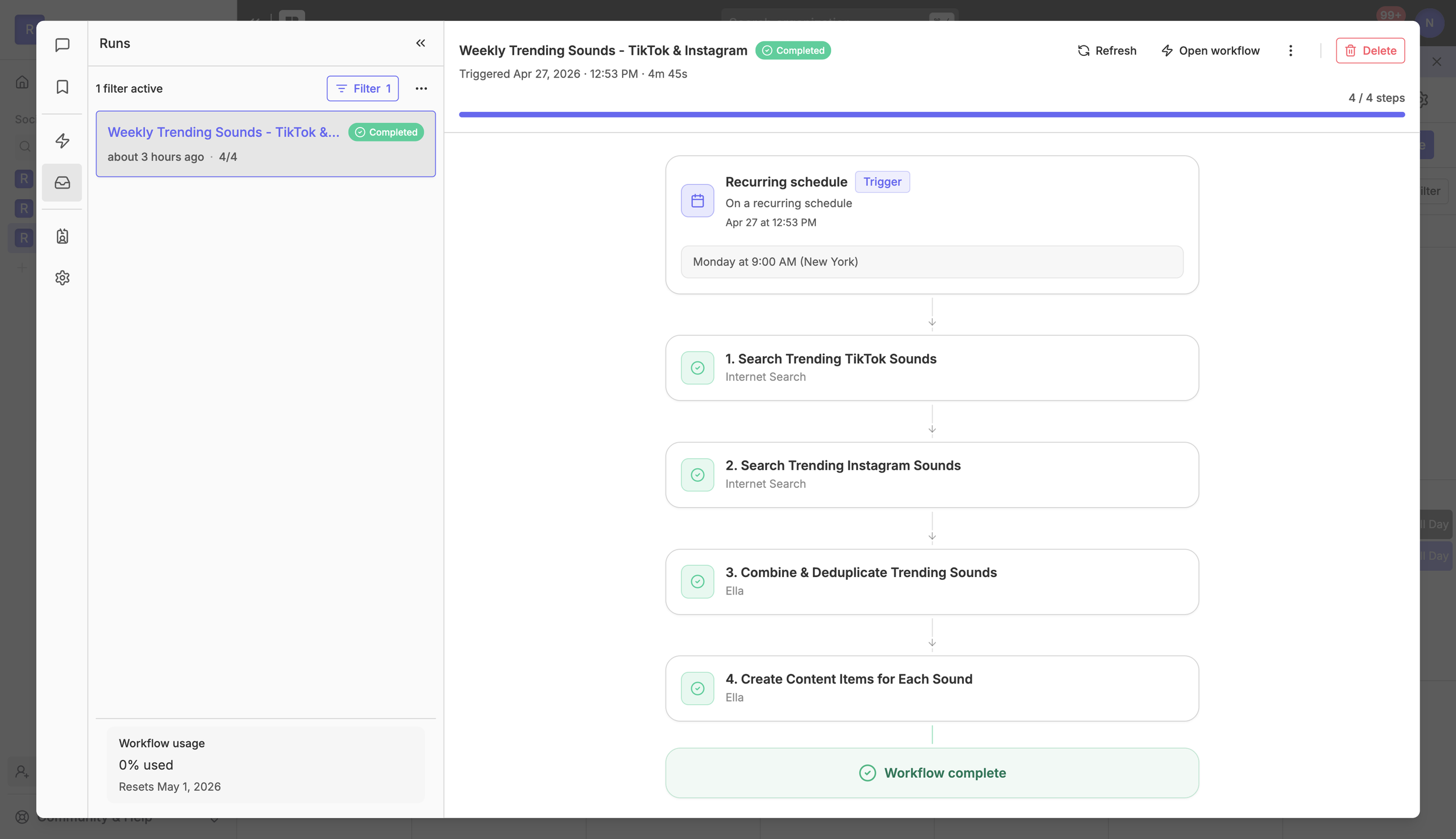
You can trace every automation as it executes:
Click View Runs in the top header, or open the Runs tab in the sidebar of the workflow builder.
Select any active, completed, or failed Run from the list to see a live visual progress card.
If a step requires approval before proceeding (e.g., an automated brand consistency check), a pending gate icon will appear. If you are an eligible approver, you can review the generated content and click Approve or Deny directly from the Run detail panel.
If a workflow fails, the detail card will surface the exact step that encountered an issue along with any recovery error messages.
Inspecting Steps
Click into any individual step within a run to see its full output.
For internet search steps, you'll see the exact results Ella pulled from the web, including sources and publish dates.
For Ella steps, you'll see the generated response — whether that's a synthesized list, structured data, or a summary passed into the next step.
This makes it easy to understand not just what the workflow produced, but how it got there.
Run Statuses
Each run and individual step carries a status so you always know where things stand:
Running: the workflow is actively executing
Waiting: the workflow is paused between steps
Awaiting Approval: a step requires manual sign-off before it can proceed
Completed: the workflow finished successfully
Failed: something went wrong during execution
Denied: an approval step was rejected and the workflow did not proceed
Cancelled: the run was stopped manually
Expired: the run was not signed off before the approval window expired
Run History gives you full visibility and accountability into everything Ella is doing on your behalf — so you always know what ran, what Ella produced, and what to expect next time.
Plan Limits & Quotas
Workflow execution limits are shared across your entire Organization and reset on a monthly basis.
Monthly Quotas
Premium Plan: Includes up to 2,000 successful workflow runs per month.
Premium Plus Plan: Includes up to 8,000 successful workflow runs per month (providing 4x the capacity of our standard Premium tier).
If your Organization reaches its monthly run limit, all active and scheduled workflow runs are paused. They will resume automatically when your billing cycle resets, or immediately if you upgrade your plan.
Execution Rate Limits
To ensure platform stability, Rella enforces an execution rate limit of 300 workflow runs per Organization each hour. If an event trigger spike causes you to exceed this limit, additional runs are safely queued and will start automatically as capacity opens up.
Ella Workflows FAQs
Why can't I edit my workflow name or settings?
If a workflow has active runs currently executing, several detail fields—including the workflow name, visibility scope, and custom sign-off members—will be temporarily locked to prevent running automation from breaking mid-execution. You must wait for all active runs to complete or manually cancel them before making these structural updates.
Can I run a scheduled workflow immediately to test it?
Yes. If your workflow trigger is set to Scheduled, a Run Now button will appear in the top-right header of your workflow dashboard. Clicking this lets you execute a manual test run immediately without waiting for the scheduled time.
Why don't I see the Workflows option in my menu?
Creating and managing workflows requires desktop access and a Premium or Premium Plus subscription. If you are on a lower-tier plan, you can navigate to your Organization Settings > Billing and click Manage Subscription > Upgrade to Premium or Premium Plus to unlock access. If you are on a mobile device, please open Rella on a desktop browser.
What happens if I leave the sign-off approvers section blank?
If you don't assign specific space members to sign off on workflow steps, Rella defaults to allowing any team member who has access to that Social Space to approve or deny steps during a live run.
What happened to my legacy workflows, and how do I find them?
If you previously set up email notifications for status updates or expiring account connections, these are preserved as Legacy workflows in Rella.
If your Organization has any of these older automations, you will see a tab switcher at the very top of your workflows sidebar on desktop:
Click the Legacy workflows tab in the sidebar.
Select any item from the list—marked with a gray Legacy badge—to view its active email recipients, status update configurations, or platform link alerts.
To manage your current automations, switch back to the Workflows tab (represented by the Zap icon).
Note: If your Organization does not have any legacy email automations, this tab switcher is hidden automatically to keep your workspace clean.
Can I migrate my Legacy workflows to Ella Workflows?
Yes. While there is no automatic migration button, you can easily replicate and expand your legacy triggers in the new system by asking Ella to build them. For example, if you have a legacy status update email, you can open Ella, start a new workflow from the Template Gallery, or type: "When a content item is updated to Pending, send an email notification to Sarah." Once you have set up and enabled your new Ella Workflow, you can select your old automation under the Legacy workflows tab and delete or deactivate it to avoid duplicate notifications are not sent twice.