Repurpose Content Across Multiple Platforms
Last updated: June 2, 2026
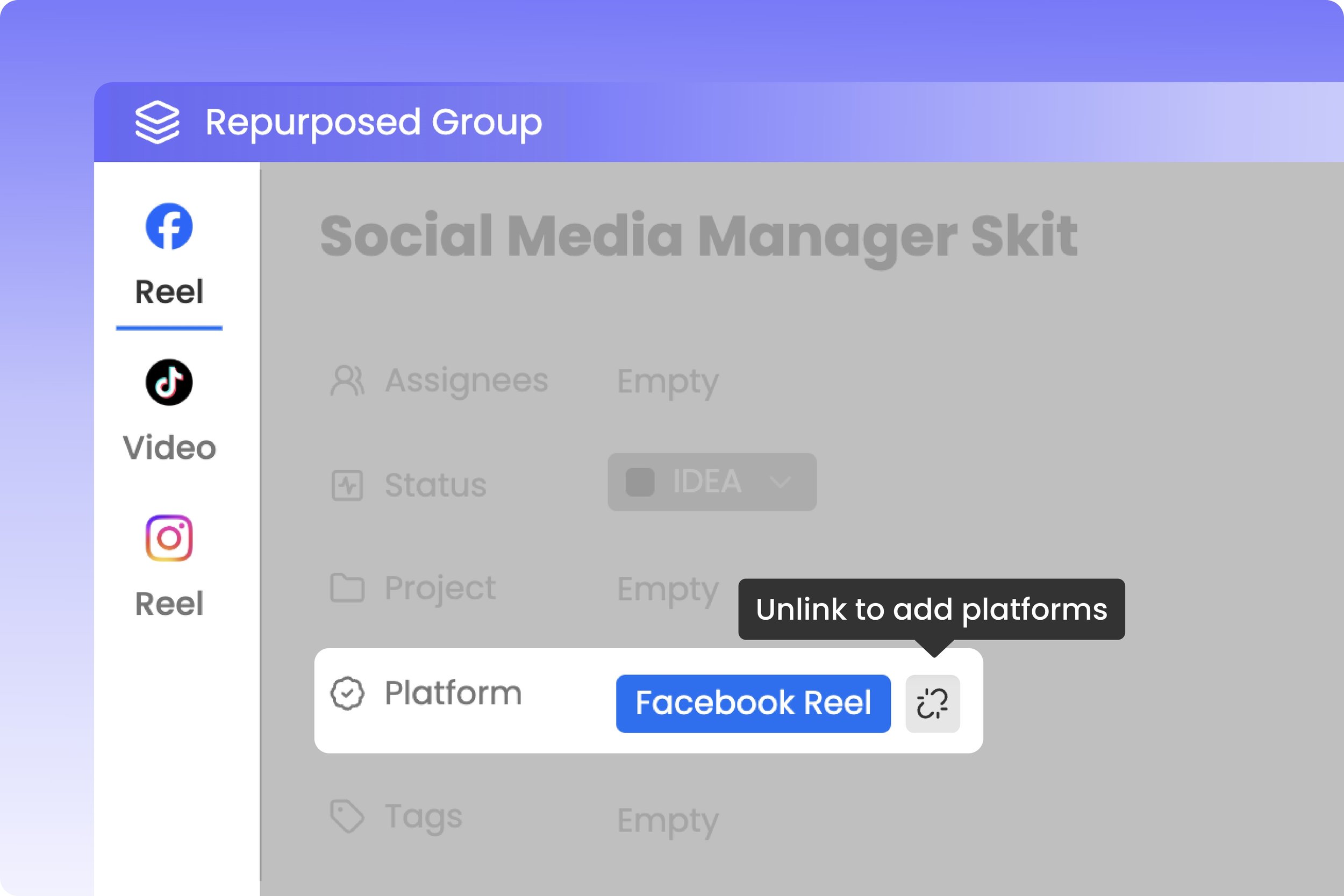
Simplify your publishing workflow by customizing a single draft post for multiple social networks simultaneously without leaving your workspace.
About Repurposing
When you create a Content post, you can select multiple publishing channels—such as Instagram Reels, TikTok, and YouTube Shorts. However, each social network has its own character limits, formatting specifications, and audience habits.
Using Repurpose allows you to start with one master post, copy it across your selected channels, and split them into distinct, platform-specific cards. Rather than creating messy duplicates on your Calendar, Rella groups these repurposed posts under a unified tabbed view inside the same post editor. This keeps your workspace organized while allowing you to tailor captions, schedule dates, and hashtags for each channel.
How to Repurpose Your Content
To split and customize a multi-platform post, you must use Rella on a desktop web browser.
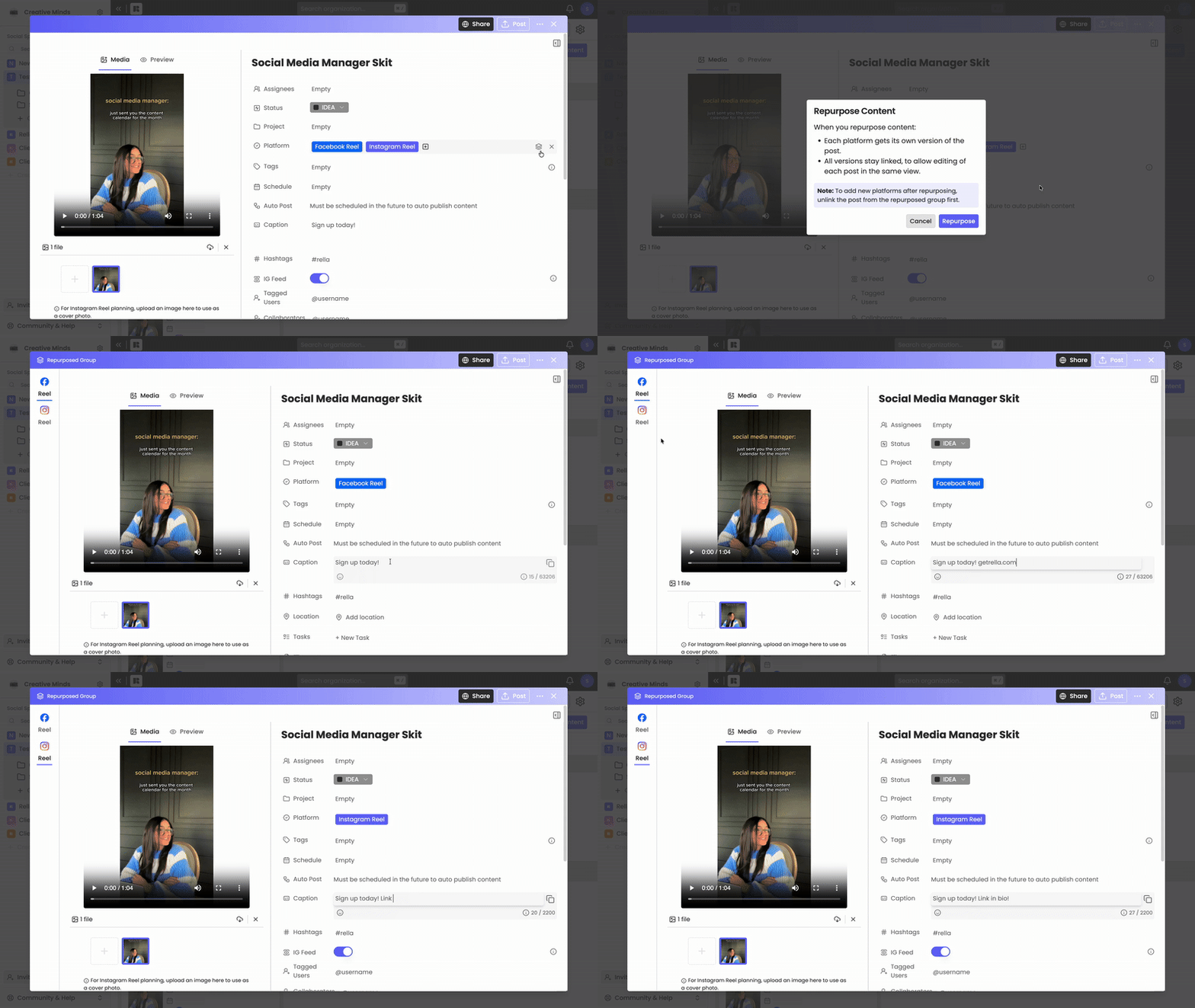
Open a Content card that has at least two platforms selected (e.g., Facebook and Instagram).
Scroll to the bottom of the card editor to find the Repurpose section.
Click the Repurpose button (represented by the repurposed layers icon).
Review the details in the Repurpose Content dialog box:
Each platform will receive its own independent version of the post.
All versions will remain linked together in a single, tabbed editor view.
Click Repurpose in the dialog to confirm the split.
The editor will reload and display platform-specific tabs at the top of the Content card. You can now click each tab to write customized captions, add custom hashtags, or select separate schedule times for each network.
How to Unlink Repurposed Posts
If you need to change which platforms are attached to a specific post after you've split them, you must remove that version from the repurposed group first.
Open the repurposed Content card.
Select the platform tab you want to separate from the group.
Click the Unlink button (represented by the broken chain link icon).
Review the notice in the Unlink Repurposed Content dialog: unlinking removes this post from the tabbed group and lets you select new platforms for it.
Click Unlink to confirm.
Note: If there are only two posts left in the group and you unlink one of them, the remaining post will also automatically revert to a standard, standalone Content card.
Repurposing FAQs
What happens to my media files when I split a post?
When you click Repurpose, Rella copies all attached Media files (images, videos, and thumbnails) to each individual platform post. Once split, you can add, crop, or swap out files on one platform tab without affecting the media attached to the other tabs in that group.
Can I add a new platform to an already repurposed post?
No. Once a post is split into platform tabs, the master platform selector is locked. To add another network (such as Pinterest) to your campaign, you must either create a new post, duplicate an existing tab, or click the Unlink button on one of the tabs to turn it back into a standalone card where you can select additional channels.
Does deleting one tab delete the entire repurposed group?
No. Each tab represents an individual, independent post card on your Calendar. If you delete or archive the Instagram version, your TikTok and YouTube Shorts versions will remain untouched and active.
Why is the Repurpose button not appearing on my card?
The Repurpose section only appears at the bottom of the editor when you have selected two or more platforms in your active Content card, and you are logged in with an authorized Internal Team role (such as Member, Manager, or Admin).