Add Team Members to Your Workspace
Last updated: June 2, 2026
Bringing your teammates, writers, and clients into Rella lets you streamline copy drafts, delegate production tasks, and coordinate content approvals in one place.
*Free Trial Users: If you update your subscription once your free trial is already in progress, you will be charged and your free trial period will end. Please email contact@getrella.com if you're interested in adding members or switching tiers.
Before You Start
Only users with the Organization Owner or Admin roles can invite new team members.
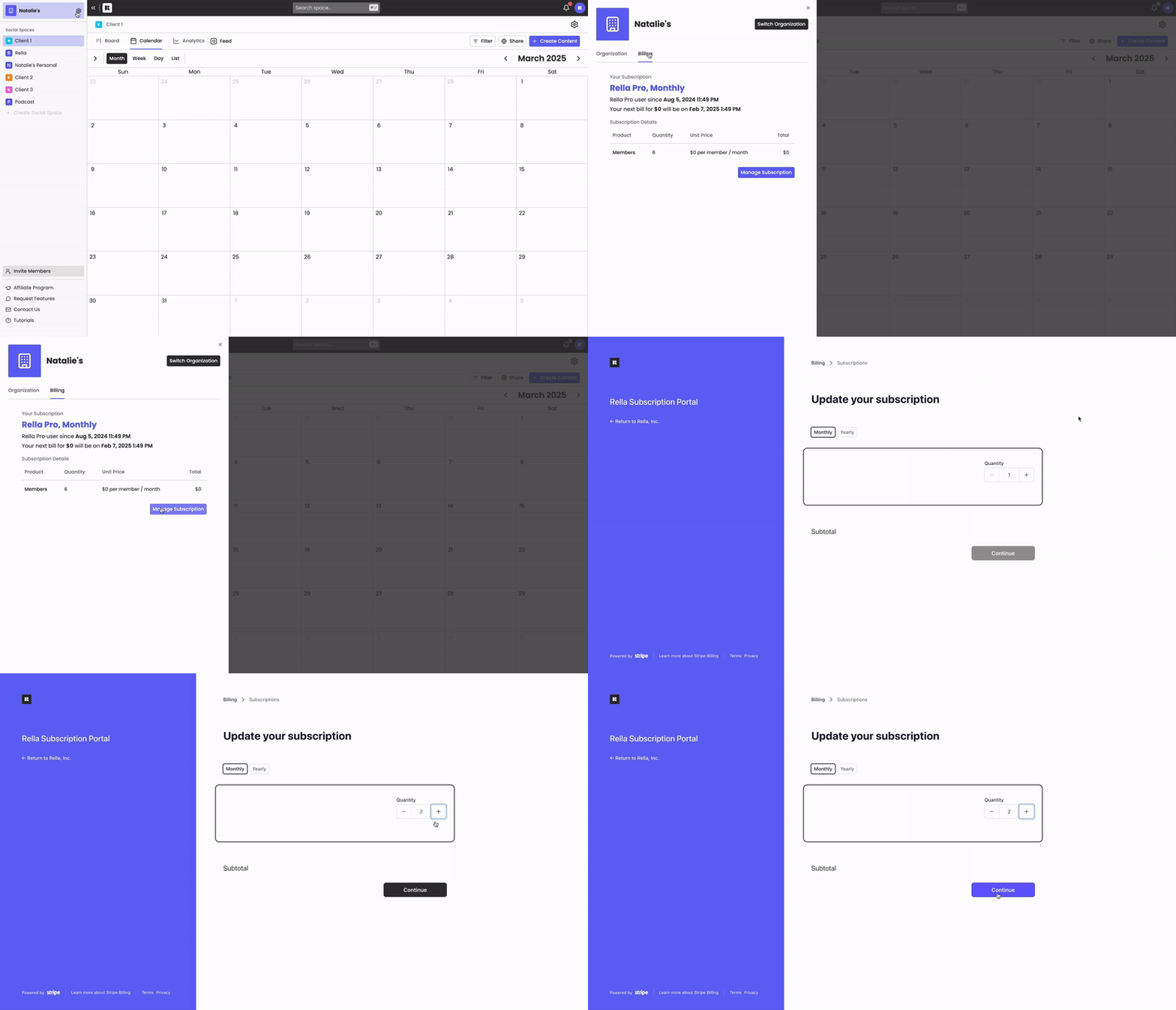
If your Organization has reached its current seat limit, the Organization Owner will see a + Seats button. Clicking this button opens your Billing settings to let you purchase additional seats before sending new invites.
Steps to Invite Team Members
1. Open Your Member Settings
Click your profile avatar or Organization name in the left navigation sidebar, then click Settings. From the left settings menu, select Members under the Organization section.
2. Enter Your Teammate's Email
Type your teammate's email address into the input field at the top of the page.
3. Assign an Organization Role
Click the Organization Role dropdown menu and select the role that fits their responsibilities:
Admin: Grants full access to all Organization settings and automatically adds them to all current and future Social Spaces.
Manager: Allows full access to manage content, settings, and social links in their assigned Social Spaces.
Editor: Limits access to only reviewing and editing copy inside their assigned Social Spaces.
Resource:📄 Understanding Member Permissions
4. Assign Social Spaces (For Managers & Editors)
If you selected a Manager or Editor role, click the Spaces... dropdown menu and select which Social Spaces they should be added to. You must assign at least one space for these roles.
(Note: This step is automatically bypassed for Admins since they receive access to all spaces).
5. Send or Queue Your Invites
Depending on whether you are inviting one person or a group, use one of the following methods:
To send a single invite: Click Invite (or click Add and then Send Invite).
To send bulk invites: Click Add to queue the teammate. Repeat the steps for each person, and click Send Invites once your list is ready.

Result
Rella will send an invitation email to each teammate. If you invited a single teammate, Rella will display a success confirmation card with their direct invitation URL. Click the Copy button to copy this link to your clipboard so you can share it with them directly.
Managing Pending Invitations
Invitations are valid for 24 hours. If someone doesn't accept in time, the invite expires and you'll need to resend it.
To manage pending invites, navigate to Organization Settings → Members. From there you can resend or remove any outstanding invitation.
If the invite email got lost in spam or your teammate prefers a direct link, Rella also generates a direct invite link for each invitation. Copy it from the Members view and send it however works best — Slack, text, email thread.
Frequently Asked Questions
Can I update someone's role after they've joined?
Yes, any time. Go to Organization Settings → Members, find the person, and update their role or their assigned Social Spaces. Changes take effect immediately — no need to re-invite.
Do clients count toward my seat limit?
Yes. Anyone invited through the Invite Members flow counts as a seat, including clients. If a client only needs to review and approve content without workspace access, use Share Links instead — that flow doesn't use a seat. [LINK: Learn how → Share Content & Receive Approvals]
What happens when I hit my seat limit?
The Invite Members button will show a notification when you've reached your limit. The organization owner can click + Seats in the Members list to add more, which takes you directly to Billing settings.
Can I invite someone to only one specific Social Space?
Yes — when inviting a Manager or Editor, the Spaces selector lets you choose exactly which Social Spaces they can access. They won't be able to see or interact with any Space you don't include. Admins are the exception: they automatically get access to every Space in the organization.
Why can't I see the option to assign Social Spaces for an Admin?
Admins are automatically added to all Social Spaces in your Organization. Because of this, the Social Space selector is disabled when the Admin role is selected.
What should I do if a teammate did not receive their invitation email?
First, ask them to check their spam folder. If they still cannot find it, you can navigate back to your Members settings, find their pending invitation under the Invites list, and copy their direct link to send to them manually.