Understanding Member Permissions
Last updated: June 2, 2026
Understanding Member Permissions
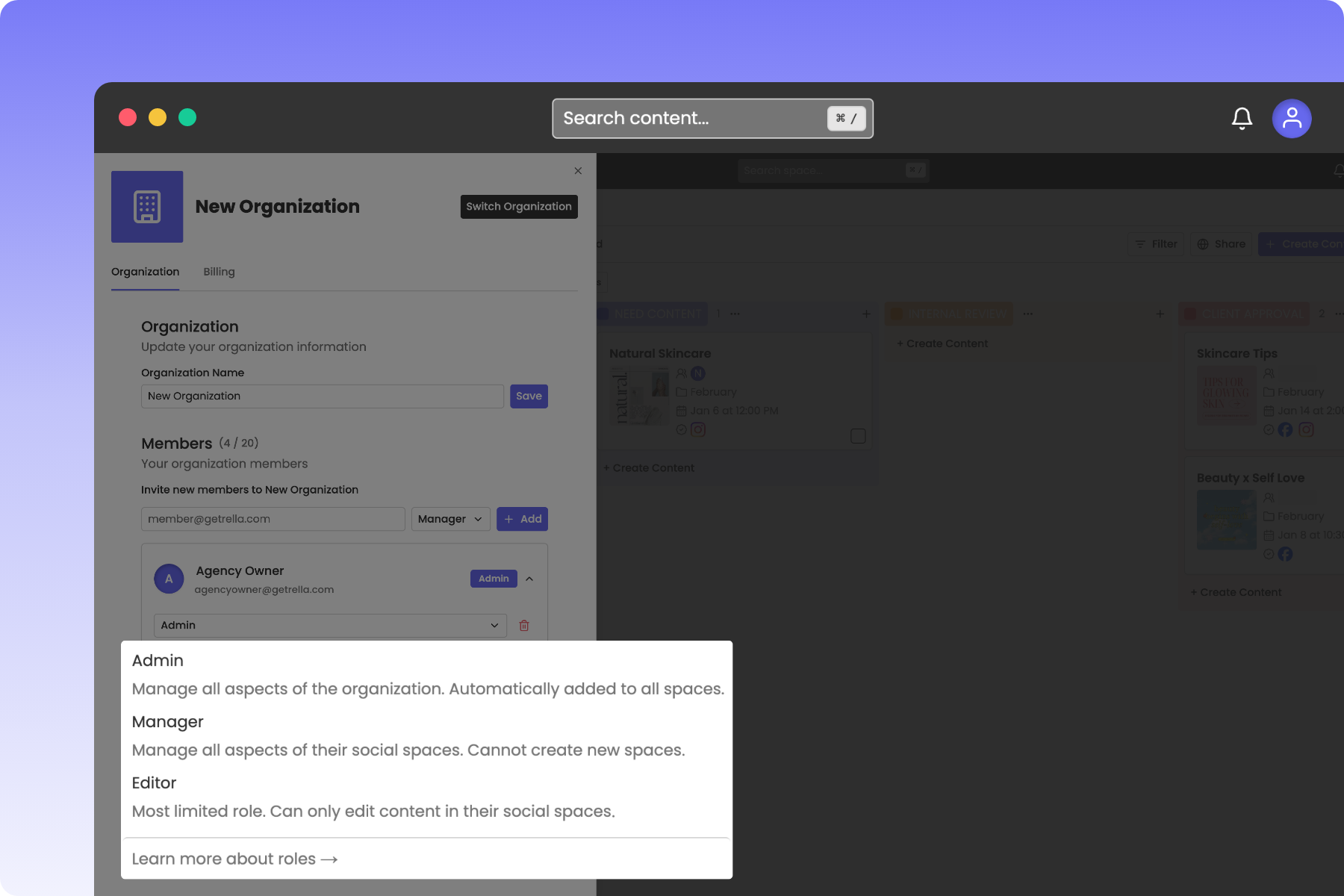
Rella uses a two-tiered permission system that keeps your account secure while allowing team members and clients to collaborate effectively. Access is split between overall Organization settings and specific Social Spaces.
Organization Roles vs Social Space Access
To understand how permissions work in Rella, it helps to understand the difference between these two core spaces:
Organization: Represents your company, agency, or overall account. This is where you manage subscriptions, billing, brand white-labeling, custom domains, and your team roster.
Social Spaces: Represents individual brands, clients, or workspaces within your Organization. Each Social Space contains its own social links, content Calendars, Projects, and Media folders.
A member's access level in a Social Space is determined by their assigned Organization Role.
Member Roles & Permissions Reference
The following table summarizes the different roles and their corresponding permissions across the Rella platform:
Permission | Organization Owner | Admin | Manager | Editor |
|---|---|---|---|---|
Manage Billing & Subscription | Yes | Yes | No | No |
Edit Brand Settings & White-Labeling | Yes | Yes | No | No |
Invite Members to the Organization | Yes | Yes | No | No |
Create New Social Spaces | Yes | Yes | No | No |
Manage All Social Spaces Automatically | Yes | Yes | No | No |
Manage Assigned Social Spaces | Yes | Yes | Yes | No |
Create and Schedule Content | Yes | Yes | Yes | No |
Edit Existing Content, Tasks, and Notes | Yes | Yes | Yes | Yes |
Detailed Role Breakdowns
Organization Owner
The Organization Owner is the primary account holder (usually the person who created the Organization).
Scope: Complete and permanent control over all settings, billing, members, and spaces.
Limitations: This role cannot be deleted, demoted, or removed. Complete control can only be moved to another user through the ownership transfer flow.
Admin
Admins have full operational access to the Organization and all its client spaces.
Scope: Complete organizational management.
Social Space Access: Admins are automatically added to all Social Spaces in the Organization. They cannot be removed from individual spaces unless they are first demoted to a different role.
Capabilities: Can manage billing, invite or remove team members, configure white-label branding, connect custom domains, create new Social Spaces, customize Workflows, and edit all Content.
Manager
Managers are designed for account managers, team leads, or client leads who oversee specific brands but should not have access to billing or overall account settings.
Scope: Complete management over their assigned Social Spaces.
Social Space Access: Managers must be explicitly added to individual Social Spaces. They only see and manage the spaces they are added to.
Capabilities: Within their assigned spaces, they can edit Social Space settings, connect social channels, create and schedule Content, customize local Workflows, and invite existing Organization members to the space.
Limitations: Cannot view billing or invoices, edit Organization-wide white-label branding, manage custom domains, create new Social Spaces, or invite new members to the Organization.
Editor
Editors are designed for creators, copywriters, or junior team members who need to edit copy or manage calendar details but should not have administrative or setup rights.
Scope: Content editing inside assigned Social Spaces.
Social Space Access: Editors must be explicitly added to individual Social Spaces.
Capabilities: Can open, review, and edit existing Content, Tasks, and Notes in the specific Social Spaces they belong to.
Limitations: Most limited role. Cannot manage billing, create new Social Spaces, connect new social accounts, build Projects, or invite team members.
Managing Member Roles
If you are an Organization Owner or Admin, you can update any member's role or manage their Social Space access directly from your settings.
How to Change a Member's Role
Click your profile avatar or Organization name in the navigation menu.
Select Settings.
Under the Organization section, click Members.
Locate the member you want to adjust and click their card to expand it.
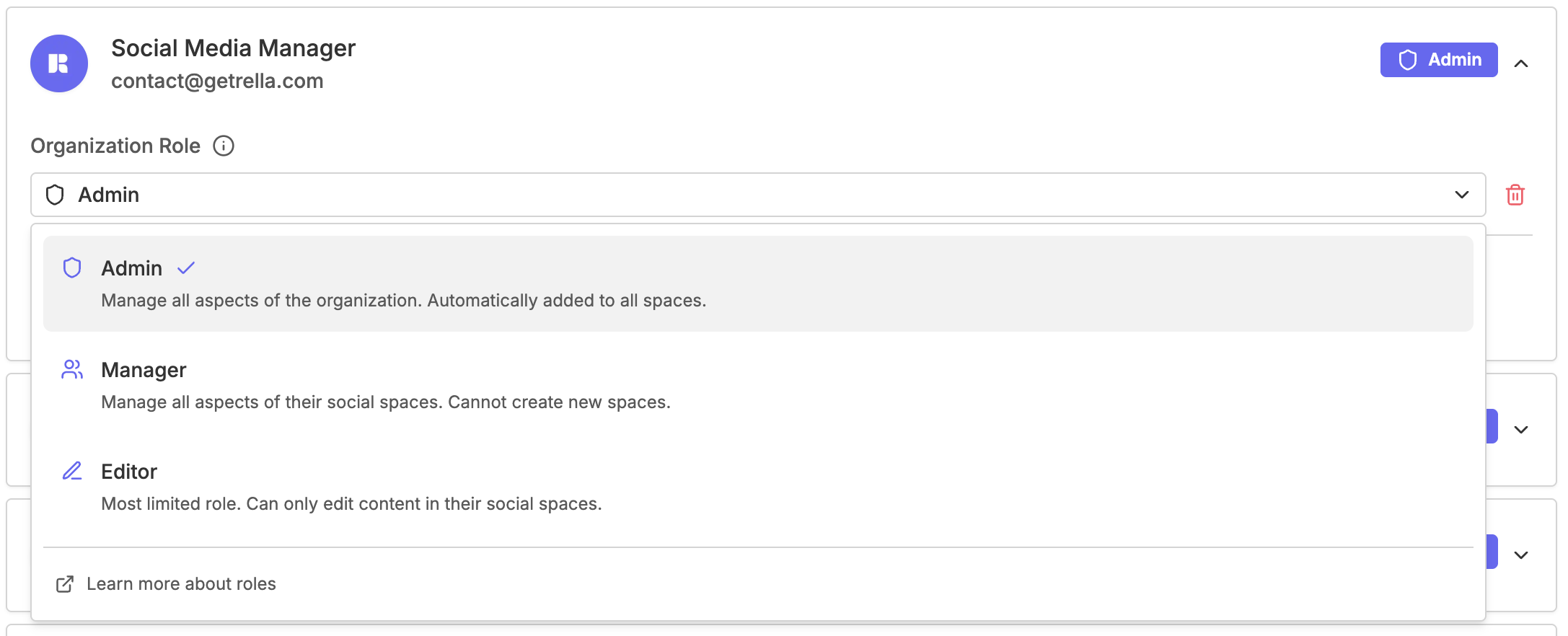
Click the Organization Role dropdown menu.
Select the new role you want to assign (Admin, Manager, or Editor).
Resource: 📄 Add Team Members to Your Workspace
Member Permissions FAQs
Can I remove an Admin from a single Social Space?
No. Admins are automatically added to every Social Space in your Organization to ensure seamless oversight. To restrict an Admin's access to only specific spaces, you must first demote them to a Manager or Editor role.
Can a Manager invite a brand-new user to a Social Space?
No. Only Owners and Admins can invite new users to the overall Organization. Once a user has been invited to the Organization, a Manager can add that existing user to any Social Space they manage.
Are clients considered team members?
If your client is only looking to view, comment, and/or approve content your client does not need to be listed as a member. Anyone looking to view/comment can access shared content and reports without being a part of your subscription. Anyone looking to edit content will need to be added to your subscription.
Resource: 📄 Share Content & Receive Approvals
Can my team be on different tiers?
All team members must be on the same subscription tier (Rella Pro, Premium, or Premium Plus) and billing frequency (annual or monthly).
Do I get more seats if I upgrade my tier?
Upgrading gains you access to additional features, not additional member seats.
Rella's pricing is per seat no matter which tier you're subscribed to. Please purchase an additional seat by going to Billing > Manage Subscription > Update Subscription > Quantity.