How to View Notifications
Last updated: August 10, 2026
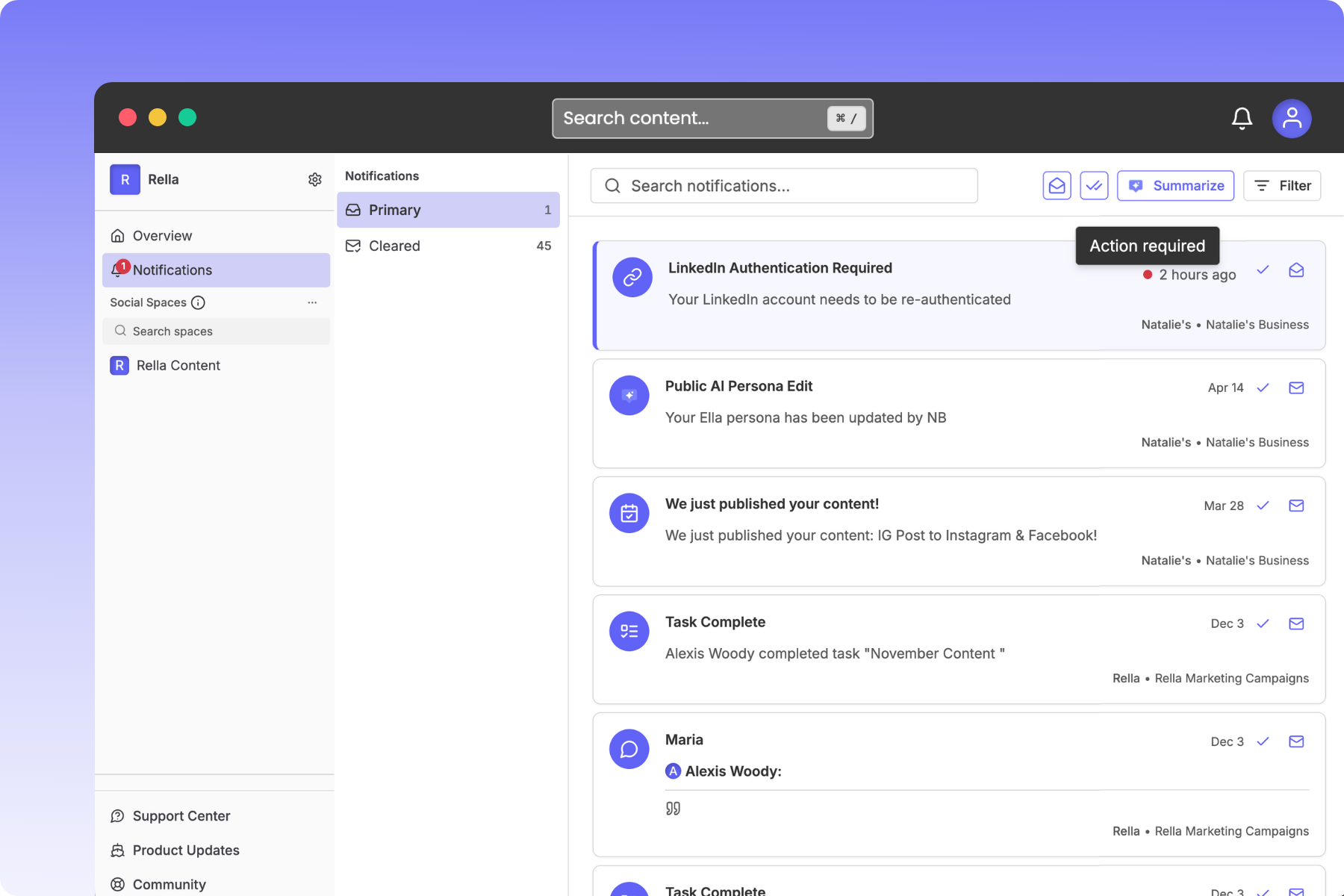
Viewing your notifications ensures you never miss a status change, feedback from a client, task assignment, or automated publishing update. Rella aggregates all active alerts into a single, easily accessible feed.
Steps
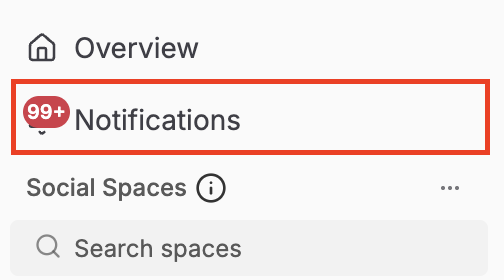
Navigate to the left-hand sidebar in Rella.
Click Notifications
Scroll through your unread notifications list in the side drawer or dedicated page.
Click on any notification card to view the related details. Clicking a notification automatically redirects you to the specific Content piece, comment thread, or Task that triggered the alert.

The notification card will display an "Action Required" indicator, and you will be viewing the exact Content card or Task details page corresponding to that alert.
Learn more about managing your notification settings here: