Rella Notes
Last updated: June 4, 2026
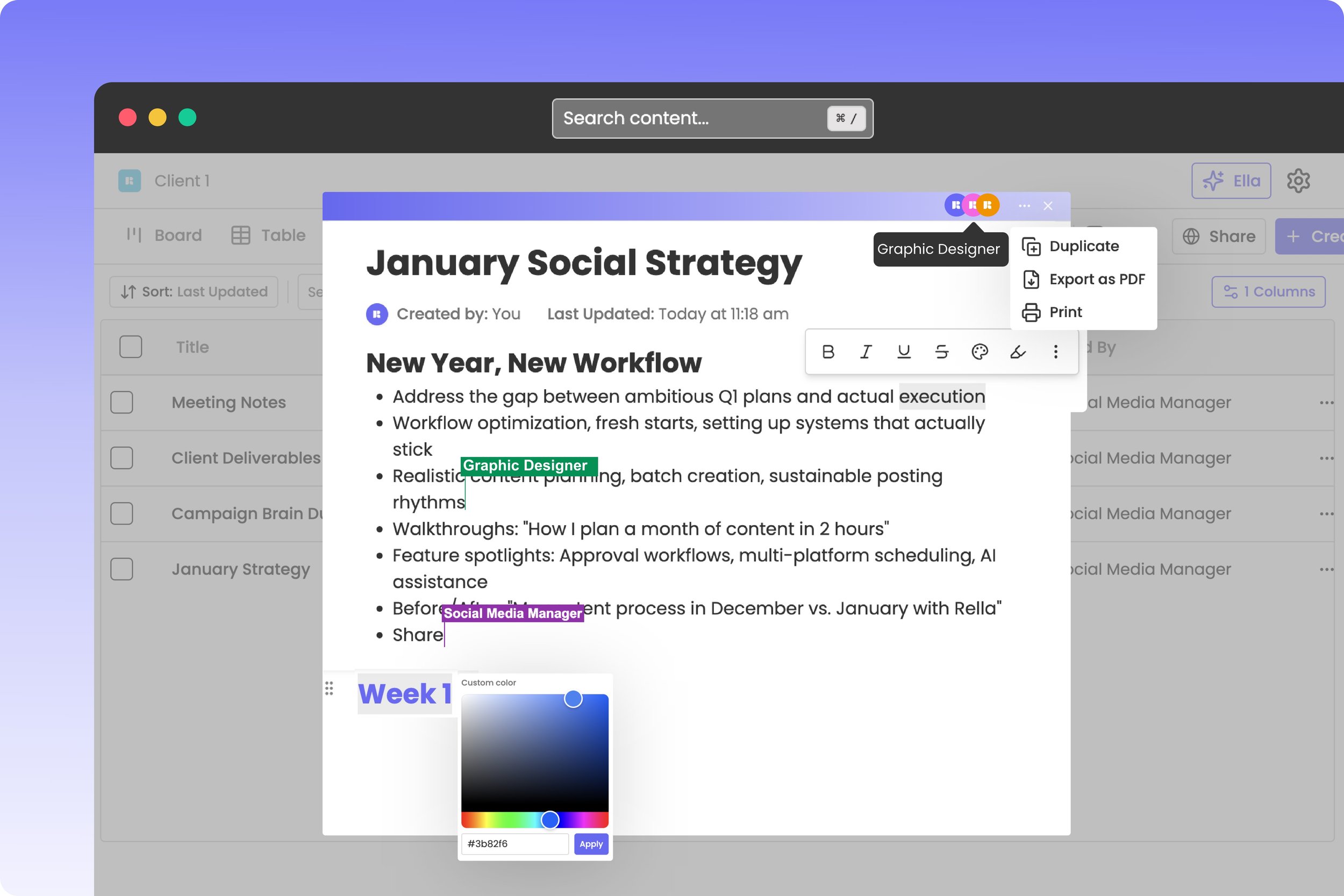
Collaborate in Real-Time with Rella Notes
Brainstorming campaign angles, outlining video scripts, and drafting post ideas requires a flexible, collaborative canvas. Rella’s Notes feature provides a rich-text document workspace equipped with real-time editing and live teammate cursors.
What is a Note?
A Note is a versatile planning document housed inside your Social Space. Unlike individual post drafts which are strictly structured for publishing, Notes are open-ended canvases.
You can use Notes to:
Outline video storyboards or campaign scripts.
Jot down quick copy ideas during a brainstorming session.
Draft collaborative content brief documents with your team.
Link files, details, and ideas to a specific campaign Project.
Real-Time Collaborative Editing
Rella Notes are built with a real-time collaboration engine (utilizing CRDT technology). This allows multiple team members to open, write, and format the exact same document simultaneously without overriding each other's changes.
1. Presence Indicators & Avatars
When multiple teammates open a Note, their profile pictures will appear in the document header as Presence Indicators. Each active writer is assigned a unique color border.
2. Live Cursors
You can see exactly where your teammates are working in real-time. Their cursors are displayed in their assigned color, showing their name tag and what they are typing letter-by-second.
How to Create and Organize Notes
Steps
Navigate to Notes in your left sidebar menu.
Click New Note (or click the plus icon next to the Notes directory).
Under the Title header, type a name for your document (such as "Q4 Product Reel Hook Ideas").
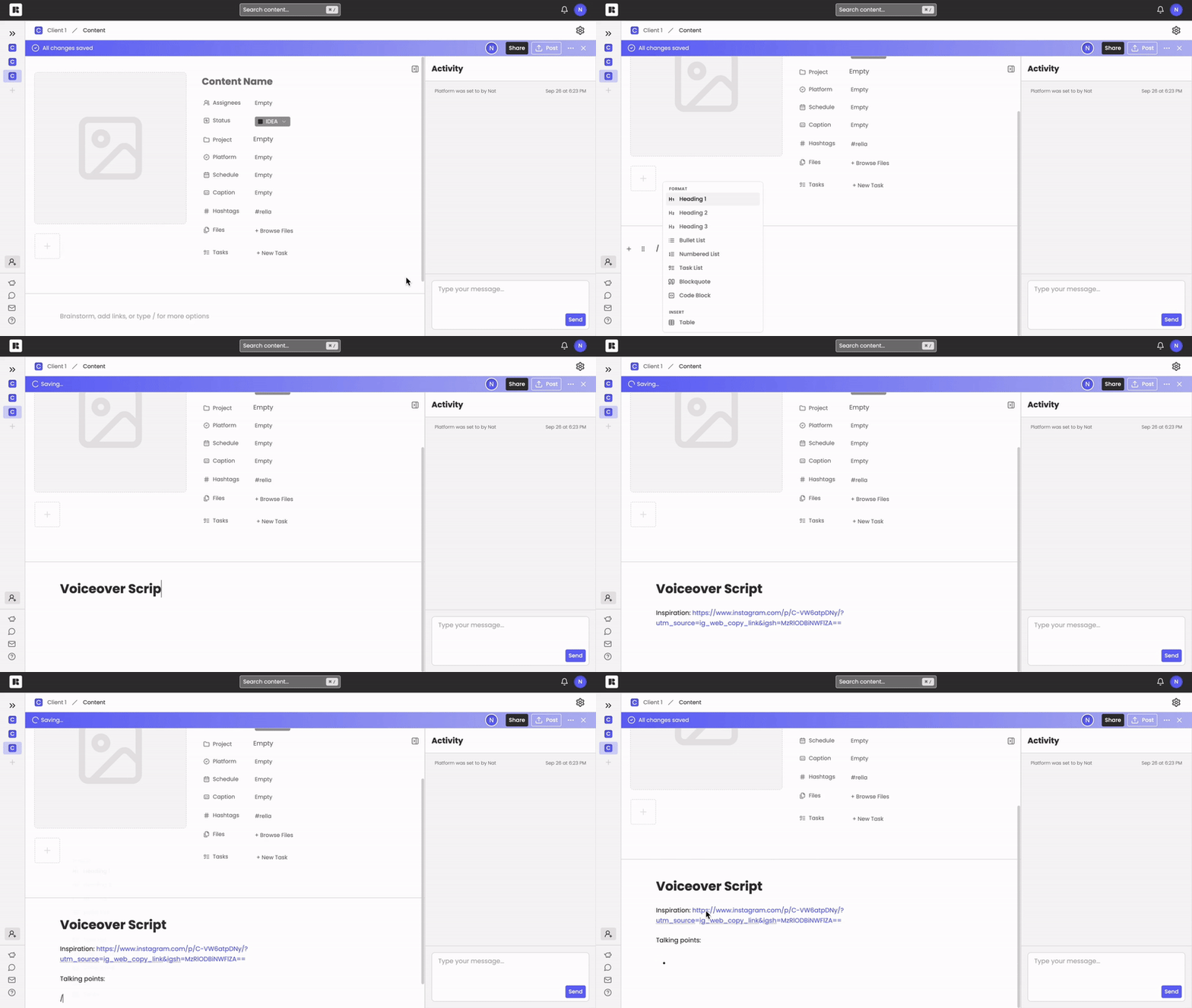
Start writing on your canvas. Use standard keyboard shortcuts or:
Type
/to open the slash-command menu to insert rich elements (such as headers, checklists, bulleted lists, or quotes).Type
:to open the emoji picker search box.
In the header settings bar, click Project to link the Note to a specific campaign folder.
Sharing and Exporting Notes
Once your document is ready, you can export your text or share it with external clients:
Export PDF: Click the More Options (...) icon in your header and select Export PDF to save a clean, formatted copy of your note to your local device.
Print: Select Print to send the document directly to your local printer.
Client Preview Links: Turn on public sharing under your note's Share settings to let clients review drafts or check brief guidelines without needing a Rella account.
Rella Notes FAQs
Can Editors or clients edit my Notes?
Yes, if they belong to your Social Space. Clients invited with a Manager or Editor role can collaborate on Notes. Public users who access a Note via a shared guest link have read-only access and cannot edit the document.
If I delete a Project, will it delete the Notes inside it?
By default, deleting a project folder will prompt you with checkable options. If you check Delete all notes, they will be permanently deleted. If you leave it unchecked, Rella will preserve your notes and simply convert them into standalone documents in your main directory.
Why can't I see live cursors when editing a Note?
If you are working alone on a document, presence indicators will stay hidden. Live colored cursors and collaborator avatars will appear automatically the moment another teammate opens the same Note.