Organize Social Media Projects
Last updated: June 4, 2026
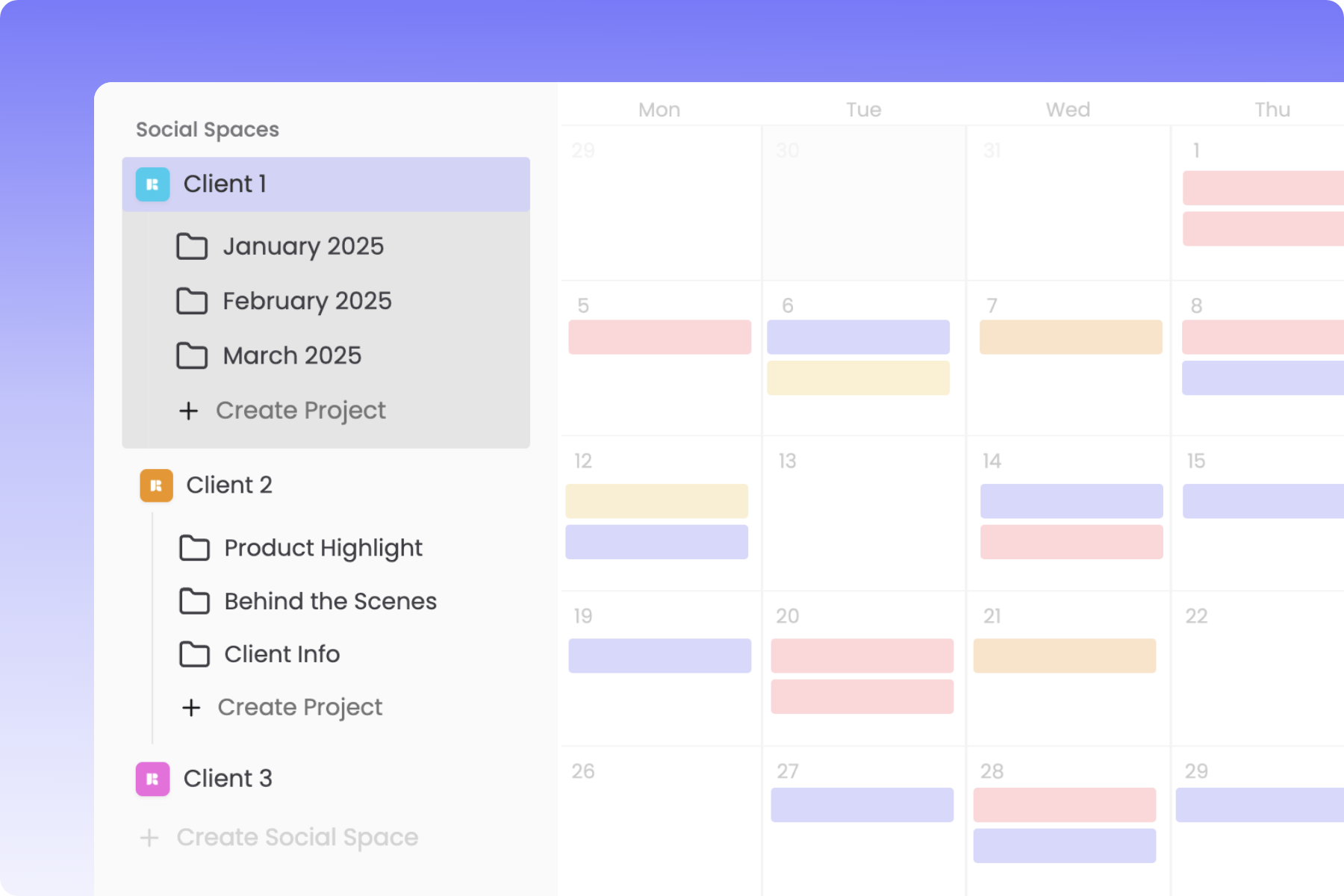
Organize Social Media Projects
Managing several concurrent campaigns, product launches, or seasonal themes can clutter your main calendar. Rella’s Projects feature lets you group related posts, tasks, and notes into dedicated campaign folders so you can plan, track, and share organized content buckets.
What is a Project?
A Project acts as a folder inside your Social Space. Instead of looking at an unorganized roster of posts, you can tag items under a specific Project name (such as "Spring Product Launch" or "Q1 Customer Testimonials").
When you open a Project's dashboard, Rella filters your calendar to display only the content drafts, production checklists, and planning notes associated with that specific campaign.
How to Create and Organize Projects
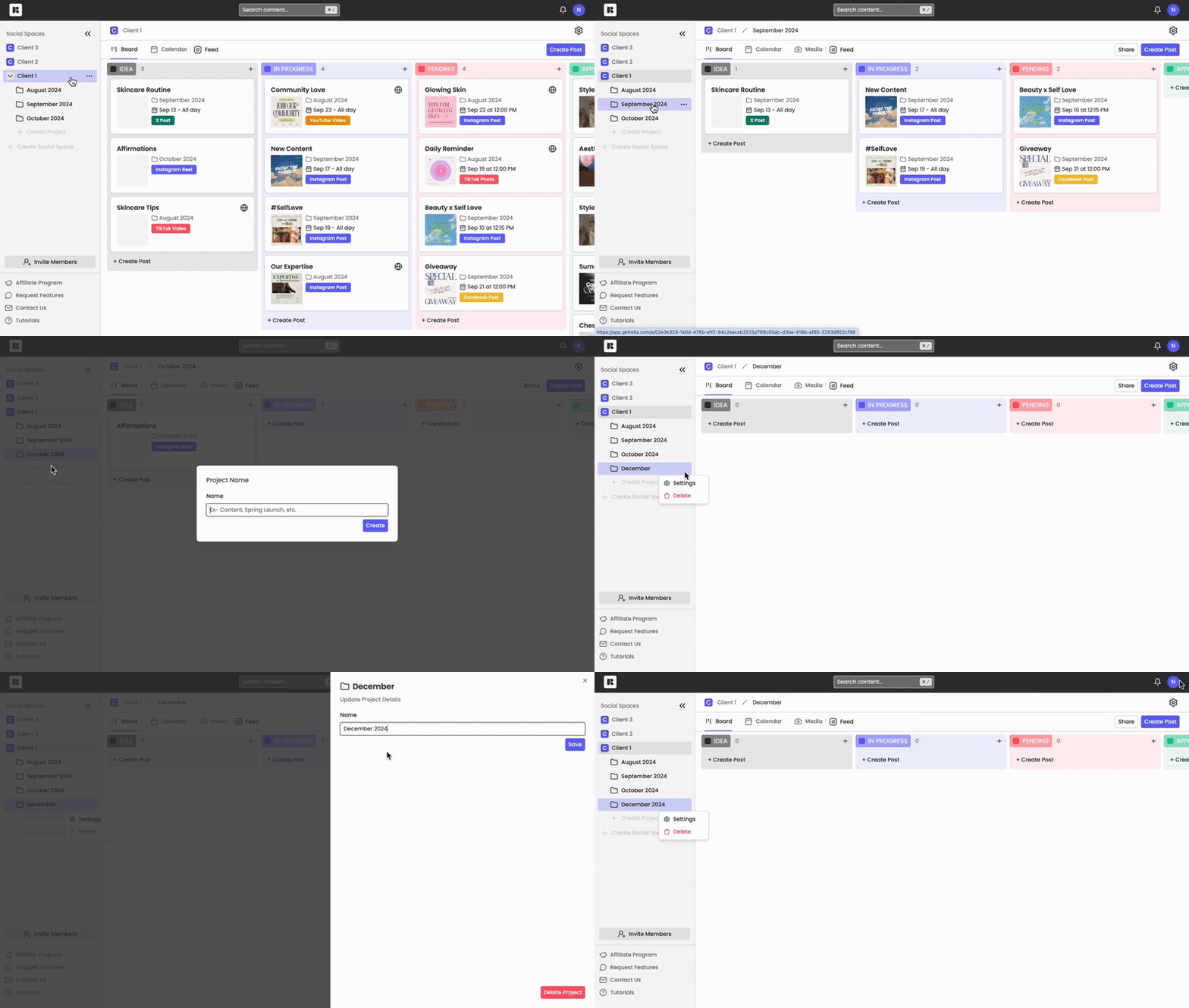
1. Create a Project Folder
Navigate to the left navigation sidebar in your active Social Space.
Scroll to your active space item, expand it, and click Create Project (or the plus icon) at the bottom of the project list.
In the dialog box, type your custom project name (such as
"Q4 Holiday Campaign").Click Create.
2. Group Posts Under Your Project
You can assign posts to a Project directly inside the Content editor:
Double-click any post on your calendar to open the Content editor.
In the details panel on the right, locate the Project field.
Click the field and select your project from the dropdown list.
Click Save.
3. Reorder Your Project List
To organize your active client folders on your sidebar:
Click and hold the drag handle next to any Project name in the sidebar list.
Drag the folder up or down to customize your list order. Rella automatically saves your custom position preferences.
Sharing and Collaborating on Projects
You can share an entire campaign folder with external clients or brand managers so they can view, approve, and download campaign assets in one place:
Shared Project Dashboard: Generate a secure public link to let clients view a read-only calendar displaying only that Project's posts and deadlines.
Shared Media Folders: You can associate a specific Media Folder with your Project. When a folder is linked, clients accessing your shared Project page can view and download raw creative assets directly from their browser.
Archiving & Deleting Inactive Projects
Once a marketing campaign concludes, you can archive or delete the Project to clean up your workspace.
Archiving a Project (Recommended)
Archiving hides the Project folder and all nested posts and tasks from your active sidebar view while preserving all historical data, client feedback, and media assets in your database.
Requirement: Archiving projects is available on Rella's Premium and Premium Plus plans.
How to archive: Open your project settings, click Archive, and click confirm.
Important Archiving Gotcha: If you unarchive and restore a Project later, any scheduled content inside that folder will not auto-publish or trigger notifications until you explicitly reschedule them on the calendar.
Deleting a Project (Permanent)
Deleting permanently removes the Project folder. To prevent accidental data loss, Rella provides checkable options to customize what happens to the nested data:
Open your project settings, click Delete, and type the project name to confirm.
Under the Additional Options alerts, choose what to delete:
Delete all content: Permanently deletes all posts nested inside the project.
Delete all tasks: Permanently deletes all associated checklists.
Delete all notes: Permanently deletes all planning documents.
Delete all media: Permanently deletes all associated media files. (Warning: If you check this, any content in or outside this project using these media files will lose those attachments).
Leave boxes unchecked to simply unlink the items. Unlinked items will be preserved and converted into standalone drafts on your main calendar.
Project Organization FAQs
Who can create, edit, or delete Projects?
To maintain security and prevent unmanaged folder creation, only users holding the Admin, Organization Owner, or Manager roles can create, configure, or delete Projects. Editors have read-only access to folders.
If I delete a Project folder without checking any options, what happens to my posts?
If you delete a folder and leave the additional options unchecked, Rella will preserve all of your posts, tasks, and notes. They will simply be unlinked from the project and remain visible on your main calendar as standalone drafts.
How do I move content into a Projects?
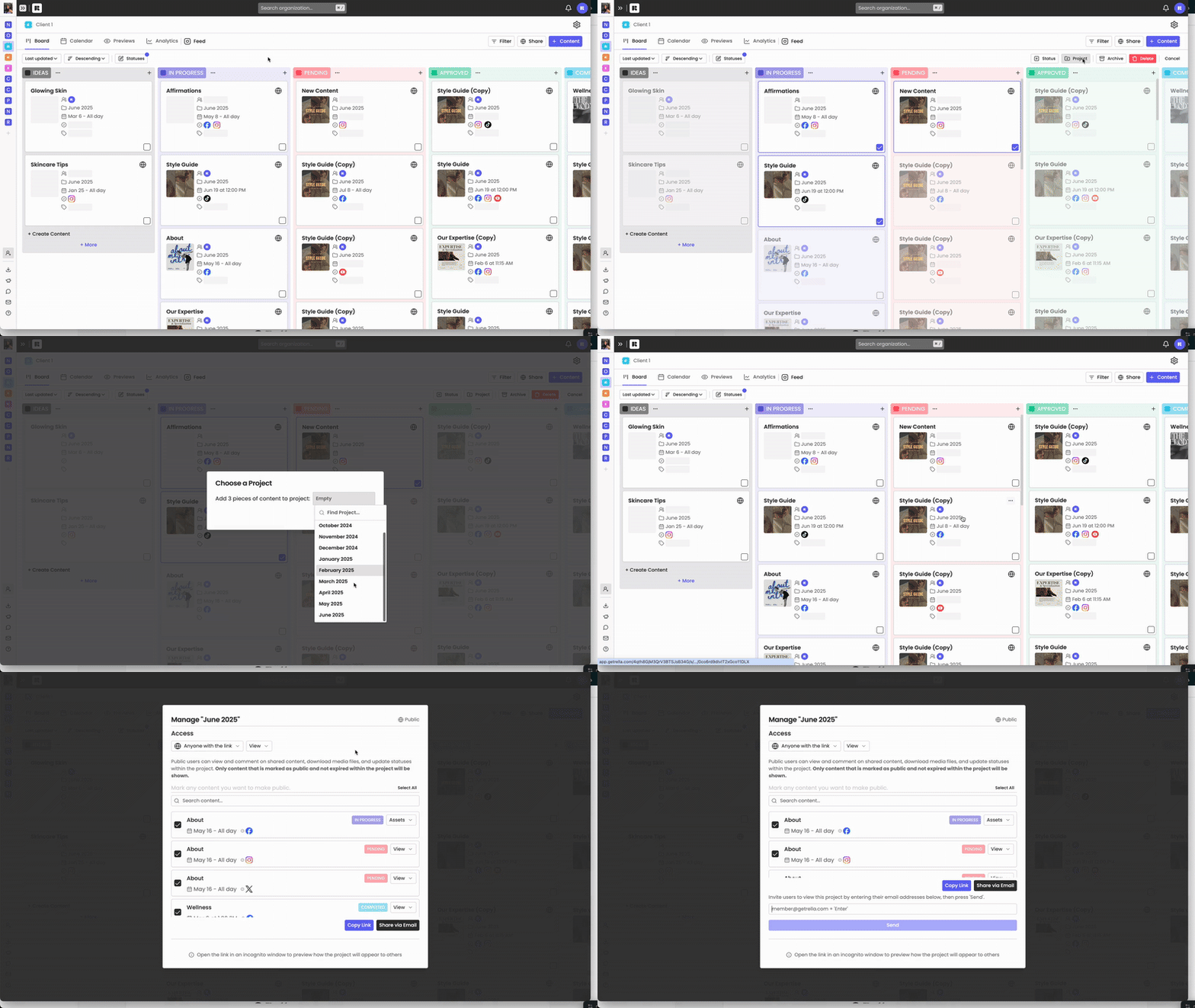
If you have content unassigned to a Project or want to move content between Projects:
Navigate to the Board view
Use the checkbox in the bottom right of each post to select content
In the top right click “Project”, select a specific Project and click "Add"
Can I archive completed Projects?
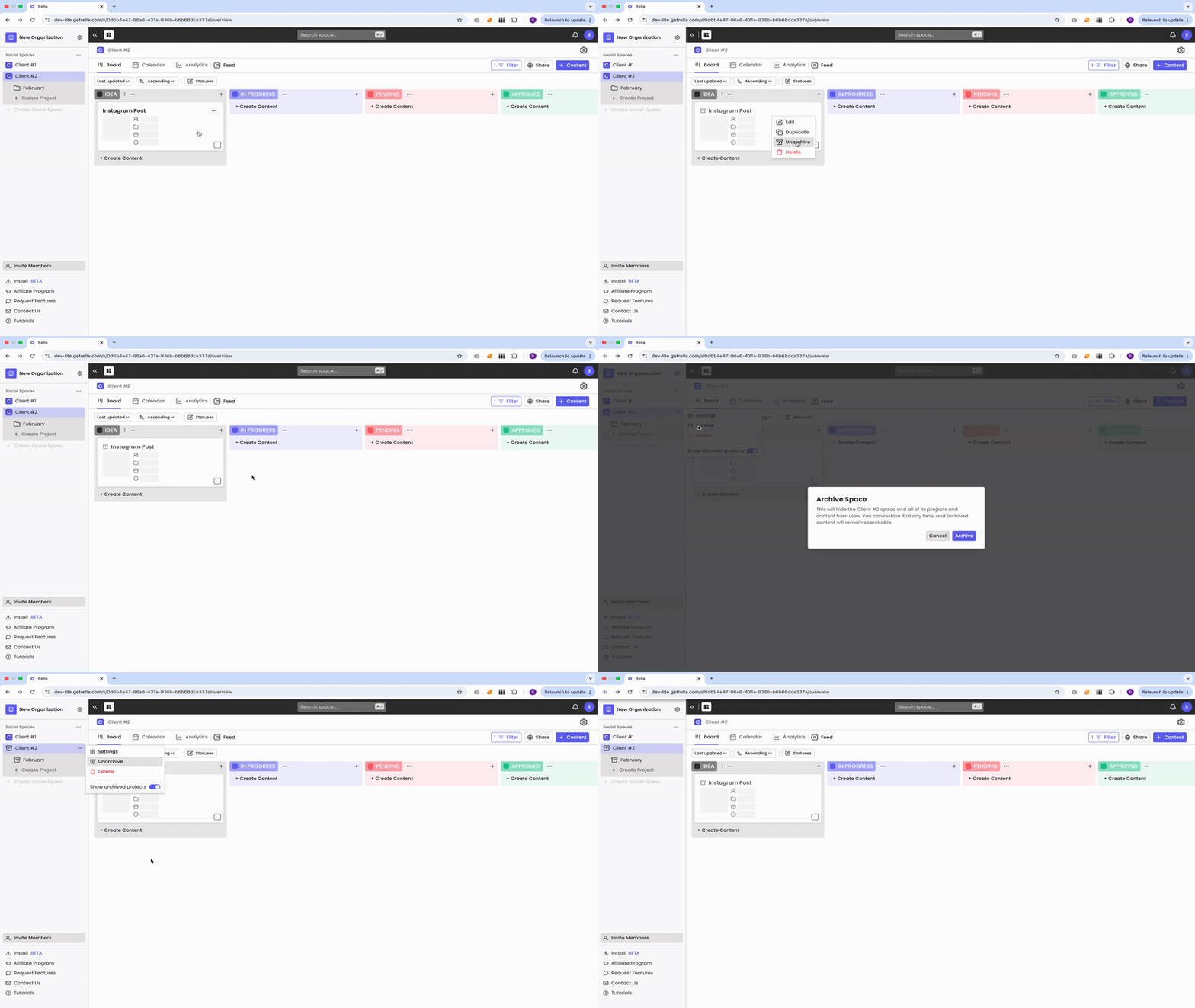
Rella Premium and Premium Plus users can archive completed Social Spaces, Projects, and content for a cleaner look - keeping your Organization organized as you grow.
Can I copy content between Projects?
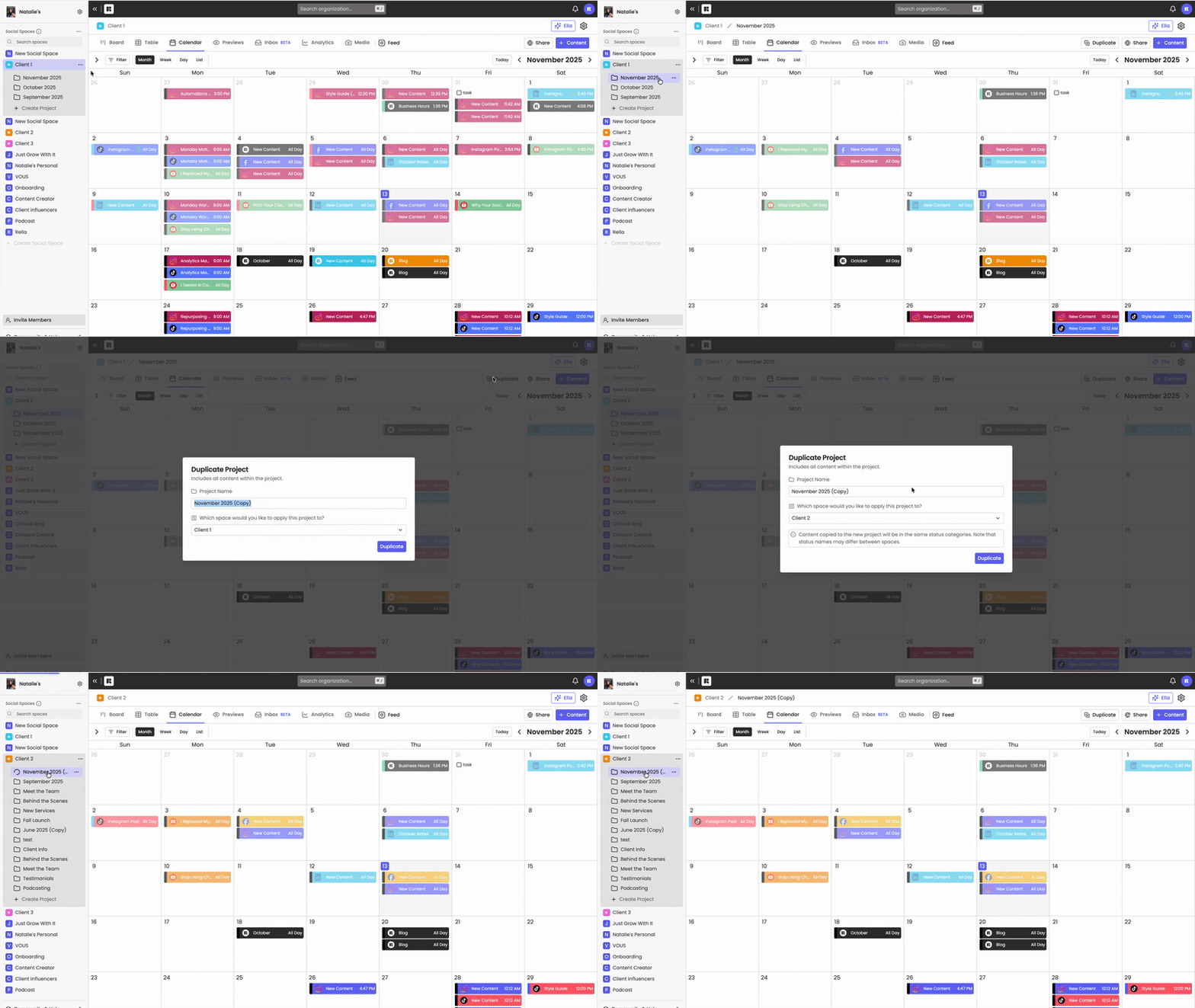
To copy content between Social Spaces, enter a Project and select “Duplicate.”