Share Content & Receive Approvals
Last updated: October 27, 2026
About Sharing Content
Managers and Admins can share posts, Projects, Social Spaces, and Social Links. Guests do not need a Rella account to open a public link, leave public comments, or download media when access allows it.
Status on a shared post is still a Board field. It does not approve Content. For sign-off, see Request Content Approvals and How to Approve Content.
How to Share Content
Sharing Options
Managers and Admins within a Rella Organization can share posts, Projects, Social Spaces, and Social Links. When sharing content:
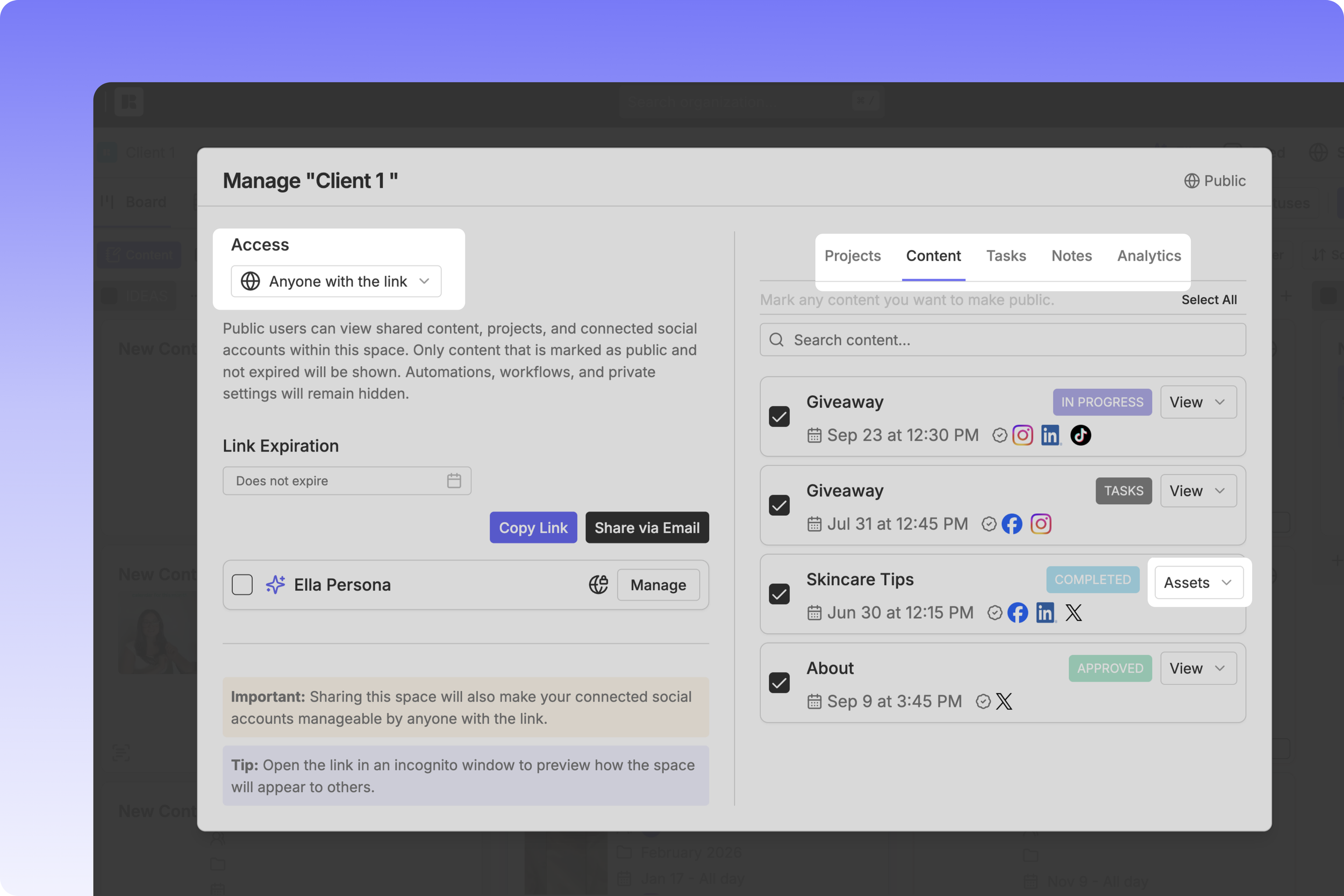
Under “Access” select “Anyone with the link” can “View” so clients and collaborators can access content.
To allow clients and collaborators to upload media, change the access level from “View” to “Assets.”
If you’d like to set a review deadline add a date under “Link Expiration.”
Select “Copy link” or “Share via Email.”
When sharing via email you can:
Save email address for easy access
Add message to pass along instructions to clients and collaborators
Share Individual Posts
Go to a post and click “Share” in the top right.
Anyone accessing a post link can:
View the post
Download media associated with the post
Update the status of the post
Leave feedback within the Activity panel
Anyone accessing a post link cannot:
Edit the post details (schedule date, caption, etc.) unless added as a member
View additional posts if a Project or Social Space has not been shared with them
Access the Board, Calendar, Table, Previews, Media, or Notes tab
View the IG Feed planner
Viewers accessing a shared post link — including those without a Rella account — can view the post, update its status, and leave feedback without being prompted to log in.
Share Projects
On the Social Space level click “Share” in the top right > select “Manage” or “Share” next to the Project you’d like to send. Next select the content within the Project you’d like to share.
Anyone accessing a Project link can:
Receive the same permission as accessing a post, plus
View all content shared within the Project
View shared Tasks
View shared Notes
Access the Board, Calendar, Table, Previews, Media, or Notes tab
View the IG Feed planner
Upload media to the Media tab
Connect Social Links
Filter and Sort content
Anyone accessing a Project link cannot:
Edit the post details (schedule date, caption, etc.) unless added as a member
Reorder the IG Feed
View additional Projects
View Analytics
Social Space sharing is available for Rella Premium and Rella Premium Plus users.
Share Social Spaces
On the Social Space level click “Share” in the top right > select “Manage” or “Share” next to the Social Space you’d like to send. Next select the Projects, Content, Tasks, and Notes you’d like to share. You can also have the option to share the Persona.
Anyone accessing a Social Space link can:
Receive the same permission as accessing a Project, plus
Access all Projects shared in the Social Space
View shared reports, tasks, notes, social connections, and persona
Anyone accessing a Social Space link cannot:
Edit the post details (schedule date, caption, etc.)
Share Social Links
As a social media manager, you already have enough on your plate - the last thing you need is playing phone tag with a client just to get their login credentials. Connecting client accounts to a content scheduler is a must (for tasks like auto posting, managing feeds, replying to comments, and generating analytic reports), but asking for passwords can make clients uncomfortable, and don't even get us started on two-factor authentication.
That's where Rella comes in. Rella lets your clients link their own social accounts on their end, so you get everything you need to manage content without anyone having to hand over their passwords.
To have your clients connect their social accounts to Rella, go to your Social Space Settings > Links > Connect > “Share Social Links.” Once you generate a link, your clients will have 24 hours to connect their social accounts before the link expires. The shared social link will expire after 24 hours for security purposes.
To allow a new 24 hour window to connect social accounts, click “Extend Link Expiration.“ If you no longer want the link to be used, click "Disable Link" to turn it off immediately.
When clients view the link, they will see the name of your Agency as well as the name of their business so they know they’re in the right place. They’ll be directed to login into their social accounts and grant Rella access. Access social linking guides for further assistance!
Sharing Content FAQs
Do clients need to have an account?
Clients or collaborators do not need to create a Rella account to view content, update statuses, and leave comments. They can interact with shared content links — including changing a post's status — without being redirected to a login screen. If you're looking to grant access to edit content you'll need to invite a member to your Social Space.
Can clients receive notifications?
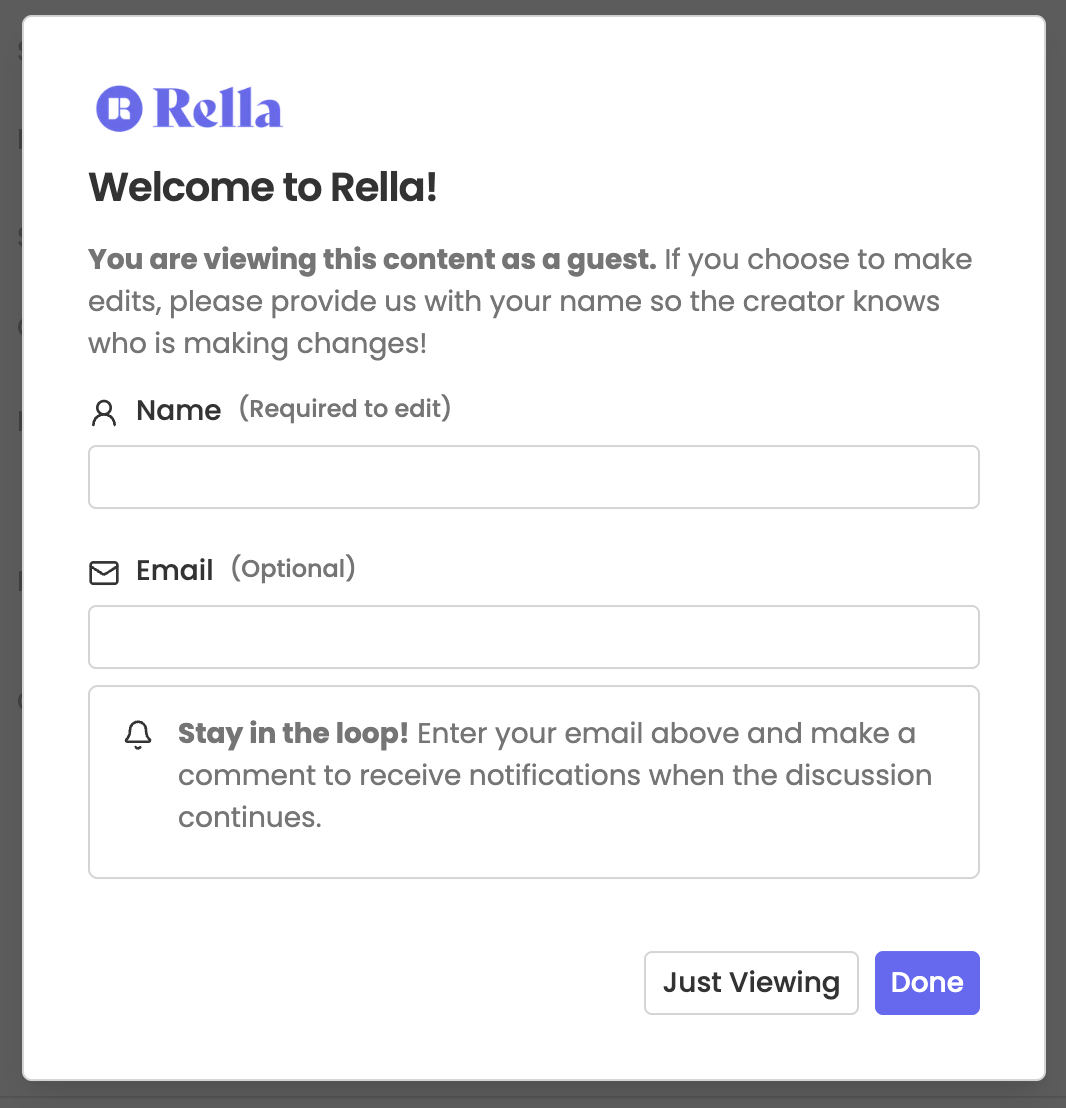
If you’re subscribed to Rella Premium or Premium Plus, your clients can choose to opt-in to email notifications when they submit feedback on content.
Can clients view internal comments?
Comments submitted in the “Private” tab will not be visible to clients. Comments added to the “Public” tab will be visible to anyone with the link.
Do I have to enter my clients email every time?
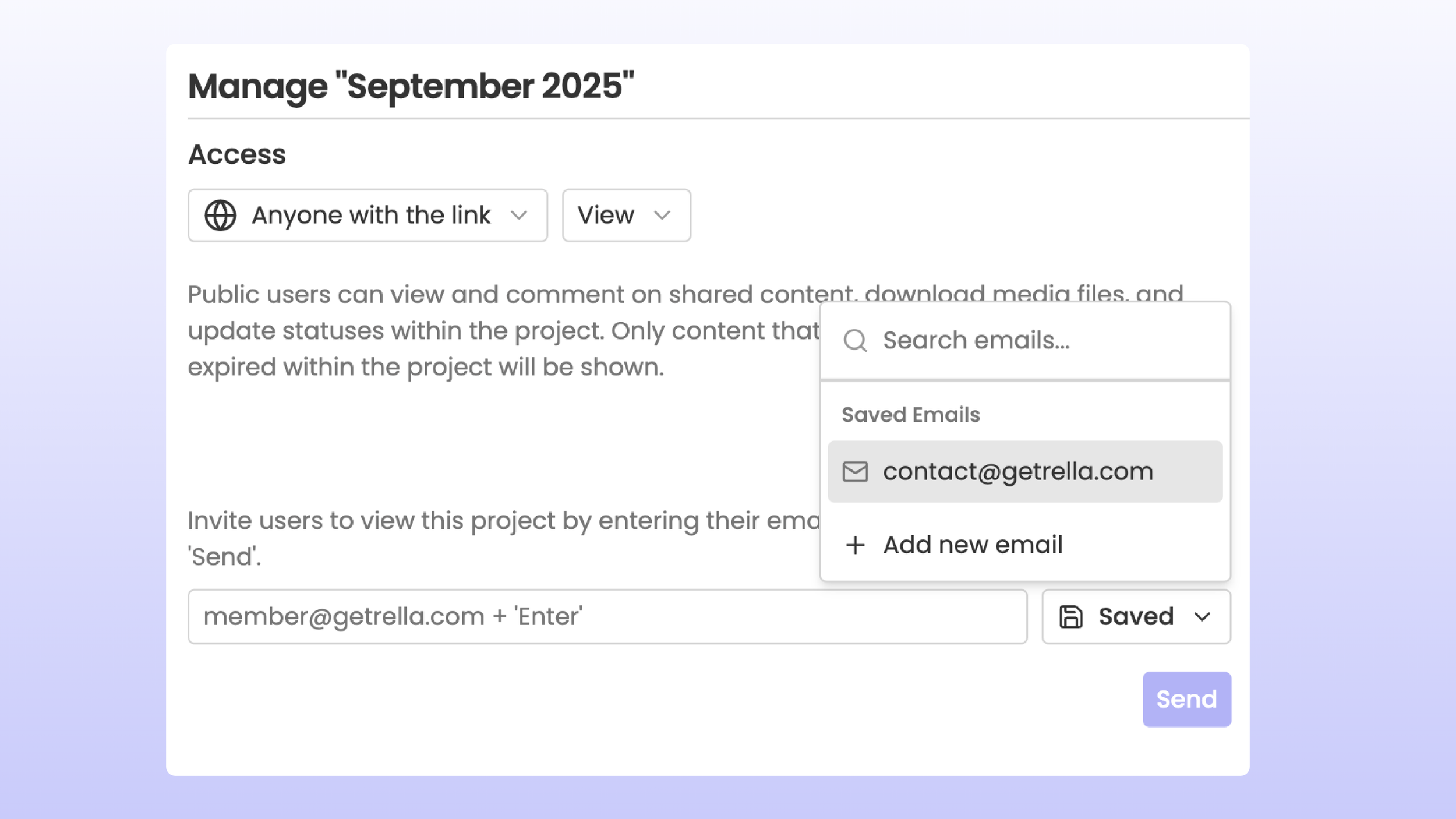
When sharing content, you can choose to bookmark frequently used email address to save time.
How do I remove access?
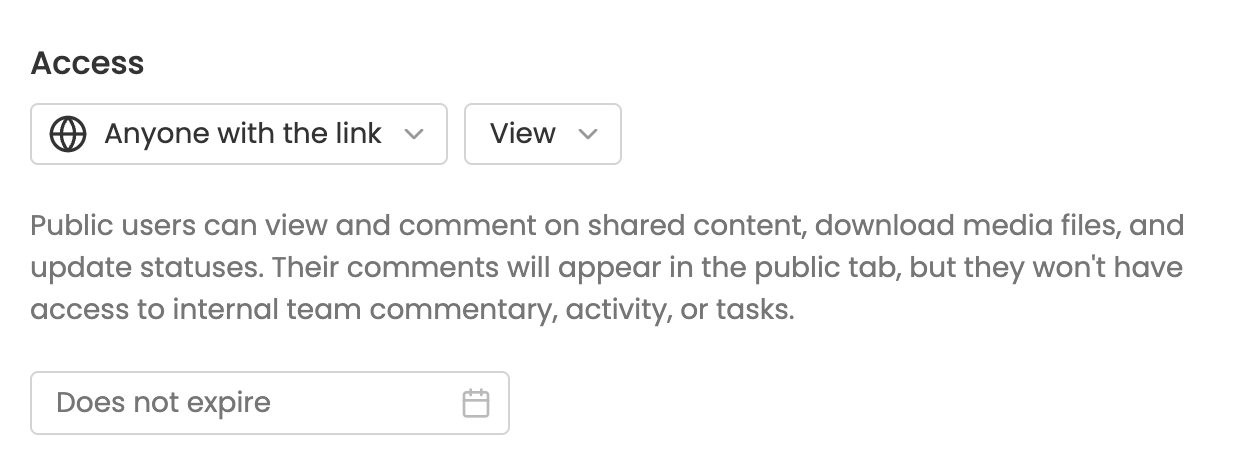
If you would like to private shared content:
Switch the Access from “Anyone with the link“ to “Internal Team Only“ or
Add a Link Expiration date to an individual post
What will my clients see?
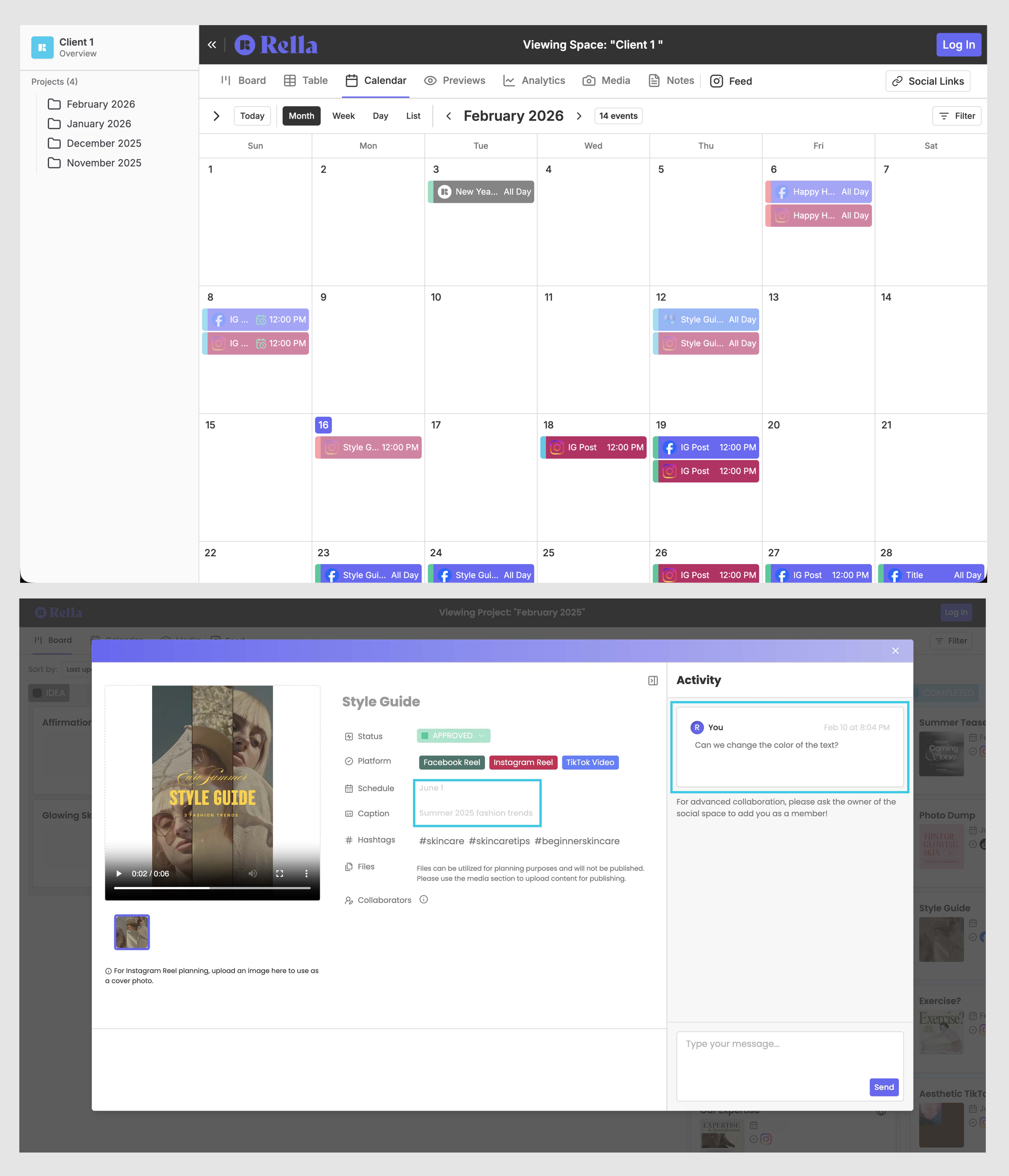
How do I collect approvals on shared work?
Sharing a link is not the same as requesting approval. A share link lets someone view the post, update its status, and leave a public comment. To collect Approve or Reject, use Request Content Approvals.
Statuses are still available. You can keep using them for sign-off, or use Rella approvals when you want a decision that does not depend on your Board columns.
Status-based sign-off
Clients with the link can move a post to a status such as Approved and leave a public comment. That status is still a Board field. It does not record an Approve or Reject decision. Use this when you want to shape the flow with your own statuses.
To hold scheduled auto post while a card sits in a status, open Space Settings > Autopost and use Publishable statuses. Put statuses that should wait in Non-publishable. That hold applies only when Only if status allows is on for the post. It does not prevent posting manually. Watch how status updates work.
Rella approvals
On Premium and Premium Plus, you can request approval from Anyone or from space members. Choosing Anyone lets people with the public link click Approve or Reject without learning your internal statuses, which makes sign-off quicker. Space members you add are the people who must each approve. Contacts and email addresses are not approvers.
Choose None, Anyone, or space members. Anyone cannot be combined with space members.
Anyone uses the public link. Send on that row only notifies the people you pick. It does not add them as approvers.
Space members use Review & approve in Approval Requested when their email notifications are on. Clients without a seat can follow How to Approve Content.
You can choose which status content moves to when approval is requested and when it is fully approved. Those moves do not replace Approve or Reject. Set them in Tailor Content Approval Settings.
You need to be a Manager or above in the Social Space to edit approval settings. Editors can still request approval on content they can edit.
Which plans include what
Pro: Approve and Reject are not available. Clients can still view shared content, change a post's status from the link, and leave a public comment.
Premium: Includes those share-link options, plus Anyone or one space member.
Premium Plus: Includes those share-link options, plus Anyone or unlimited space members.
Learn more