Preview Content Before It Goes Live
Last updated: June 3, 2026
About Previews on Rella
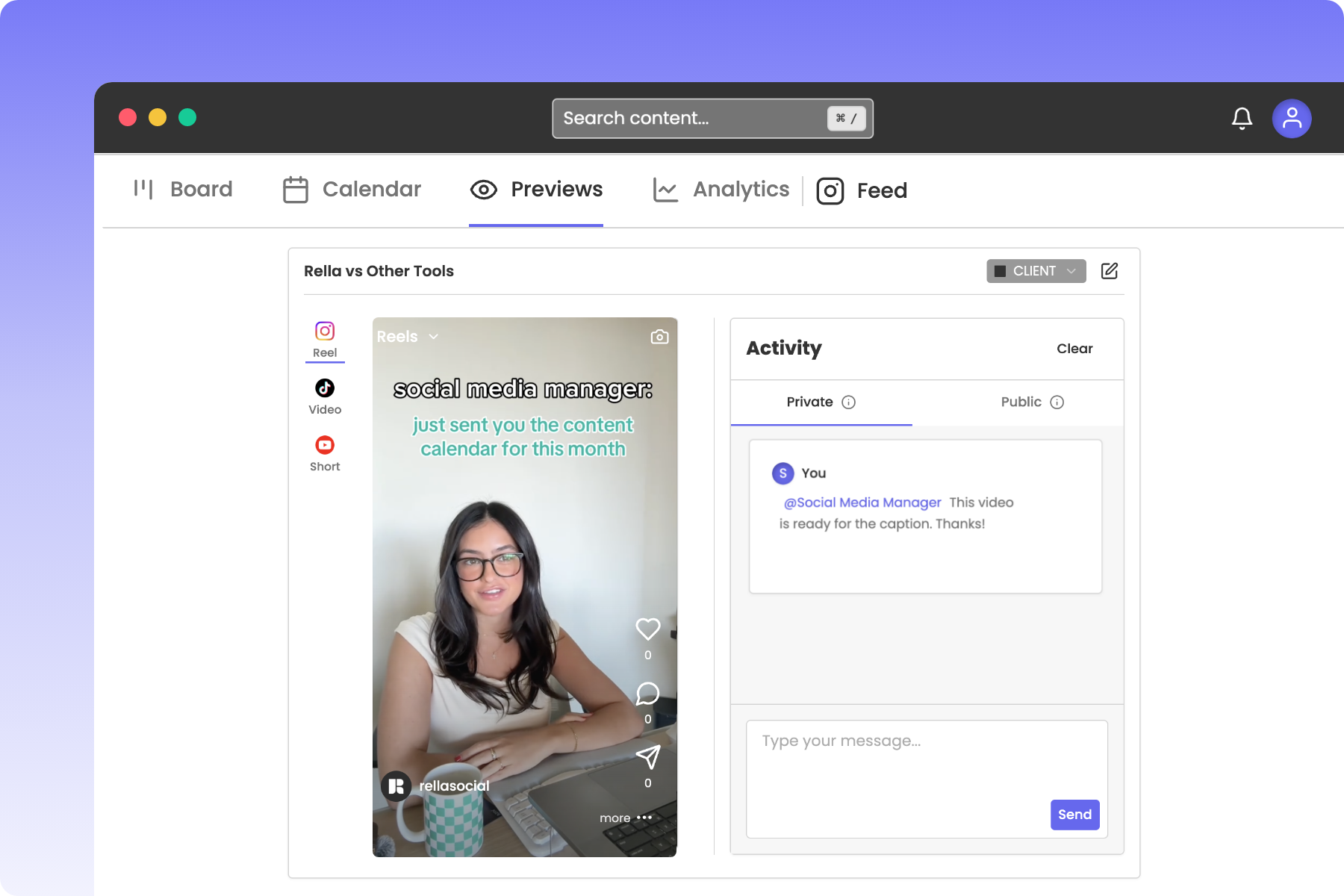
Visualizing how your posts will look on native feeds before they go live ensures your layouts remain clean and error-free. Rella provides real-time, interactive Previews inside your editor and lets you share temporary preview links with clients for easy feedback and approvals.
How to use Previews
Scrollable List View: Easily browse through your content.
Realistic Mockups: Visualize your content as how it will appear when published.
Platform Switching: Toggle between different social media platforms and content types.
Activity Panel: Access edit histories and leave comments.
Status Updates: Quickly update the status of each post directly within the preview.
Sort: Sort previews by last updated, date created, and scheduled date
1. Real-Time Previews Inside Rella
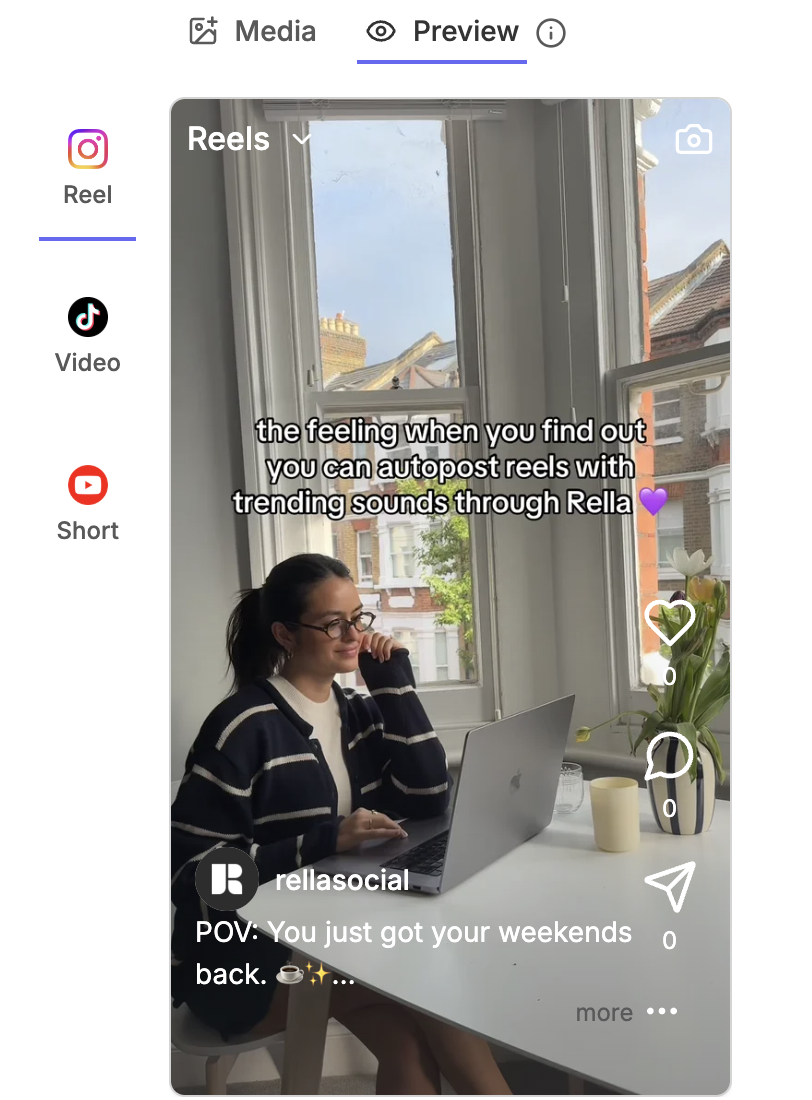
When drafting a post, Rella displays an interactive, platform-specific mock layout directly inside the Content editor.
Steps to View Previews
Double-click any scheduled post or draft on your Calendar or Board view to open the Content editor.
In the top-right header of the editor, click the Preview (eye icon) button.
Rella will launch a live preview of your post.
If your post has been split into multiple platforms (using the Repurpose tool), click the Platform Tabs on the left of your preview screen to toggle between the mobile layout previews for each specific network (such as Instagram Reels, TikTok, or LinkedIn).
2. Share Live Previews with Clients
You can share interactive preview pages with external clients or brand managers so they can inspect posts, download media assets, and leave feedback without needing a Rella user login.
Steps to Share a Post Preview
Open your post in the Content editor and click Share in the header action bar
Toggle on the Public Link switch (represented by the globe icon) to make the preview active
Select your preferred Access Level:
View: Clients can only view and read the post and caption.
Assets: Clients can view the post, read the caption, and download the raw high-resolution media files.
Set an Expiration Date (optional) to automatically disable the preview link after a set period (such as after a campaign concludes).
Share the preview:
To send via email: Enter your client's email address and a custom note under the email section, then click Send.
To copy the link manually: Click Copy Link to save the secure URL to your clipboard.
What the Client Sees (The Guest View)
When your client opens the shared preview link, they are directed to a clean, branded guest page:
Interactive Feeds: They see a real-time, native mock preview of the post. If the post is split across multiple platforms, they can tap the platform tabs to inspect each version
No Login Required: They can view the drafts without registering for Rella or creating a password.
Public Comments: Clients can type comments directly on the page. These feedback notes sync instantly back into your internal Rella comment sidebar, labeled in your Public Comments tab.
Secure Isolation: Guest users have absolutely no access to your internal team conversations, checklist tasks, private notes, or adjacent brand calendars.
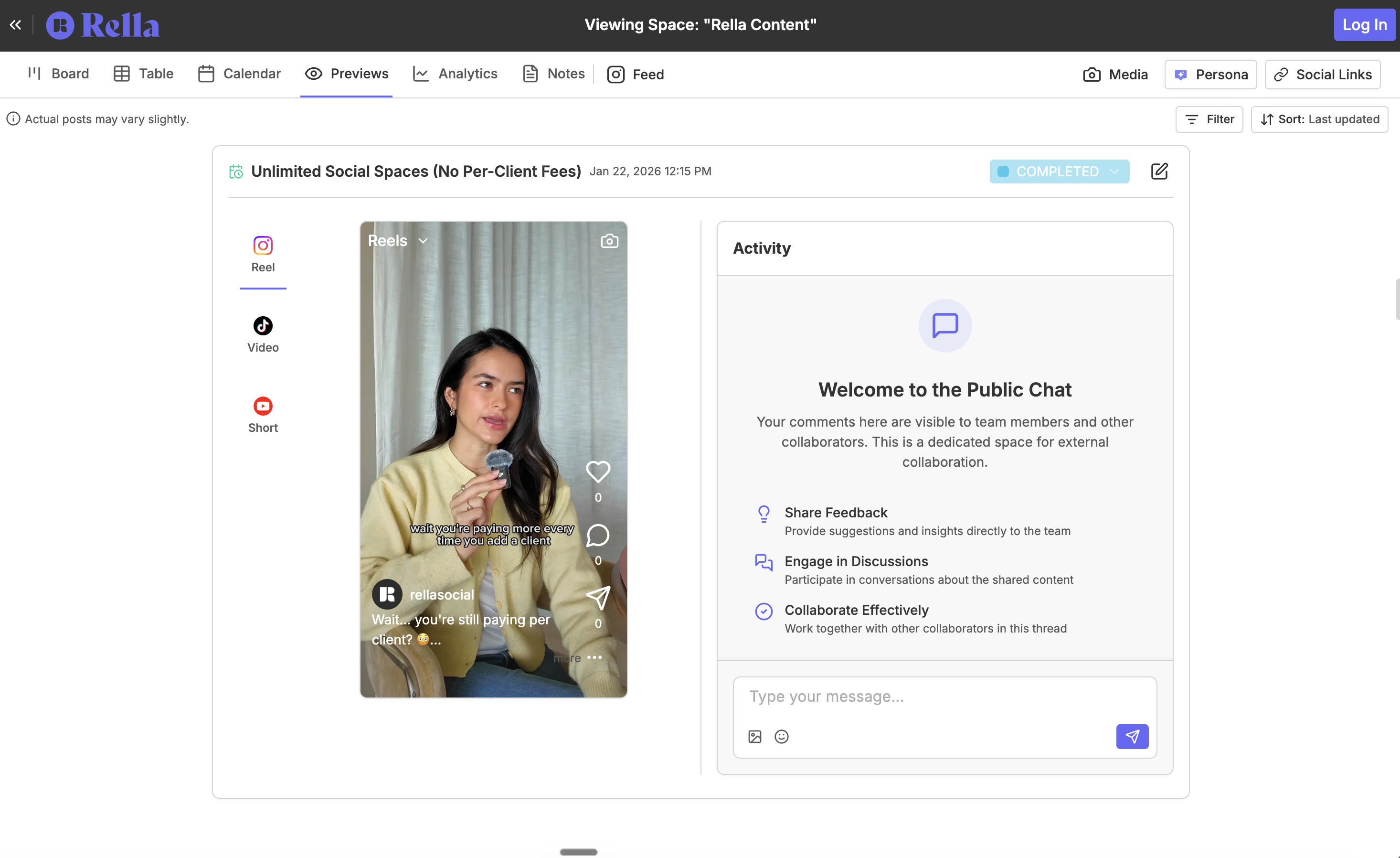
Use incognito mode on your browser to experience the client view
Resource: 📄 Share Content & Receive Approvals
Preview FAQs
Can my clients access Previews?
Yes, to share Previews with a client go to a Project and click “Share” in the top right.
Resource: 📄 Organize Social Media Projects
Can my client see our internal team comments, checklist tasks, or activity history?
No. Shared preview links are securely isolated. While guests can read your draft, download files, and write feedback in a public comments tab, they can never see your private team chats, checklist Tasks, or the Activity Log.
If I edit a post's caption or media, do I need to send a new link to my client?
No. Rella's shared links are dynamic. Any edits you make to the caption, hashtags, or primary Media inside your editor will update instantly, meaning your client will see the fresh version the next time they refresh their page.