Customize Your Workspace with Custom Statuses
Last updated: June 4, 2026
Planning content and tasks across multiple platforms can get overwhelming fast, especially when each item has its own deadlines, feedback loops, and steps. In Rella, Statuses let your team visually track and manage where each post or checklist item stands. By configuring custom, color-coded statuses, you can tailor your board, table, and calendar views to map perfectly to your team's specific creative workflow.
About Statuses
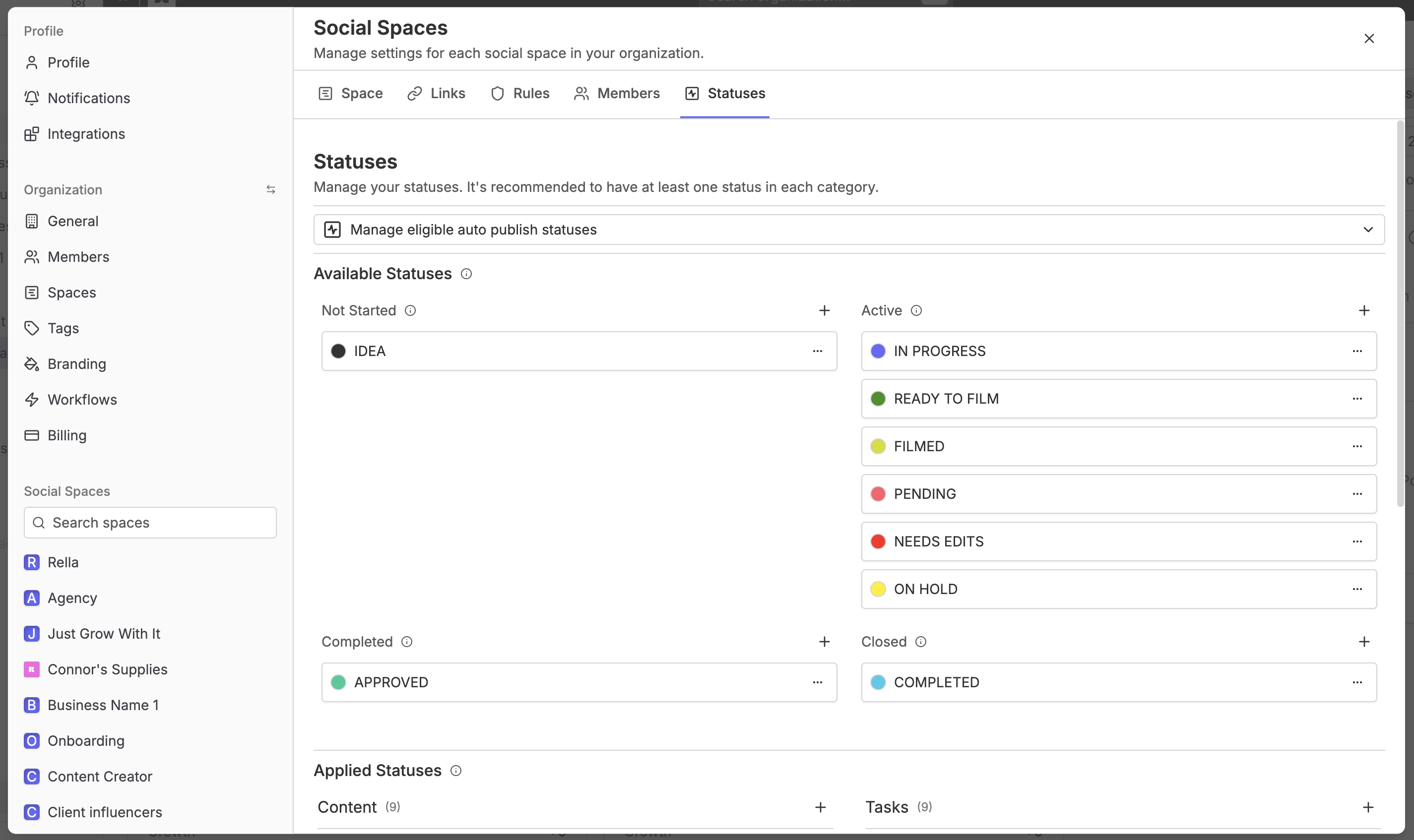
Every Content card and Task checklist item in Rella is assigned a progress Status. These statuses are organized under four main categories that govern your workspace progression:
Not Started: Baseline drafts and backlogs (e.g., Ideas, Backlog).
Active: Active content creation and review (e.g., Writing, Under Review, Pending).
Done: Fully completed work ready for delivery (e.g., Approved, Ready to Publish).
Closed: Published or archived items (e.g., Published, Completed).
Rella lets you manage a master available statuses catalog for your Social Space, color-code each label, and choose exactly which statuses apply specifically to Content and which apply to Tasks.
How to Access Status Settings
To modify, add, or organize your workspace statuses, you must open Rella on a desktop web browser.
Navigate to your workspace dashboard.
Click Settings in the main navigation bar.
Select Statuses from the settings menu.
How to Create a Custom Status
Under the Available Statuses section, you can add new progress labels to any of the four progress categories.
Locate the category where you want to add a status (e.g., Active).
Click the Create Status button (represented by the Plus icon) in that category header.
In the popover form, enter a unique name in the Status Name field.
Click the color dot picker to choose a custom color-code for this status label.
Choose your target Category from the dropdown menu.
Click Save to add the status to your master list.
Labeled Status Category Rules
To keep your dashboard organized, you can control where each status is visible. This prevents task-only statuses (such as "In Progress") from cluttering your post schedule calendar.
Applying Statuses to Items
Scroll down to the Applied Statuses section on your settings page.
Under the Content column, click Add Status to select which labels from your master list appear inside your post cards.
Under the Tasks column, click Add Status to choose which progress labels are selectable inside task checklists.
Dimmed labels represent "inactive" statuses that are currently in your master list but are not actively applied to either posts or tasks.
Core Status Constraints
To protect your workspace operations from losing baseline starting and finishing checkpoints, Rella enforces several strict progression constraints:
Minimum Requirements: You must maintain at least one active status inside the Not Started category and at least one status inside the Closed category.
Deletions Paused: If a status is the only remaining label in the Not Started or Closed categories, the delete option is hidden automatically. You must add or apply an alternative status to that category before you can remove the older one.
Hidden Statuses: Inactive or hidden statuses are represented with a diagonal slashed-eye icon and are set to half-opacity in your master grid.
Custom Statuses FAQs
Why can't I delete a specific status?
If you don't see the delete trash icon next to a status, it is either the last remaining status in the Not Started or Closed category, or it is currently assigned to active content items on your calendar. You must add another status to that category first, or re-assign any active posts to a different status, before you can safely remove it.
Can standard members customize the status list?
No. Creating, editing, or deleting statuses changes the workspace progress model for everyone in the space. To prevent accidental disruptions, only team members who hold a Manager or Admin role in that Social Space have access to the Statuses settings page.
What happens to my posts if I remove an applied status?
If you remove a status from the Applied Statuses column, that progress label will no longer be selectable in new content cards. Any existing posts that were already set to that status will remain visible on your dashboard but will be flagged so you can re-assign them to an active label.