Troubleshoot Facebook & Instagram Connection Errors
Last updated: November 20, 2026
Having trouble connecting Facebook or Instagram to Rella? This guide walks through the most common error messages and connection issues, what's causing them, and exactly how to fix them.
Before you start, double check your account meets these requirements:
Facebook: Rella connects to Facebook Business Pages, not personal profiles. You'll need an account with Admin access to the Page.
Instagram: Rella connects to Business or Creator accounts. Personal accounts can't connect, even if your profile is public.
If you're connecting Instagram through Facebook, your Instagram account needs to be linked to a Facebook Page you manage.
If everything above checks out and you're still stuck, the fix below solves the large majority of connection issues we see, it's worth trying first no matter what error you're seeing.
The fix that solves most connection issues
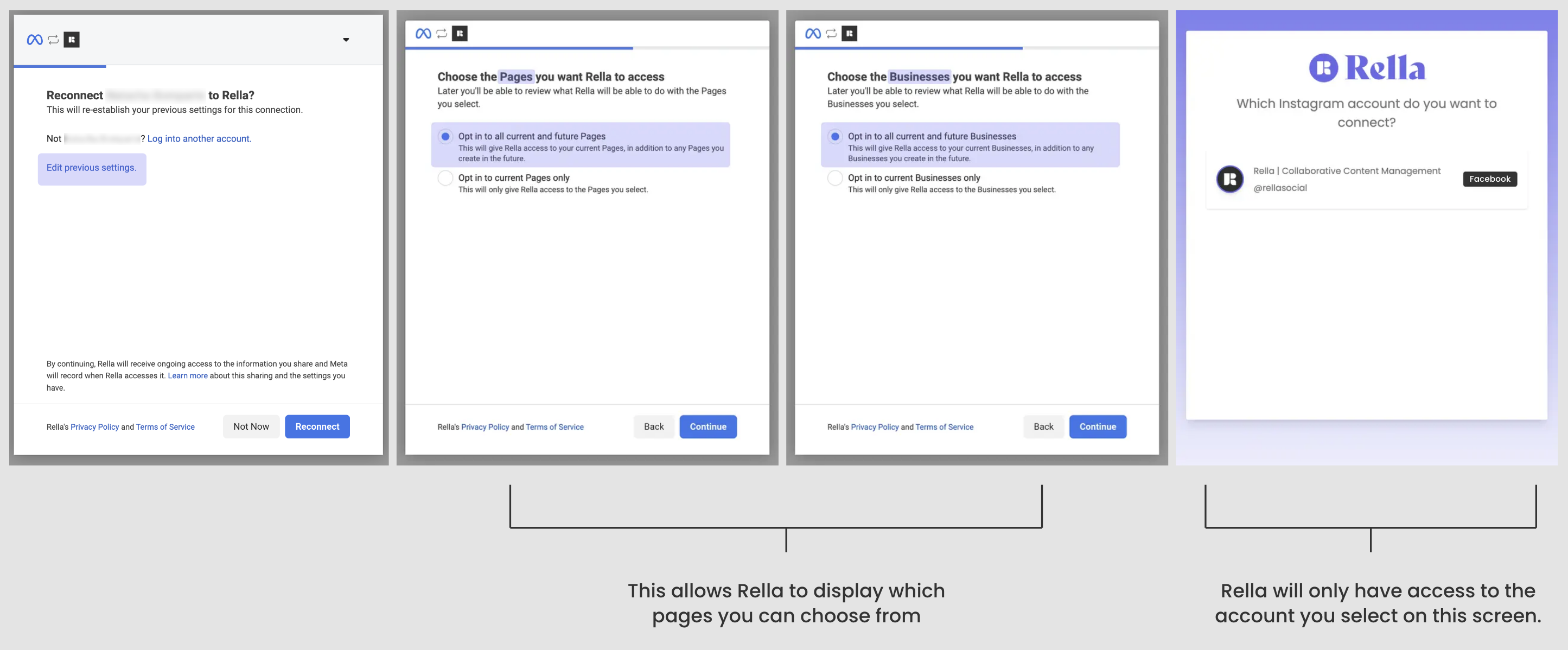
Most Facebook and Instagram connection problems come down to one missed step during setup: choosing "Opt in to current and future Businesses & Pages" when Facebook asks for permissions.
A lot of people skip this because it sounds like it gives Rella access to everything you manage. It doesn't. Here's what it actually does:
Opting in simply lets Rella show you the Pages and accounts you manage, so you can pick the right one. You'll still choose exactly one account to connect on the next screen, and that's the only one Rella can access.
Here's how to do a clean reconnect:
In Rella, go to your Social Space's Settings → Links.
Click Remove on the Facebook or Instagram connection (not Refresh). This clears out the old connection completely so you're starting fresh, refreshing alone often isn't enough.
Open an incognito or private browser window, and make sure you're logged out of any other Facebook or Instagram accounts in that browser.
Click to reconnect. When the Facebook window pops up, look for "Opt in to current and future Businesses & Pages" and select it. (Don't see it? Click "Edit previous settings" on the first screen to bring it up.)
On the last screen, select the specific Page or account you want to connect to this Social Space.
If you manage more than one Social Space connected to the same Facebook profile, you'll want to do this once for each space, selecting the opt-in option every time. Skipping it on one space can cause your other connections to drop.
My Facebook Page or Instagram account isn't showing up to connect
If you go through the connection flow but don't see your account in the list, a couple of things are usually happening:
1⃣ Your account doesn't quite meet the requirements above. Double check it's a Business Page (Facebook) or a Business/Creator account (Instagram), and that Instagram is linked to the right Facebook Page if you're connecting through Facebook.
2⃣ Rella's permissions need a reset. This happens when an older connection attempt left things in a slightly stuck state.
To reset your permissions:
On Facebook: Go to Facebook.com and log in with the profile that manages your Page. Click your profile picture → Settings & Privacy → Settings → Business Integrations. Find Rella in the list and click Remove. Don't worry, this won't affect anything in your Rella account, it just clears the way for a fresh connection.
On Instagram: Open the Instagram app → your profile → Menu → Settings and privacy → Website permissions → Apps and websites. Find Rella and remove it.
Then reconnect:
Open Rella in an incognito or private window.
Head to the Social Space's Links tab and start connecting.
When Facebook asks for permissions, select "Opt in to current and future Businesses & Pages."
On the final screen, choose the account you want to connect.
Still not showing up after that? Reach out to us (see the bottom of this guide) and include a short screen recording of what you're seeing, it helps us spot the issue fast.
Rella is connecting to the wrong account
If you manage more than one account and it keeps selecting the wrong one when you connect, this is almost always your browser holding on to a previous session.
Here's how to fix it:
Open Rella in an incognito or private browser window.
Before you start, make sure you're fully logged out of every account on that platform in your regular browser.
Connect the correct account from the incognito window. Since there's no cached session there, it won't default back to the old one.
If you're not already using Google Chrome, that also tends to work best with Rella's connection flow.
I see "No Facebook Pages for this account found"
This message means Facebook didn't find any Pages that the account you logged in with can manage. A few things to check:
The personal Facebook account you're logging in with needs Full Control or Admin access to the Facebook Business Page you're trying to connect.
The Page needs to be a Facebook Business Page, not a personal profile or a professional account.
When the Facebook permissions pop-up appears, select "Opt in to current and future Businesses & Pages" and keep every permission checked.
Try connecting from an incognito or private window to rule out a cached session.
Still seeing this after checking all of the above? Reach out to us (see the end of this guide) with a screen recording of your connection flow.
Instagram won't connect, or I see "check your internet connection"
This message is a little misleading, it can show up even when your internet is working perfectly fine. It usually means something got interrupted earlier in the connection process. Here's what tends to help, in order:
1. Reset your permissions and reconnect fresh
Follow the steps in The fix that solves most connection issues above, that single flow (Remove, incognito window, Opt In, select your account) clears up this error for most people.
2. Try a different browser or device
If the error happened on your computer, try connecting from your phone instead, or the other way around. If you're not already using Google Chrome, give that a try too, it tends to work the most smoothly with Facebook and Instagram's connection screens.
3. Try the other connection method
If "Connect with Facebook" isn't working, try "Connect with Instagram" directly (or vice versa). Sometimes one path works better than the other depending on how your accounts are set up.
If you've tried all of the above and it's still not connecting, reach out to us with a screen recording of the full process. That's the fastest way for us to see exactly what's happening and help.
My connection shows "Expired," or it keeps disconnecting
First, the reassuring part: this isn't a sign anything is broken. Social platforms issue temporary security credentials to any scheduling tool, including Rella, and they expire those periodically to keep your account secure. Facebook, Instagram, and Threads tend to expire a bit sooner than platforms like TikTok, LinkedIn, or YouTube, that's just how Meta's security works, not a Rella issue.
A few things can make it happen sooner than usual: changing your password, updating your two-factor authentication, adding or removing a Page admin, or Facebook itself flagging unusual activity.
To fix it, follow The fix that solves most connection issues above.
If someone else on your team reconnected the account for you and it's still showing Expired, the most common culprit is the connection not being fully finished on their end. After logging in through Facebook or Instagram, they'll land back on a Rella screen to pick the exact account and click Connect, if that last screen gets closed before clicking Connect, the connection never saves on our side even though their login "worked." Also worth double checking: on the Facebook permissions popup, they'll want to click Edit Settings and make sure the boxes for their account (and Page, if relevant) are checked, not just click Next.
Still showing Expired after that? Send us a quick screen recording of the reconnect and we'll take a look.
Connecting one account disconnected another one
If you manage a few different Social Spaces and noticed that connecting one caused another to drop, here's what's going on: when Facebook asks for permissions, it's natural to only select the one Page you're working on and leave the others unchecked. But Facebook treats that permissions step as a setting for your whole account, not just the one space you're in. So when you narrow it down to one Page, Facebook reads that as "only allow access to this Page" and quietly revokes Rella's access to the others.
The fix is simple, it just means doing the opt-in step for every space:
Open the first Social Space's Settings and click Remove on the Facebook/Instagram connection.
Click to connect again. When Facebook asks for permissions, select "Opt in to current and future Businesses & Pages" (this is what tells Facebook to let you choose from all your Pages, instead of locking in just one).
On the last screen, choose that space's specific account.
Repeat the same four steps for each of your other Social Spaces.
Once every space has gone through this with the opt-in option selected, Facebook will recognize Rella's access to all your Pages at once, and they'll stop disconnecting each other.
If it's still happening after reconnecting all your spaces this way, reach out to us with a screen recording and we'll dig in further.
A couple of common questions
Can I connect a personal profile?
Right now, Rella connects to Facebook Business Pages and Instagram Business or Creator accounts, even if your personal profile is set to "professional" mode, it won't appear as a connection option.
The good news is that connecting personal profiles is something we're planning to support down the line. If that would be useful for you, we'd love for you to vote on the feature request so you're notified the moment there are updates.
Can my client connect their account without sharing their password?
Yes! If you don't have login access to a client's account, you don't need to ask for their password. You can send them a secure link so they can log in and connect their own account themselves. Here's how: Request Social Links from Clients.
Still stuck? We're happy to help
If you've worked through the steps above and you're still running into trouble, the fastest way to reach us is through the in-app support widget: log into Rella, click the support icon in the navigation bar, and fill out the quick form. Full instructions here: Get Support via In-App Support Widget.
To help us get you sorted as quickly as possible, it's helpful to include:
Which Social Space(s) are affected
A short screen recording of what happens when you try to connect (from clicking Remove through the final account selection screen, if you can)
Any error message you're seeing, including a screenshot if you have one
We'll take a look and get back to you as soon as we can.