Choose a TikTok Video Cover Frame
Last updated: September 17, 2026
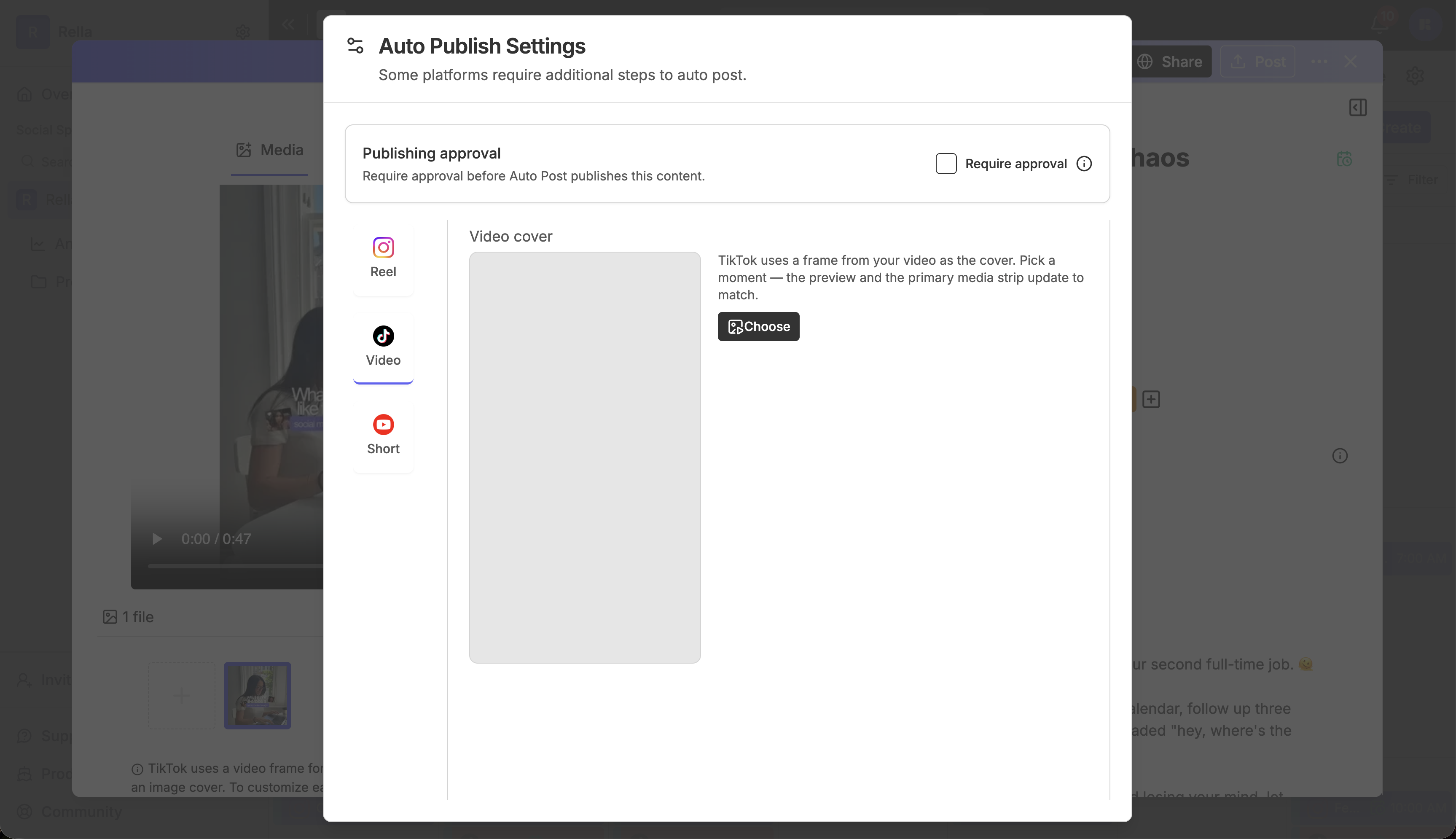
TikTok uses a single frame from your video as its cover. Selecting a specific cover frame ensures your feed looks exactly how you want when publishing.
Before you start
Connect your TikTok account to your Social Space.
Toggle on Auto-Publish for the post.
Add a video file to the post's Media gallery.
Steps
Navigate to your Calendar, Board, or Table view and click the post containing your video.
In the media panel, locate the Choose Cover Frame setting.
Scrub through your video in the frame selector window to find the perfect frame, and click Use This Frame.
Result
Your chosen cover frame is set. You will see a thumbnail of the frame in the Media upload section. When the video automatically publishes, TikTok uses this exact frame as the cover.
TikTok Cover FAQs
Can I upload a separate JPEG or PNG file to use as my TikTok cover?
No. TikTok's Direct Post API does not support uploading a separate image file to use as the cover for a video post. TikTok only accepts a frame selected from the video itself. If you add a separate image file to the post's Media strip, Rella will show a preview-only eye icon on that image with a note explaining that TikTok will use a video frame instead.
What if I connect multiple platforms like Instagram Reels and TikTok?
If you publish a post to both Instagram and TikTok, you'll want to click Repurpose to customize your cover image per platform.
How does the cover work for TikTok photo posts?
For TikTok photo posts (image carousels), TikTok automatically uses the very first image in your gallery as the cover index.
What happens if my video's length changes after I pick a cover frame?
If the selected cover timestamp falls outside the video's total duration (for example, if you replace the video file with a shorter clip), Rella's automated publishing system will automatically clamp the timestamp to the very end of your video to prevent publishing errors.