Communicate with Teams and Clients Using the Activity Log
Last updated: June 4, 2026
Coordinating social media campaigns with internal teams and external clients can get messy fast, especially when feedback is scattered across Slack, email, and shared documents. Rella's Activity Log keeps all your feedback, edits, and team discussions directly attached to each Content card, ensuring everyone stays aligned without leaving your calendar.
About the Activity Log
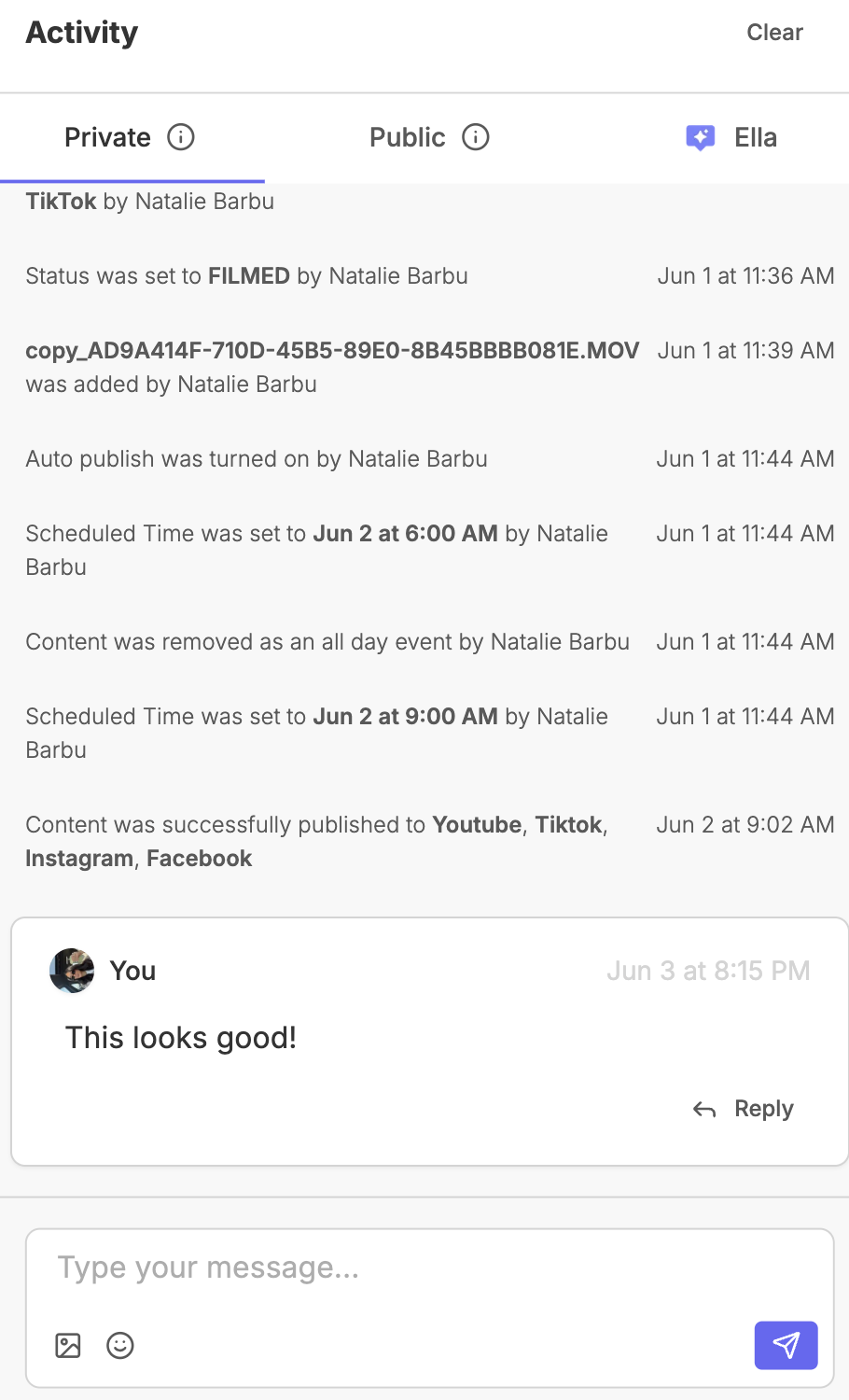
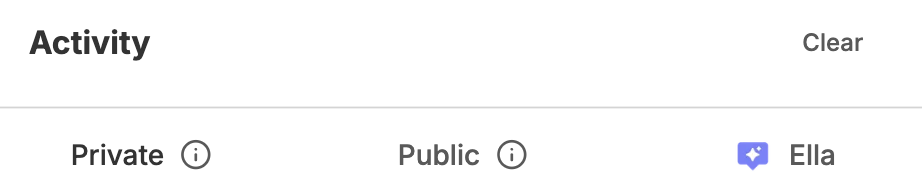
The Activity Log (or Activity panel) is a dedicated collaboration space built directly into your Content, Task, and Note cards. Rather than treating all comments the same, Rella splits your conversations into secure channels:
Private: Strictly for your internal team.
Public: Shared with external clients and reviewers.
Ella: A private sandbox to brainstorm copy ideas with Ella.
Labeled Activity Log Tabs
To keep your workspace discussion secure and organized, the Activity Log uses three tabs to filter who can see your comments.
Private Tab
The Private tab is your team's internal huddle space. Comments written here are only visible to members of your Social Space (such as standard members, managers, or admins).
Use case: Discussing draft copy critiques, pointing out design mistakes, or debating publishing schedules before presenting the draft to the client. External clients viewing public shared links can never see comments in this tab.
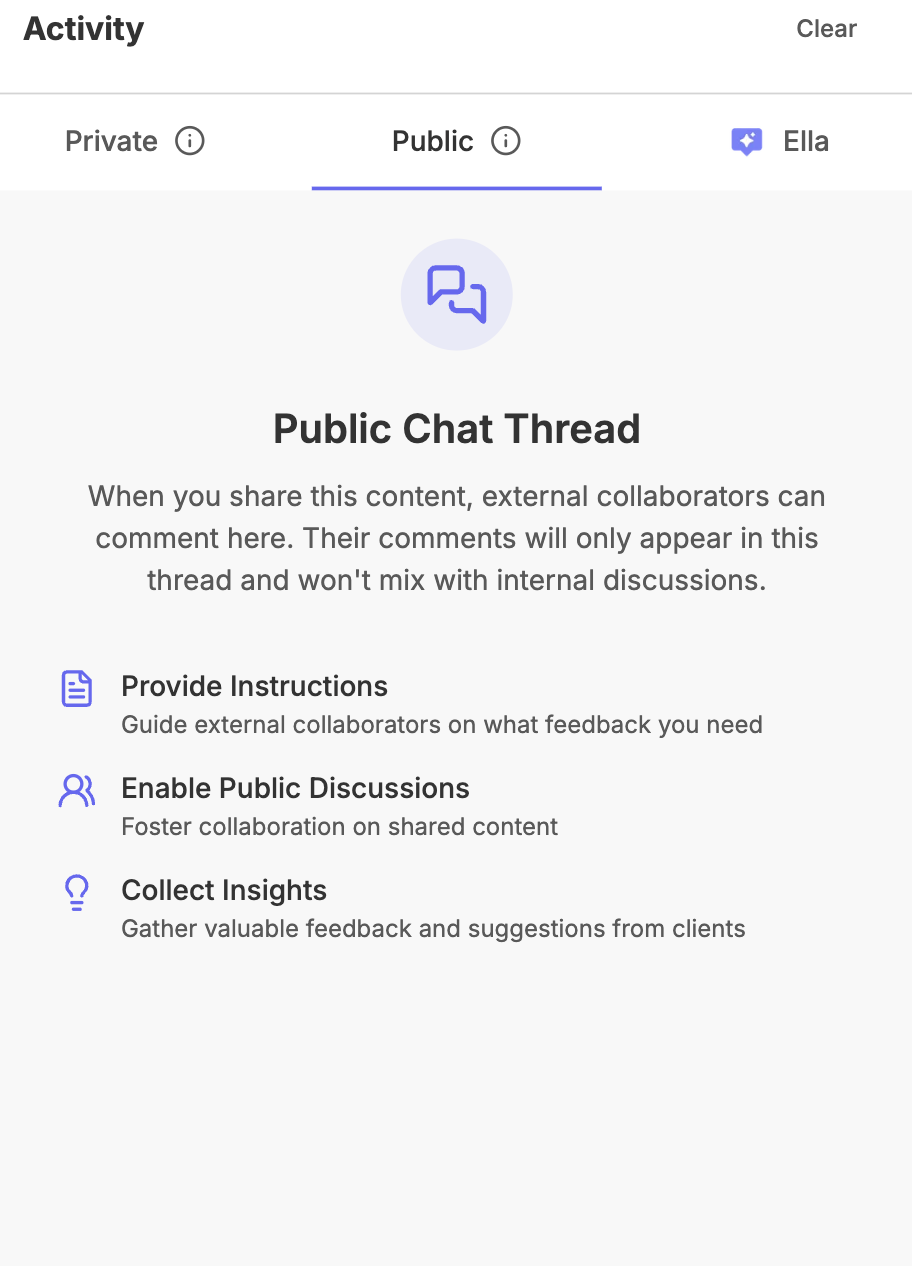
Public Tab
The Public tab is your client-facing collaboration space. Comments here are visible to anyone who has access to the post—including clients and external collaborators who view your post via shared review links.
Use case: Gathering feedback from clients, requesting copy edits, or getting final sign-offs on creative assets.
Ella Tab
The Ella tab is a private discussion line between you and Rella's AI assistant.
Use case: Asking Ella to suggest alternatives for a specific sentence, adjust hashtags, or write platform-specific variations without cluttering the chat logs of your human team members.
How to Participate in Post Conversations
Participating in post discussions is straightforward, but different rules apply depending on whether you are an internal team member or an external reviewer.
For Internal Team Members
Open any Content card and look for the Activity panel on the right.
Select your target tab: Private, Public, or Ella.
Type your message in the input area at the bottom.
If you want to notify a specific teammate, type
@followed by their name to tag them.Click the send button (or press Enter) to post your message.
To keep the chat organized, hover over an existing comment and click Reply to start a threaded discussion.
For External Clients & Reviewers
When you share a public review link, clients can view media, read captions, and leave feedback in the Public tab:
Open the shared post link in a browser.
In the Activity box, select the Public tab.
Type feedback or review requests in the comment box.
If the client is viewing the link anonymously, they will be prompted to enter their email address. This subscribes them to email notifications so they receive automated alerts when your team replies or updates the post.
How to Reference Media and Timestamps in Comments
Rella makes asset reviews precise by allowing you to hyperlink specific media files and time markers inside your discussions.
Inside the comment box at the bottom of your Activity panel, click the Image icon (representing Reference media in your comment).
A dropdown list will display all the Media files currently attached to that Content card.
To reference an image:
Select the image card from the dropdown.
Rella will insert a custom media tag (such as
[Image 1]or the file's custom name) directly into your comment text.
To reference a video frame (Timestamp):
Select the video from the dropdown.
A Video Frame Scrubber overlay will appear.
Scrub through the video timeline to find the exact second you want to reference (e.g.,
00:15), then click select.Rella will insert a custom video reference tag containing that exact marker (such as
[Video 1 @ 0:15]) into your comment text.
Type any supporting feedback next to the tag and click send.
When a team member or client clicks that media reference link in your posted comment, Rella will automatically open that specific asset in the Previews panel. If it's a video, the player will instantly jump and scrub to the exact timestamp you specified.
Resource: 📄 Reference Media & Comment with Timestamps
Member Permissions & Deleting Comments
To protect your workspace history from accidental deletions, Rella wraps management controls inside permission gates.
Deleting Comments: Team members can delete their own individual comments. However, only a Manager or Admin can delete comments posted by other team members, clear the entire master comment thread, or wipe client feedback logs.
Role Limits: Clients and external collaborators cannot see the Private or Ella tabs, nor can they delete any comments written by your internal team.
Activity Log FAQs
What happens if I tag an internal member in a Public comment?
If you mention an internal member (such as @Sarah) inside the Public tab, she will receive a notification and can reply. However, because the discussion is in the Public tab, any client or reviewer who has the shared link will be able to see the conversation history. Always switch to the Private tab if you need to discuss internal matters.
Why doesn't my client see our internal team comments?
Rella secures your internal comments by default. Any message written under the Private tab is strictly gated and will never appear on public shared review links. If your client is missing a feedback thread, make sure your team is posting those messages inside the Public tab instead.
Can I clear my conversation with Ella on a post?
Yes. If you want Ella to start fresh with her copy suggestions for a specific post, you can clear your AI chat history on that card. Click the Clear button (represented by the trash can icon) at the top of the Ella tab to reset the AI thread.