Tailor Content Approval Settings
Last updated: June 4, 2026
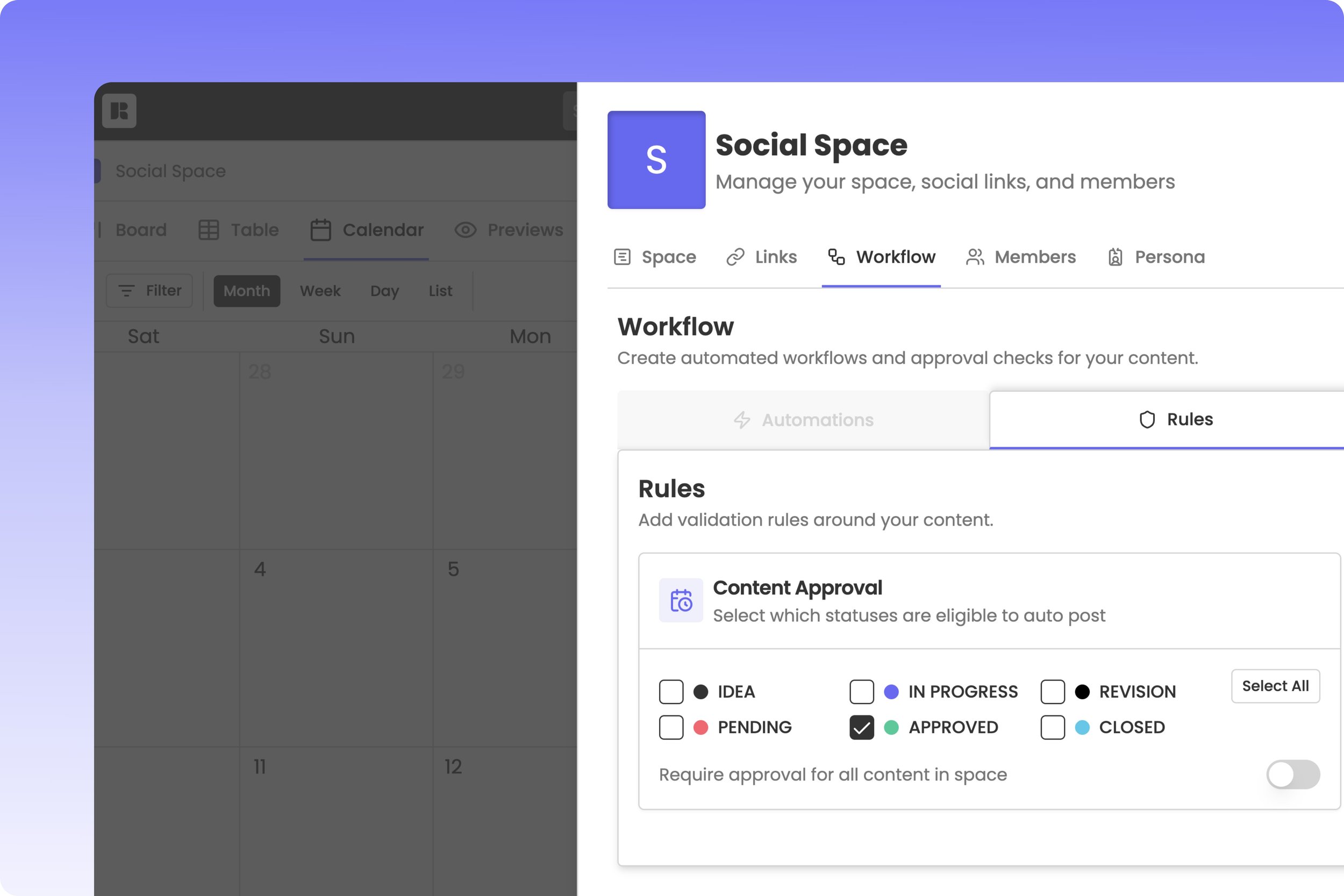
Establishing a clear approval pipeline ensures your team members and clients can collaborate safely without risking premature or unauthorized publications. Rella's Content Approval rules let you restrict automated publishing to only specific statuses and enforce a space-wide approval requirement.
Available on Rella Premium and Premium Plus
About Content Approval Rules
By default, any post scheduled with Auto Post toggled on will publish automatically once it reaches its scheduled date and time. However, to prevent draft content or unreviewed posts from going live accidentally, Rella lets you customize which Statuses are legally eligible for automated posting.
You can set up two primary safety controls inside your Social Space's workflow settings:
Approved Status Selection: Restrict auto-publishing to only specific content statuses (for example, allowing auto-posting only when a post is marked as "Approved" or "Ready to Post").
Space-Wide Approval Requirement: Lock down the active Social Space so that all scheduled posts are forced to undergo your validation pipeline, preventing any member from bypassing approvals.
How to Configure Content Approval Rules
Steps
Hover over your active Social Space name in the left navigation sidebar.
Click the More Options (...) icon next to the space name and select Space Settings.
Inside the settings sheet, click the Rules tab at the top.
Locate the Content Approval card.
Customize your publishing criteria:
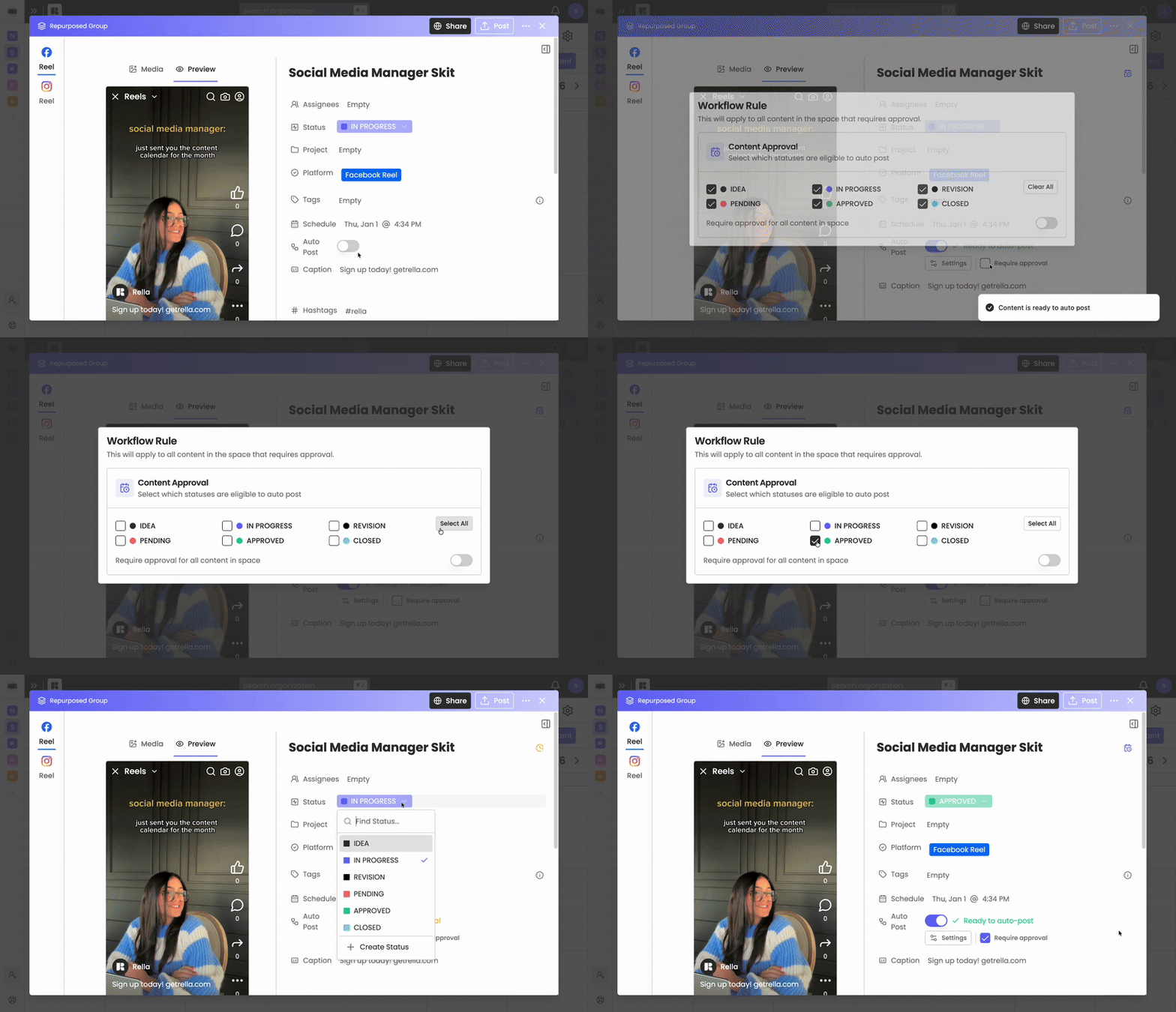
Set Eligible Statuses: Click the status selector under the card header to select which statuses are permitted to publish. For example, check Approved and uncheck Draft, In Progress, or Needs Review. Any post held in an unchecked status will be blocked from auto-publishing when its schedule time arrives.
Enforce Space-Wide Approvals: Toggle on the Require approval for all content in space switch. This applies a mandatory lock across all posts in your Social Space, automatically checking the "Require approval" setting inside every post editor and disabling users from manually turning it off.
Your selections save instantly in the database.
What Happens at Scheduled Post Time?
When a post reaches its scheduled publication date and time, Rella runs a final background status check:
If the post's status is eligible: Rella processes the media, connects to your social channels, and auto-publishes the post.
If the post's status is ineligible: Rella blocks the publication, flags the post, and leaves the draft untouched on your calendar. You will receive an alert explaining that the post did not meet the space's active approval criteria.
Content Approval FAQs
Who can customize Space-Wide Approval Rules?
Only users holding an Admin or Organization Owner role can view, edit, or configure settings inside the Rules tab of Space Settings. Editors and Managers can view active rules but cannot modify them.
What happens if I toggle off "Require approval for all content in space"?
Toggling this switch off removes the mandatory lock from your Social Space. Teammates will gain the ability to manually check or uncheck the Require approval checkbox inside individual post editors based on their own discretion.
Can I set different eligible statuses for different social platforms?
No. Content Approval rules apply globally to all platforms within your specific Social Space to maintain a unified brand pipeline. If you require separate approval workflows, we recommend creating different Social Spaces for each brand.