Reference Media & Comment with Timestamps
Last updated: June 3, 2026
Coordinating draft reviews gets complicated when giving feedback on specific video scenes or image details. Rella’s Media Reference tool lets you tag specific photos or pinpoint exact video timestamps directly inside your comments so your team knows exactly what needs to be changed.
About Media References
When writing internal comments or client review notes in the Content comments sidebar, you can insert dynamic links that point to specific files in your Primary Media or Files section
For videos, Rella takes this a step further by letting you select a specific Video Timestamp. When team members or clients click your comment's media tag, Rella's media player will automatically open and jump straight to the exact second you referenced.
How to Reference Media in a Comment
Steps
Open your draft post in the Content editor.
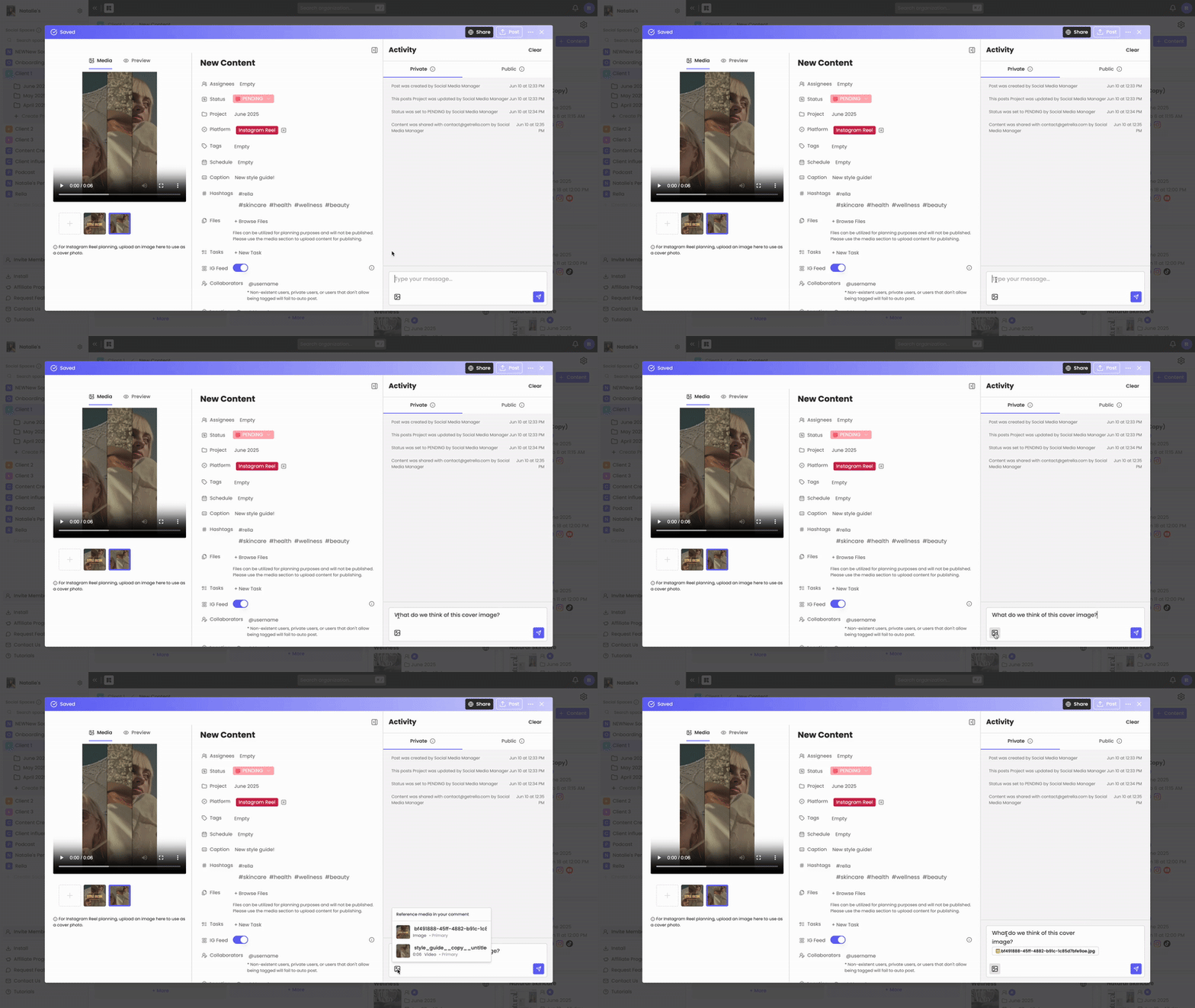
In the right-hand Comments panel, locate the comment input area at the bottom.
Click the Reference Media (image icon) button inside your toolbar [24].
A dropdown menu will slide open displaying a scrollable list of all photos, videos, and PDFs currently attached to the post [24].
Select the asset you want to reference:
For Images: Select the image. Rella will instantly append an interactive tag (such as
[Image 1]) directly inside your text editor.For Videos: Select the video. A specialized frame selector player will pop open.
If selecting a video:
Use the player scrubber to drag and pinpoint the exact scene you want to address.
Click Choose Timestamp.
Rella will close the player and insert an interactive timestamped tag (such as
[Video 1 @ 0:12]) directly into your comment.
Type your feedback alongside the tag (for example: "Delete this logo at [Video 1 @ 0:12]") and click Send.
Interacting with Reference Tags
Once a comment with a media reference is posted:
One-Click Playback: Clicking the tag inside the comment thread will launch Rella's media player and immediately jump to the referenced timestamp.
Visual Highlights: Your client-facing review pages also support reference tags, allowing clients to leave and view precise timestamped feedback without needing a Rella account.
Media Reference FAQs
Can I reference files from the secondary "Files" section?
Yes. The Reference Media dropdown lists all assets associated with the post, including both your public Primary Media and your internal planning Files. The dropdown will display a small label next to each item indicating if it is primary or secondary.
What happens if I rename the referenced media file?
Rella maps media references to unique database IDs rather than the file name. If you rename an asset, Rella will automatically update the text on your comment's reference tag to match the new vanity name while keeping the link completely intact.
Can I add multiple media references to a single comment?
Yes. You can click the Reference Media button multiple times to tag different photos or insert several different timestamps into a single, detailed feedback message.