Create a Social Space
Last updated: June 26, 2026
Create a Social Space
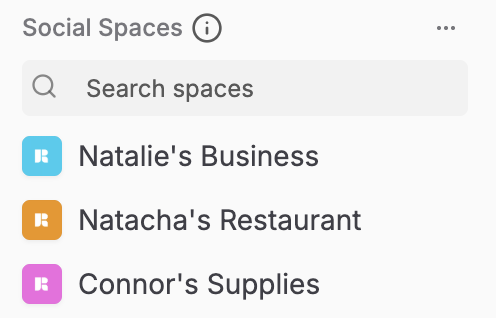
A Social Space acts as a dedicated, secure workspace for a specific brand, business, or client, housing its own social accounts, content Calendar, Projects, and Media.
Before You Start
You must have an Admin or Organization Owner role to create a new Social Space.
Steps to Create a Social Space
1. Click Create Social Space
Navigate to the left navigation sidebar, scroll to the bottom of your space list, and click Create Social Space (the + icon).
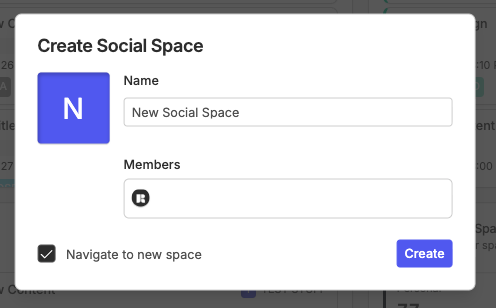
A creation modal opens on desktop. On mobile, the same form appears as a bottom drawer.
2. Rename Your New Space
In the Name field, type your brand or client's display name. If you leave the field blank, the space is created with the default name New Social Space.
3. Upload a Custom Avatar (Optional)
Click the avatar uploader in the modal and select an image file to represent the brand or client. This helps your team distinguish between spaces in the sidebar.
4. Connect Your Social Channels (Optional)
In the Members section of the modal, select the org members you want to include in this space. Org admins are pre-populated and cannot be removed.
When you're ready, confirm creation. If the Navigate to new space checkbox is checked (it is by default), Rella routes you directly to the new space. Uncheck it if you want to stay in your current view.
To connect social accounts after the space is created, open Space Settings and follow the steps in Link & Manage Social Media Accounts in Rella.
Result
Your new Social Space is created with the name, avatar, and members you configured, and is listed in the left sidebar. You can now toggle to this space at any time to build a brand-specific Calendar, organize your Media files, or draft upcoming Content.
Social Space Creation FAQs
Can Editors or clients create a new Social Space?
No. Creating new Social Spaces is restricted to Organization Owners and Admins to prevent unmanaged space creation and ensure billing controls. Editors and clients do not have access to the Create Social Space button.
Can I invite clients to only see one specific Social Space?
Yes. When you invite team members or clients with a Manager or Editor role, you must assign them to specific Social Spaces. They will only see and access the spaces you explicitly grant them permission to view.
Resource: 📄 Share Content & Receive Approvals