Import Canva Designs
Last updated: June 3, 2026
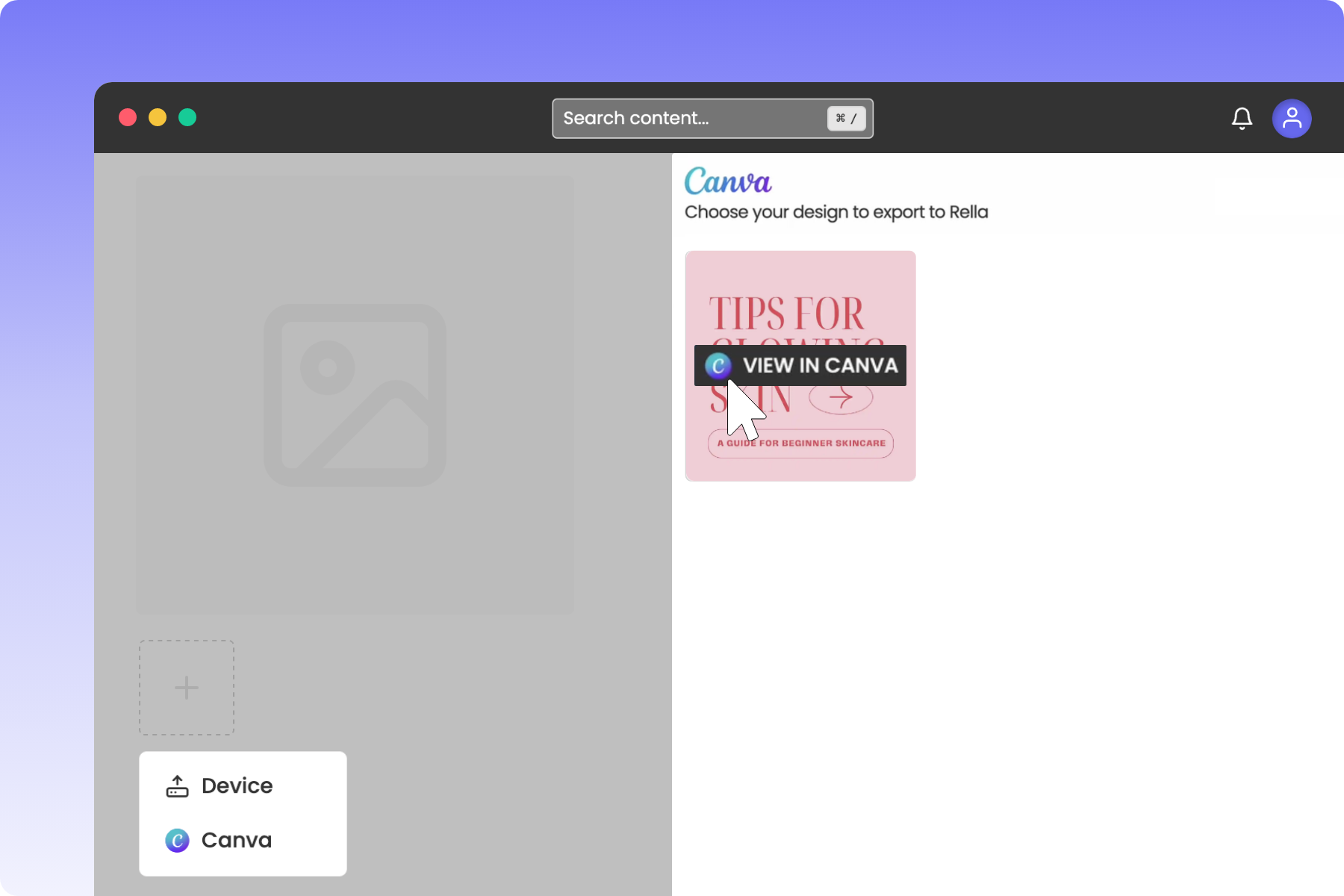
Creating graphics in Canva and manually downloading and re-uploading them to your calendar is a repetitive chore. Rella’s native Canva integration lets you browse your design library, select your files, and import your visuals directly into your media folders or active drafts.
Before You Start
There are no Rella plan tier restrictions on the Canva integration, but you must have an active Canva account to link.
To manage your media and import assets, you must hold an Admin, Organization Owner, or Manager role in your active Social Space.
Steps to Import Canva Designs
1. Open the Canva Dialog
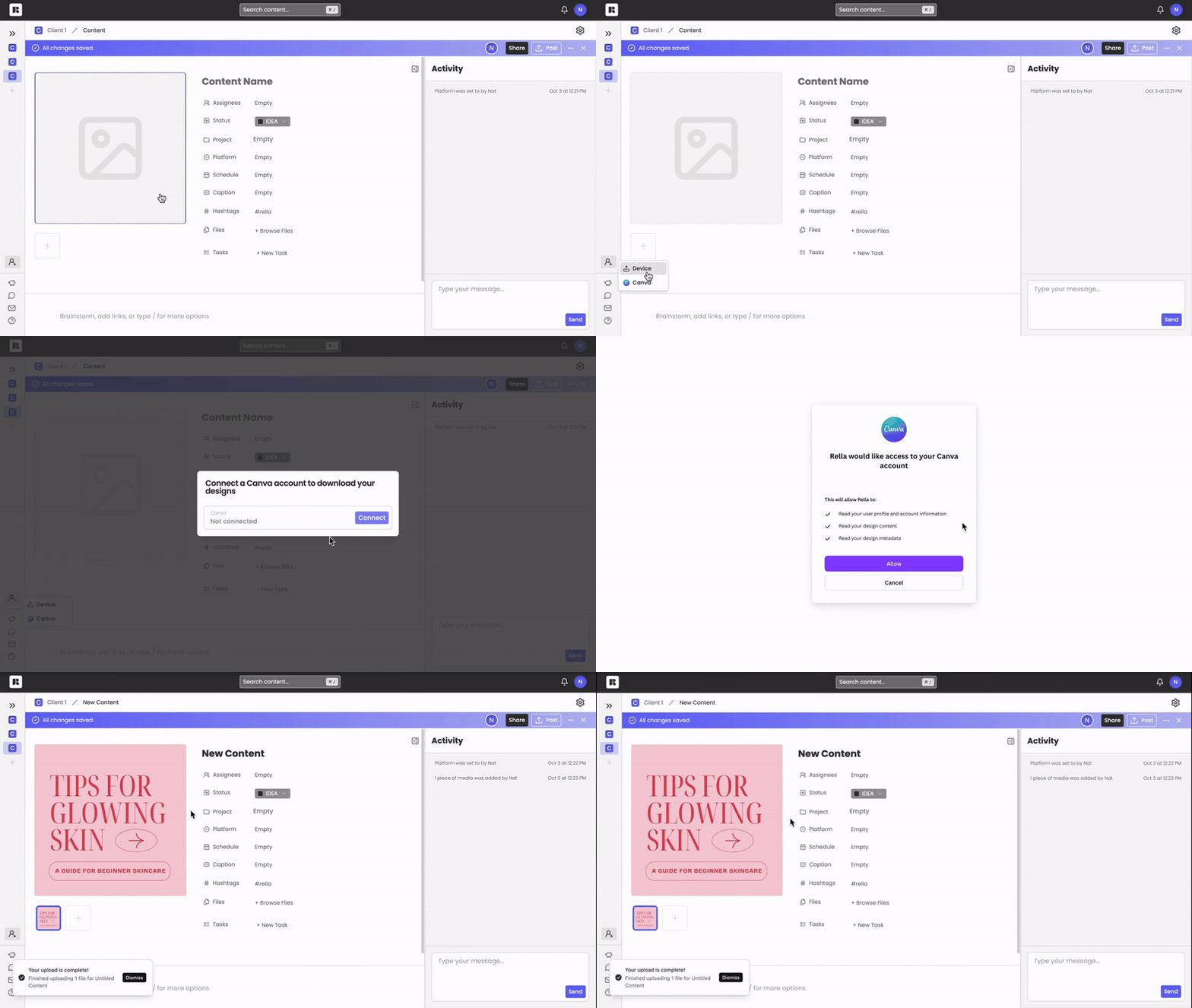
Navigate to your Media library dashboard (or open a draft post inside the Content editor).
Click Import (or click the plus icon inside the media selector).
Select Canva from the dropdown options.
2. Connect Your Canva Account
If you haven't linked your account or if your token has expired, Rella will present a connection prompt:
Click Connect Canva.
Follow the secure Canva authorization prompts in the popup window to grant Rella access to your design files.
3. Choose Your Export Quality
Once connected, your Canva designs will load in a grid:
Locate the Export Quality dropdown menu at the top of your design picker.
Select your preferred resolution:
Regular: Standard social media resolution. Recommended if you are on a free Canva plan.
Pro: High-resolution print and streaming quality. This option requires a Canva Pro plan or higher.
4. Import Your Design
Browse through your design grid and click the thumbnail of the file you want to use.
Click Import.
Rella will process the export job. Once complete, your Canva graphic or video is saved directly to your Rella folder and is ready to schedule.
Canva Import Limitations
To keep your scheduling queue stable, please keep the following platform constraints in mind:
Supported Formats: Rella currently supports only image OR video exports from Canva.
Multi-Page PDFs: Document or slide deck exports (such as
.pdfor.pptxpresentations) are not supported for image-post generation. To post slides, ensure they are formatted as a multi-image carousel or a video.
Canva Integration FAQs
Why did my design export fail with a license error?
If your export fails with a license_required code, your design contains premium elements (such as stock photos, specific graphics, or premium fonts) that haven't been purchased. You can resolve this by either upgrading to a Canva Pro plan, purchasing those specific elements inside Canva, or switching your Rella Export Quality setting back to Regular to bypass the licensing check.
If I edit my graphic inside Canva, will it update in Rella automatically?
No. Once a design is imported, Rella creates a static file in your Media Library so it can be securely queued for auto-publishing. If you make changes to your design inside Canva, simply open your Rella draft, click Import, select Canva again, and import the updated file.