Request Media Assets
Last updated: June 3, 2026
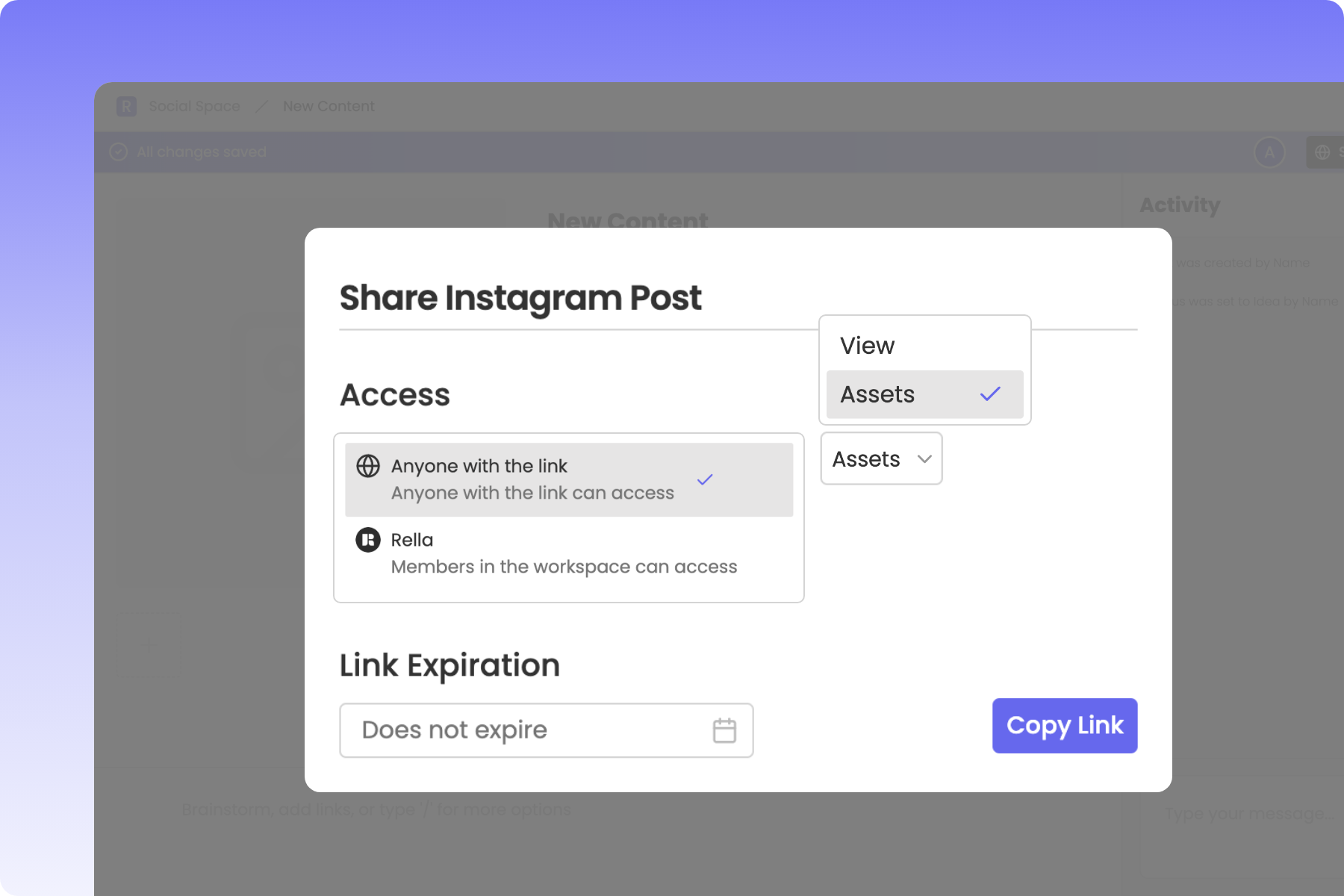
Chasing clients, creators, or brand partners for creative files can delay your publishing pipeline. Rella's Request Media Assets feature lets you create placeholder posts on your calendar and invite external users to upload high-resolution images, videos, or documents directly into draft posts without needing a Rella login.
Before You Start
You must hold an Admin, Organization Owner, or Manager role in your active Social Space to configure and share Asset Request links.
Public asset uploading is supported across all plan tiers.
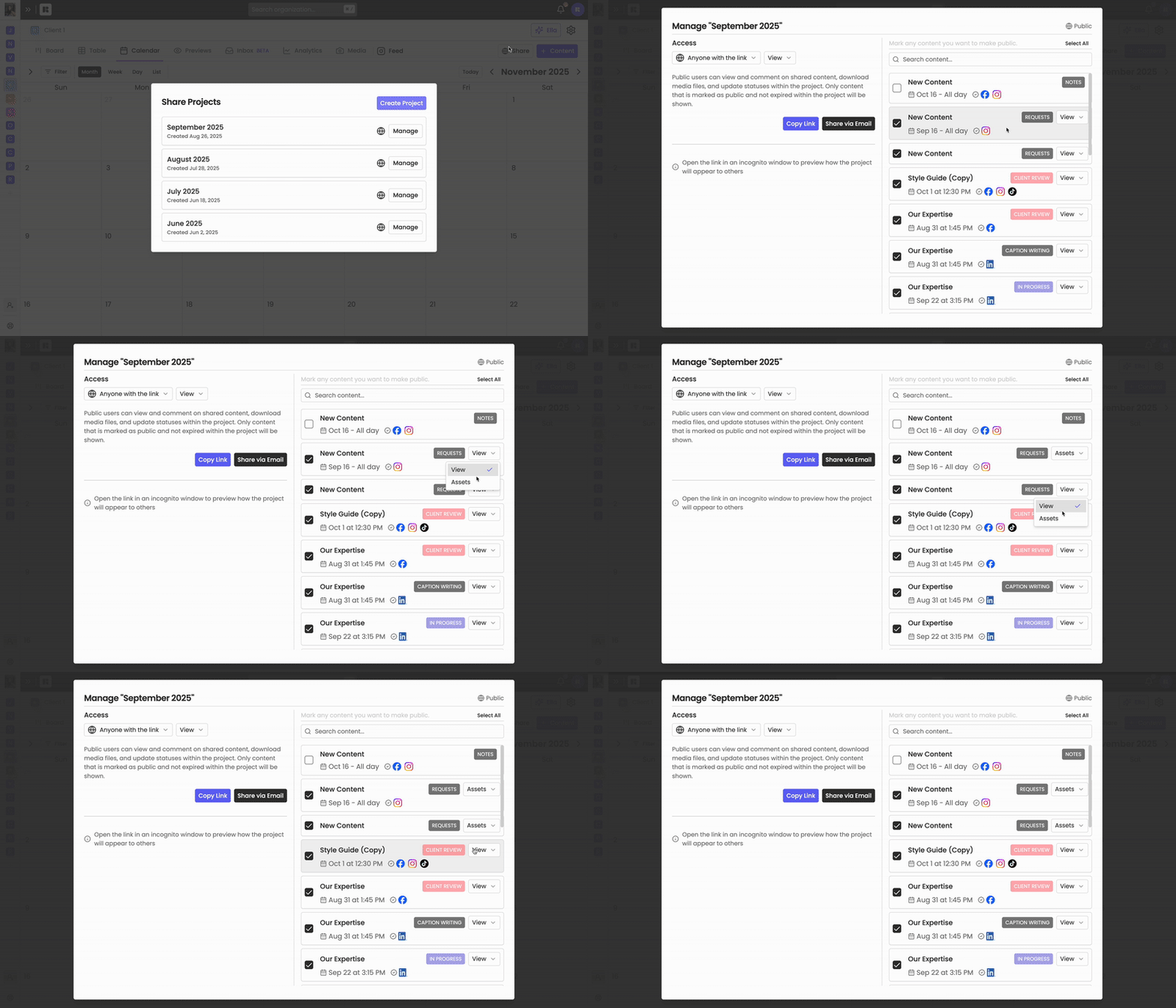
How to Create and Send an Asset Request
Step 1: Create a Placeholder Post
Open your Calendar or Board view inside your active Social Space.
Click Create in the navigation header and select Content (or click directly on your target calendar cell).
Type an internal title for your post (for example: "Creator Video Placeholder").
Select your target channels in the Platform dropdown so Rella can run automatic file validations later.
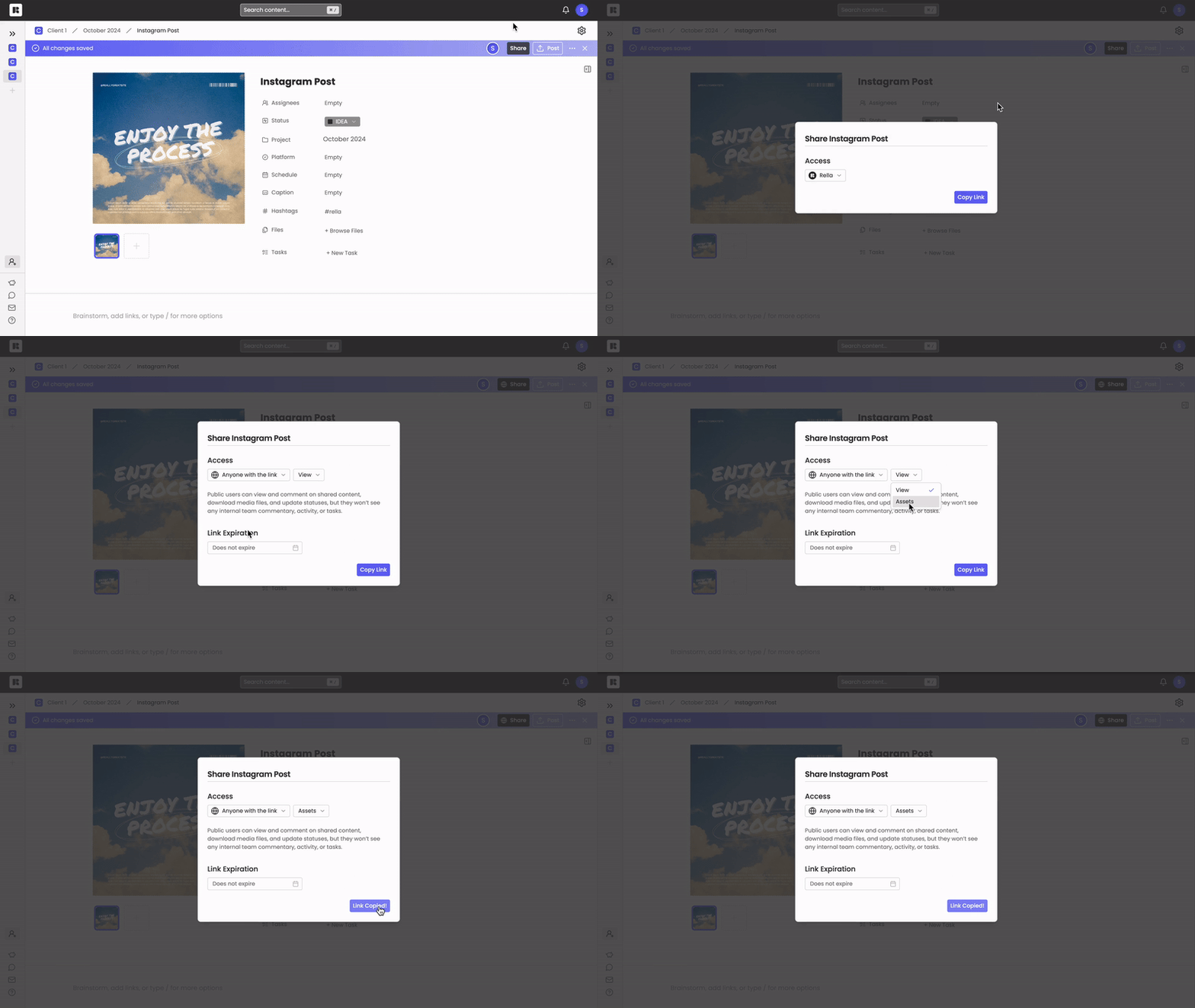
Step 2: Open the Share Settings
In the top-right header of your Content editor, click Share.
Toggle on the Public Link switch (represented by the globe icon) to make your link active.
Step 3: Set Access to Assets
Locate the Access Level dropdown menu inside your share settings.
Select Assets. This specific permission level transforms your shared draft into a public asset request portal.
If desired, configure an Expiration Date to automatically disable the link once your campaign or submission window closes.
Step 4: Share Your Link
Choose your preferred delivery method:
Send via email: Type your client's email address and a custom message in the email invite fields, then click Send.
Share manually: Click Copy Link to save the secure URL directly to your clipboard so you can send it via Slack, Microsoft Teams, or text.
What the Client Sees (The Guest View)
When your client opens your shared link, they are directed to a clean, branded guest portal:
The Upload Card: In the primary media area, they will see an upload placeholder labeled Select media to upload.
Drag-and-Drop Uploads: Clients can drag files from their desktop or click the card to upload high-resolution images, videos, or PDFs.
Automatic Integration: The moment your client uploads a file, Rella processes the upload, generates thumbnail previews, and attaches the asset directly to your draft post.
No Sign-Up Needed: Clients can complete this entire process without registering for a Rella account, creating a login, or entering a password.
Request Media Assets FAQs
Do clients need to register for a Rella account to upload files?
No. Shared preview links with Assets access act as temporary secure portals. Your clients and creators can drop files directly into your placeholder posts without needing to register or log in.
Can clients see my draft calendar or other internal posts?
No. Guest portals are strictly isolated. Clients can only see, comment on, and upload files to the specific post you shared. They cannot view your internal team commentary, checklist tasks, private notes, or adjacent brand campaigns.
Can clients upload multiple files to a single request?
Yes. If you are planning a multi-image carousel or need multiple video options, clients can upload up to 10 images or videos to a single post.
What happens to the uploaded files if I disable the link?
If you manually turn off the public link (or if your set expiration date passes), the secure portal closes immediately. However, all files your client successfully uploaded before the link expired remain safely saved inside your Rella Content draft and Media Library.