Customizing and Editing Media in Rella
Last updated: June 26, 2026
Whether you are preparing a single image or managing a multi-platform campaign carousel, Rella provides powerful built-in tools to upload, adjust, and format your assets. By combining direct cloud integrations with automated file conversions, Rella helps you prepare your media for any social destination.
Before You Start
Rella supports common media file formats, including images (PNG, JPEG) and video files (MP4, MOV).
During upload, Rella automatically extracts essential media metadata (such as dimensions, duration, and file size) in the browser to ensure platform compatibility.
If your asset is still uploading or has an active editing task running in the background, publishing will be temporarily paused until the process completes.
How to Import Media
Rella supports importing files directly from your computer, Google Drive, or Canva.
Option 1: Import Files from Your Computer
Open any Content card on your Calendar or Board.
Locate the Media section in your editor.
Drag and drop your image or video files directly into the drop zone, or click Upload Media to browse your local storage.
Option 2: Import from Google Drive
Connecting Google Drive lets you bring assets directly into your workspace without manual downloading.
Open your Content card or the media selector.
Click Google Drive from your import options.
Use the search bar or breadcrumb links to navigate through your drive folders.
Check the box on the files or folders you want to import. You can select multiple items simultaneously.
Click Import Selected to add the assets to your library.
Resource: 📄 Connect Google Drive & Import Media
Option 3: Design and Import from Canva
With the direct Canva integration, you can export designs straight into your planning feed.
Open the media selector and click Canva.
If this is your first time using this feature, click Link Canva to authorize your account.
Browse your team templates or individual folders inside the design picker.
Choose your export format (such as PNG or JPG) and pick your desired Export Quality from the dropdown selector.
Click the design you want to export. Rella will automatically process and upload the design into your asset section.
Resource: 📄 Import Canva Designs
How to Edit and Crop Media
Because social platforms have strict layout and framing rules, you may need to adjust your compositions before scheduling.
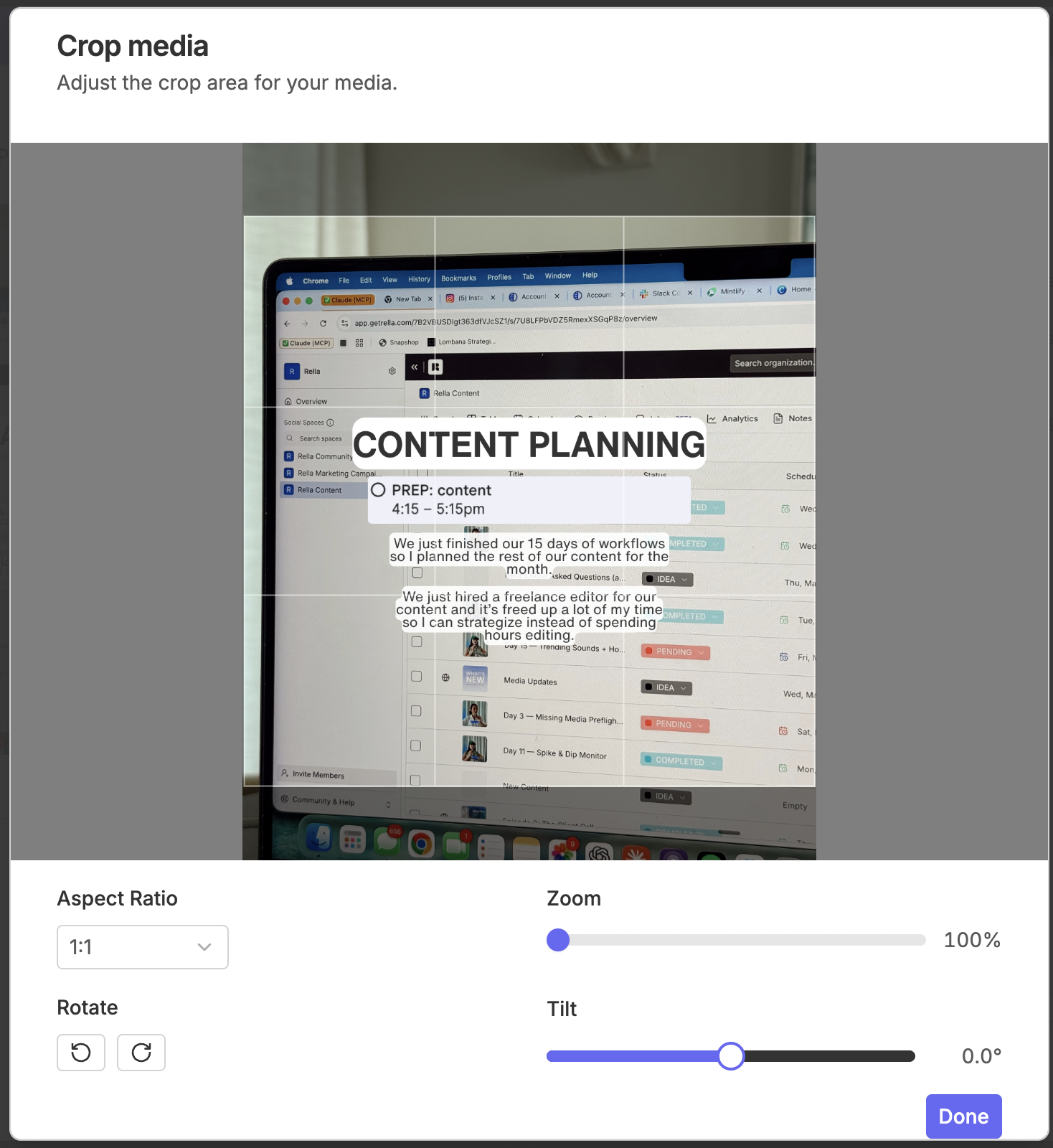
Hover over any media asset in your Content preview or gallery and click the Crop icon (or click Edit Media).
Select your desired aspect ratio preset from the sidebar (for example, choose 1:1 Square for Instagram feeds, 9:16 vertical for Reels and TikTok, or 16:9 widescreen for standard video).
Fine-tune your framing using the crop adjustment suite:
Zoom Slider: Drag the slider from 100% to 300% to scale your asset, or use your mouse scroll wheel inside the frame.
Rotate 90°: Click the rotation button to turn your image in quarter-turn increments.
Fine Tilt Slider: Adjust the dial up to +10° or -10° to correct crooked horizons or align elements perfectly.
Click Save Crop to apply your adjustments. Your updated asset will immediately display in the preview.
Batch Formatting with Bulk Auto-Crop
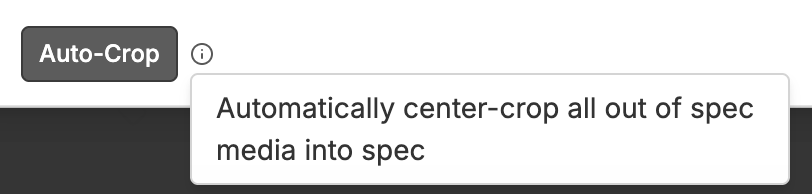
When scheduling carousels or posting identical content to multiple platforms with conflicting aspect ratio rules, you can format all assets at once instead of editing them individually.
Open the media selector on your Content card.
Click Bulk Auto-Crop.
Rella will sequentially center-crop each selected item off-screen to match your target platform's required aspect ratios.
Monitor the progress bar (displaying "Auto-cropping X of Y...") as the editor processes your files.
Click Save All to commit the batch edits.
How Rella Handles File Conversions Automatically
Rella separates creative changes from technical fixes.
Automatic Fixes at Publish Time
If your file looks right but uses a format a platform doesn’t accept, Rella handles the technical conversion for you when the post publishes. You do not need to take any action.
Rella can automatically:
Convert video files into supported upload formats
Resize oversized images or videos to fit platform requirements
Adjust video playback settings for smoother publishing
Convert unsupported image types into supported formats for platforms like TikTok photo posts and X photo posts
When You Need To Make a Change
If your file needs a creative change, such as cropping to a different shape or trimming the length, Rella will not do that automatically.
Instead, Rella will flag the file in your Autopost readiness list so you can review it yourself. To continue, use the crop editor or shorten the video before scheduling the post.
If you want, I can make it even more customer-friendly and turn it into a full support doc section with a title, intro, and FAQ.
Media Customization FAQs
Why can't I see the Zoom slider when editing a video?
The Zoom slider is only supported for image files. Video formatting relies on preset aspect ratio cropping and automatic server transcoding to maintain playback quality.
What is the maximum file size Rella can process?
If your file exceeds Rella's processing cap, the browser readiness checker will display an alert asking you to optimize or compress the file before uploading.
Can I undo a crop or tilt adjustment after saving?
Yes. Crop metadata is non-destructive. You can click Edit Media at any time to readjust the Zoom, Fine Tilt, or aspect ratio back to your original dimensions.