Collaborate with Team Members
Last updated: June 4, 2026
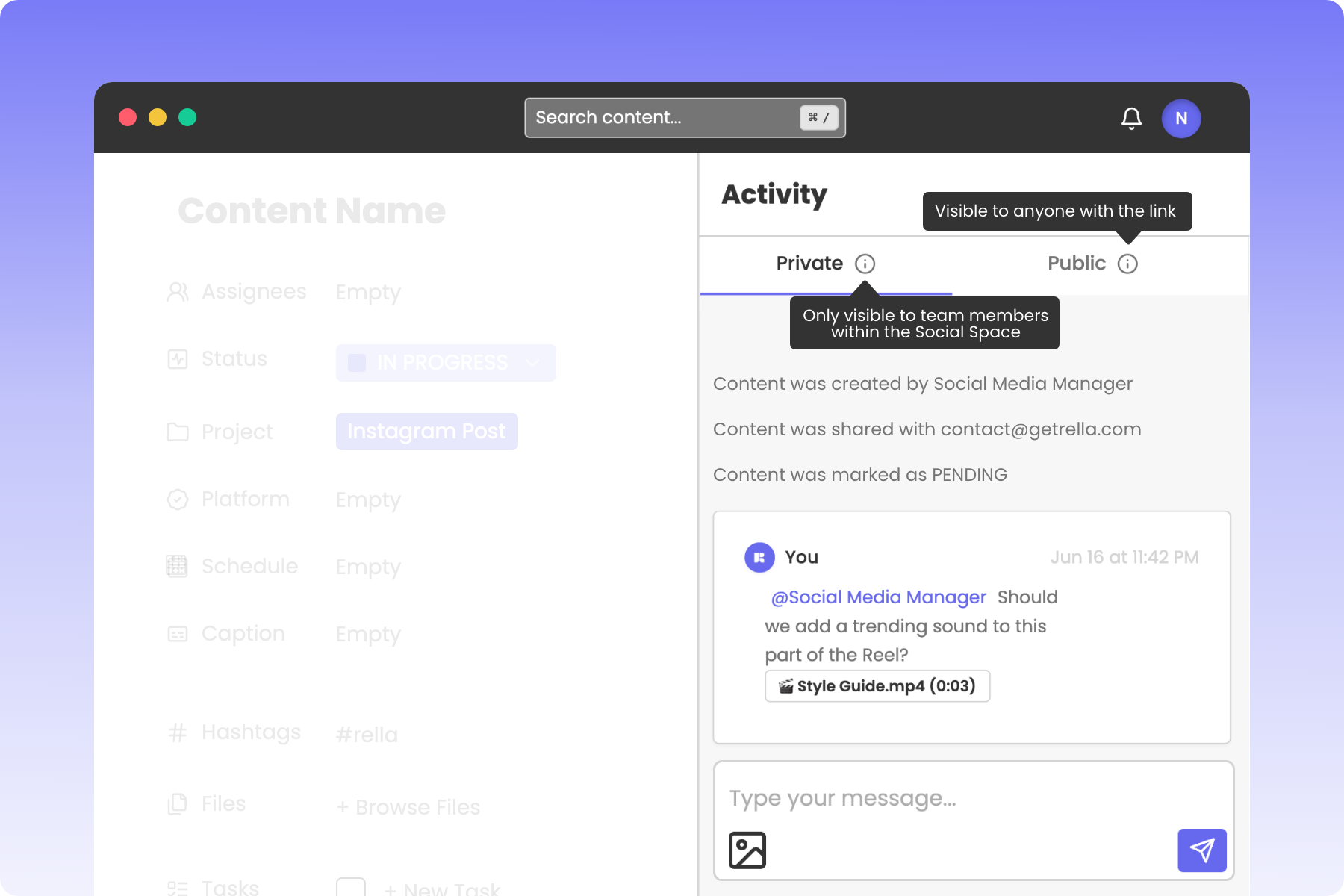
Coordinating post drafts, copy reviews, and media approvals across an agency or marketing team is key to maintaining a smooth social media pipeline. Rella provides a centralized collaborative canvas where your team can communicate, assign tasks, and review assets.
1. Commenting on Content and Tasks (Internal vs. Client Chats)
Every draft post in Rella features a dedicated, real-time comments sidebar on the right side of the screen.
To protect your internal process, comments are split into two separate threads:
Team Chat (Internal): Restricted entirely to logged-in Rella members. Use this thread to discuss draft captions, brainstorm design changes, or iron out visual details.
Public Chat (Client Review): Visible to external users who access the post via a shared preview link. Comments left by clients in their guest portal will appear instantly in this tab so you can respond directly from Rella.
2. Referencing Media and Timestamps in Comments
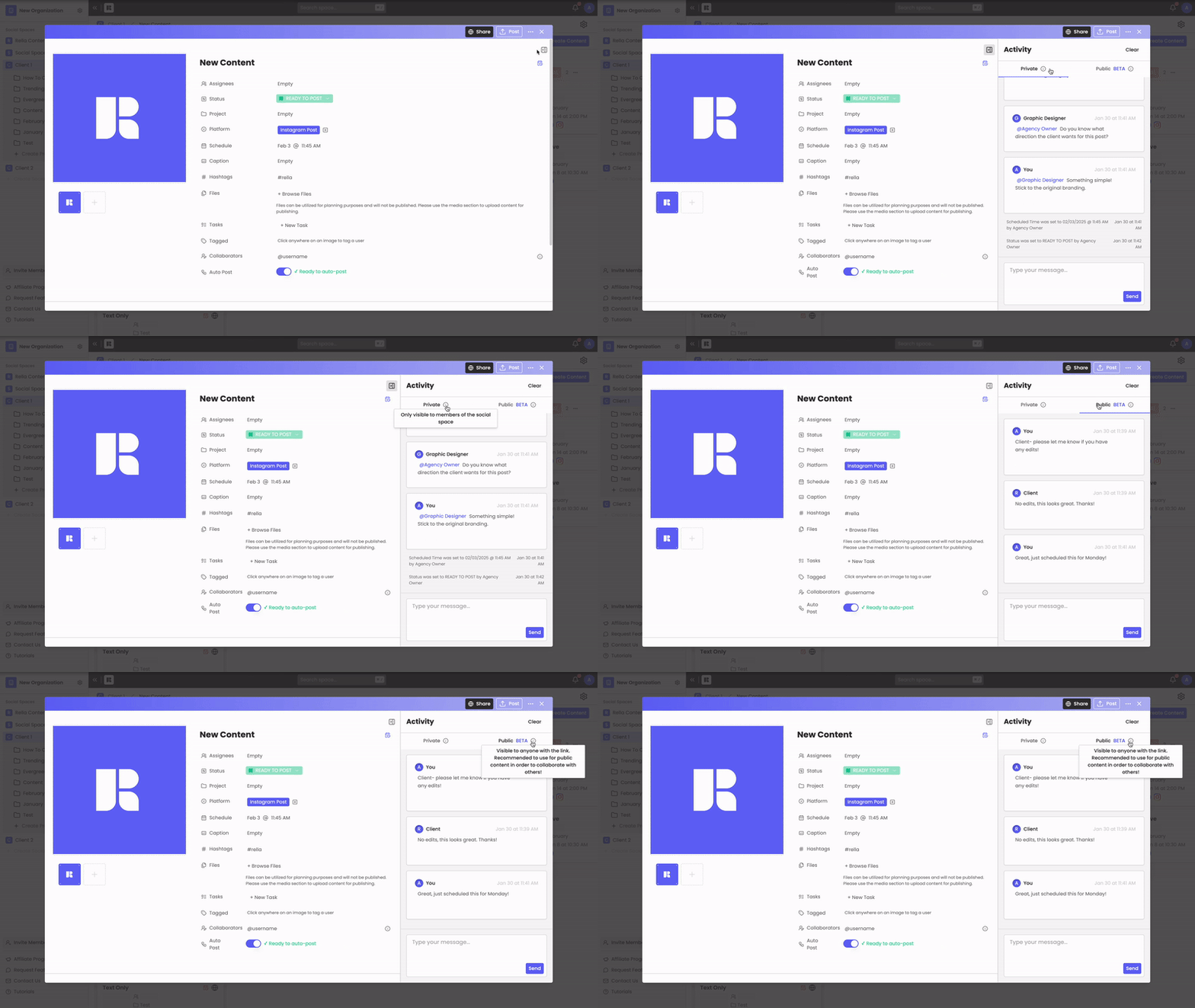
When explaining specific edits, generic comments like "change the logo" can lead to confusion. Rella allows you to pin precise images or video timestamps directly inside your feedback:
Tag a Specific Photo: Click the Reference Media (image icon) inside your comment editor and select the target photo from your attached assets. Rella will insert an interactive tag (such as
[Image 1]) directly into your message.Pin a Video Timestamp: Select a video file from your media list. A frame selector player will pop open. Drag the scrubber to pinpoint the exact second you want to address and click Choose Timestamp. Rella will append a timestamp tag (such as
[Video 1 @ 0:12]) to your text.
When a team member or client clicks these tags, Rella's media player will launch and jump straight to the referenced file or timestamp.
Resource: 📄 Reference Media & Comment with Timestamps
3. Assigning Content and Delegating Tasks
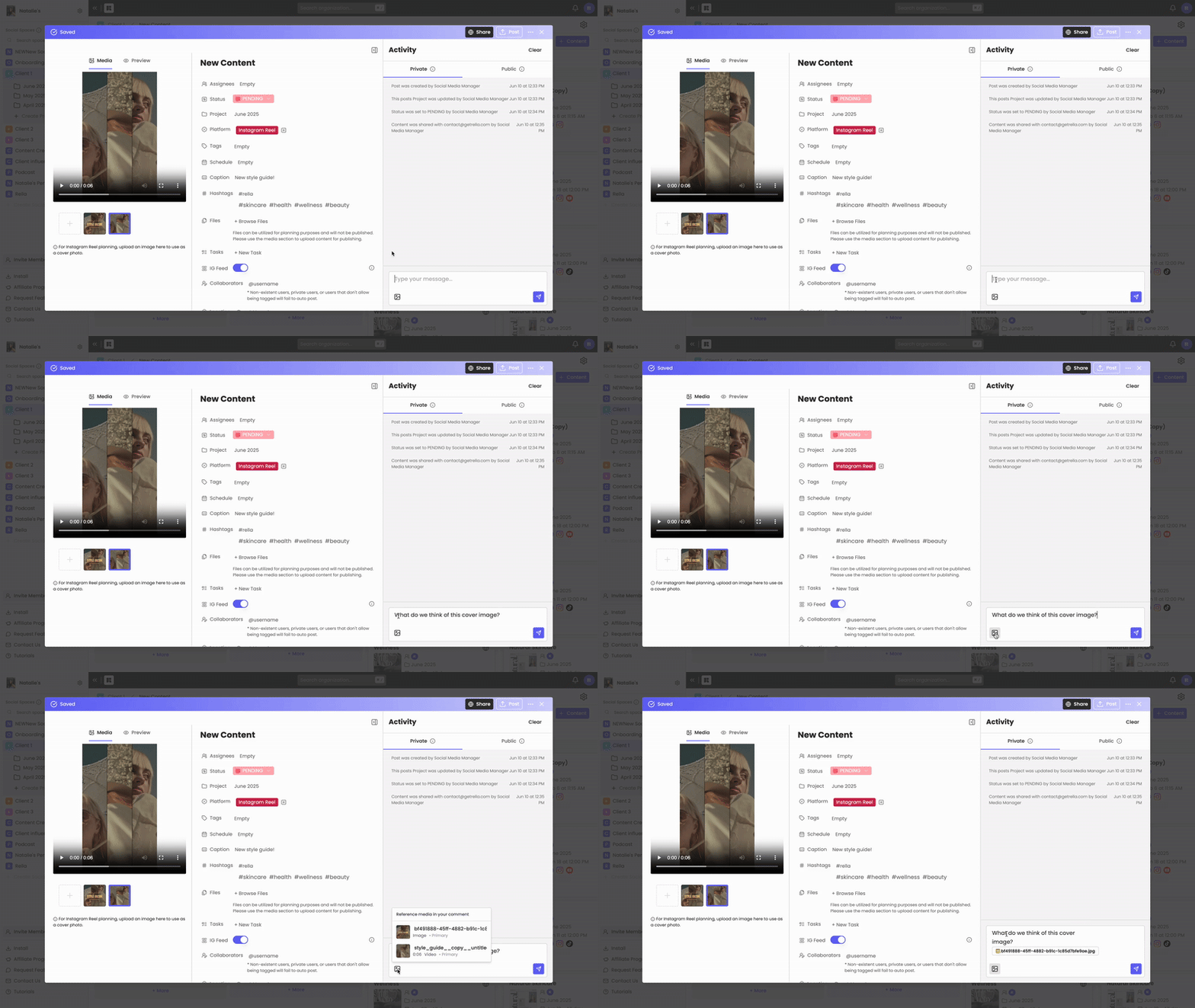
Rella keeps your team aligned on deadlines by letting you assign posts and delegate specific production checklists:
Assign Posts: Use the Assignees field inside the Content editor to tag team members responsible for managing the post. Assigned members are displayed on the main Calendar and Board views so the team knows who is running each campaign.
Build Checklists (Tasks): Scroll down to the Tasks card inside your post editor to build detailed production lists. You can add checklist items like "film b-roll," "write captions," or "obtain client sign-off" to clearly delegate responsibilities.
Team Collaboration FAQs
Can Editors delete comments made by other team members?
No. For safety and accountability, team members can only edit or delete comments they have authored.
Do clients receive email notifications for comments left in the client portal?
Yes. If your Social Space is shared with a client, they can input their email inside the guest portal to receive automated email notifications whenever your team replies to their comment thread.
Can I mention team members using the @ symbol inside comments?
Yes. Typing @ inside the comment text area will launch a dropdown list of your active Social Space members, letting you tag and notify specific teammates instantly.