How to Approve Content
Last updated: October 21, 2026
Open the approval link from your team and click Approve or Reject. You do not need a Rella account.
How you receive the request
Space members use Review & approve in the Approval Requested or Reminder: Approval Needed email. The email is labeled From the Social Space name. Members can also open the post in Rella.
Anyone uses the public content link. People are not each emailed unless someone included them in the notify dialog. That email does not make them a required approver.
Steps
Open the link.
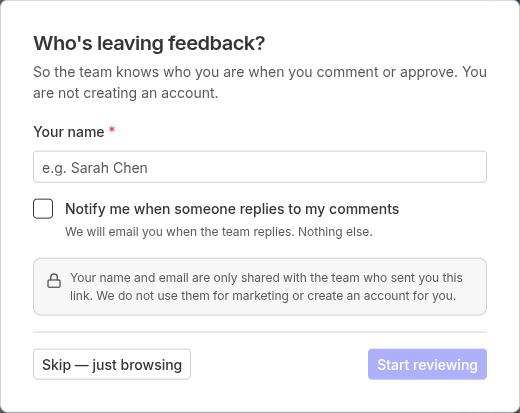
If asked Who's leaving feedback?, enter your name and email so the team knows who you are when you comment or approve, then click Start reviewing. You are not creating an account. Skip this prompt if you are only browsing.
Check the header. It may say Approving as your name or email when you opened a personal approval link.
Review the post, caption, and media.
Click Approve or Reject in the header.
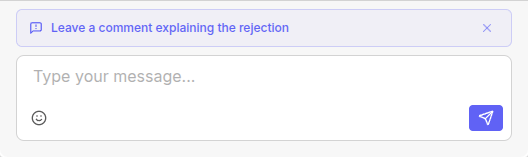
If you click Reject, you can leave a comment when you see Leave a comment explaining the rejection. The comment is optional. Dismissing it does not undo Reject.

Result
You should see a confirmation that you've approved this content and the content owner was notified, or that the team was notified after a rejection. Your team can see the decision in Approvers.
If you are already signed in to Rella
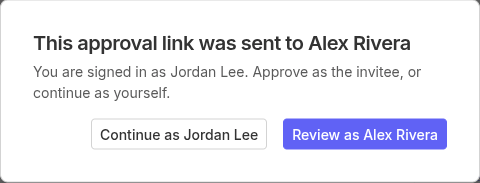
If the link was sent to someone else, you will see This approval link was sent to that person, and You are signed in as your account. Choose Review as the invitee to decide as them, or Continue as yourself to stay on your account. You must pick one of those options before you continue.
How to Approve Content FAQs
Do I need a Rella account or a paid seat?
No. If you are only reviewing and approving content, you do not need a member seat.
Can I change my decision?
You can switch from Approve to Reject, or from Reject to Approve. Clicking the same choice again does not clear it.
Where do my comments go?
Comments you leave are visible to the team on the public Activity thread for that post.