New Approvals System for Existing Users
Last updated: October 27, 2026
If you already held scheduled Auto Post in certain statuses, that hold is still on. You do not set it up again. Sign-off is now a separate switch.
What stayed the same
Statuses that already blocked scheduled Auto Post are still blocked. On Space Settings > Autopost they sit in the Non-publishable column. The statuses that can auto-post sit in Publishable. You do not rebuild that list.
That hold has a new name:
For the Social Space, it is Require publishable status by default. A space that already had blocked statuses keeps this on for new content.
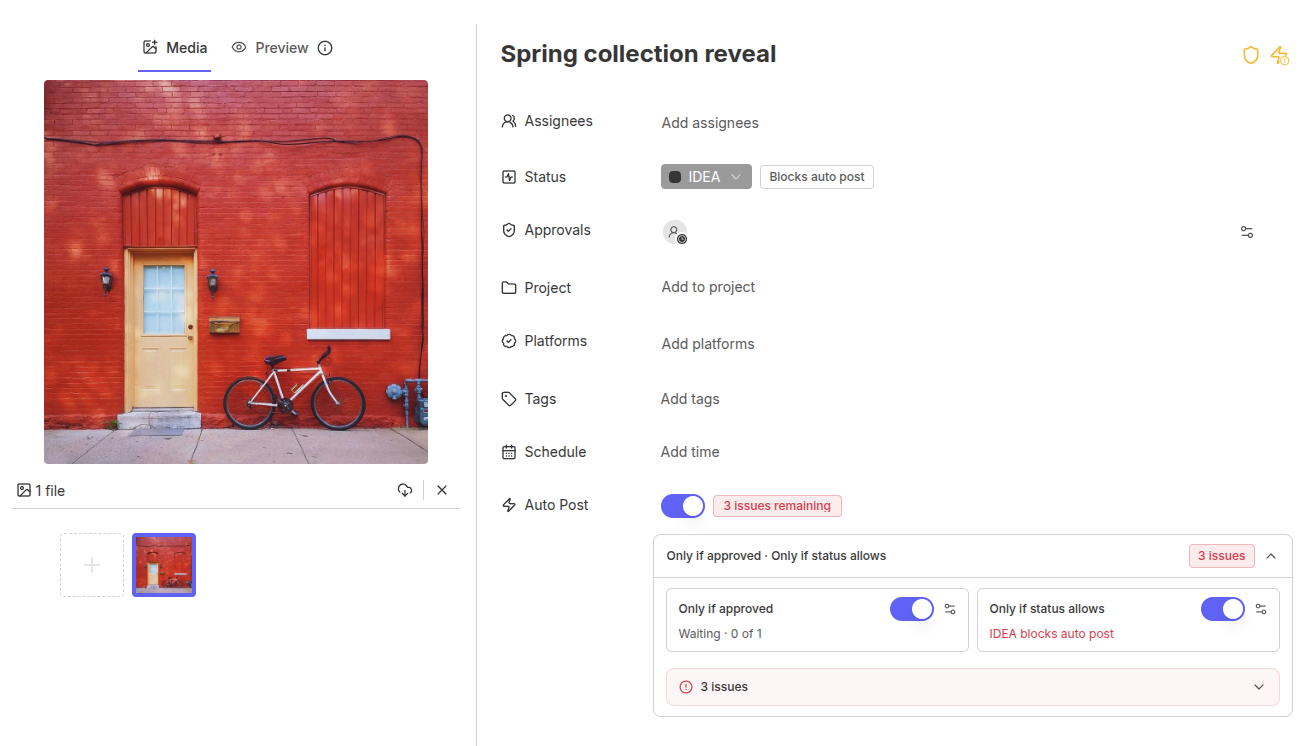
On each post, when Auto Post is on, it is Only if status allows.
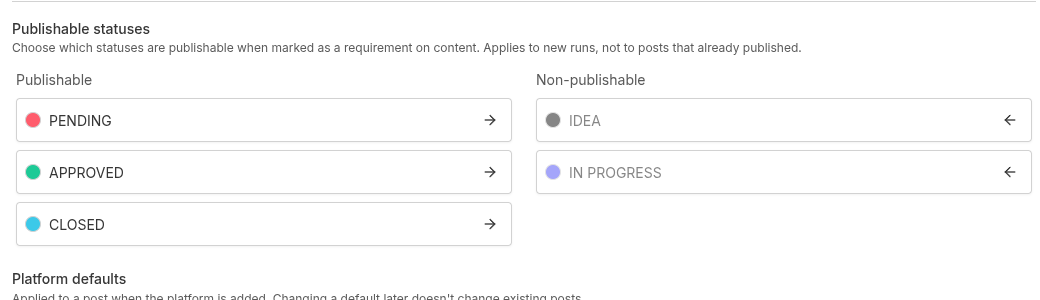
Require publishable status by default applies to new content only. Existing posts keep the hold they already had. You can turn Only if status allows off on one post without changing the space list.
A non-publishable status blocks scheduled Auto Post only while Only if status allows is on for that post. You can still click Post and publish manually.
When the status is holding the post, readiness says Move this content to a status that allows posting. Settings on that line opens Space Settings > Autopost. The status row shows Blocks auto post while this switch is on and the current status is non-publishable.
Where to see it
Open the Social Space.
Open Space Settings.
Select Autopost.
Find Require publishable status by default, then Publishable statuses.
On a post, turn Auto Post on. Only if status allows is the switch for this hold. The line under it names the current status, such as IDEA blocks auto post or Ready to Publish can auto post.
The new approver switch
Only if approved is a second switch under Auto Post. It waits for Approve or Reject. It does not replace the status hold. A post can wait on one, the other, or both.
Only if approved uses the line under the switch, such as Waiting · 0 of 1. Readiness for this switch is Waiting for approval.
The space default is Require approval before auto-post by default on Space Settings > Approvals. It applies to new content only. Each post can change Only if approved.
Moving a card to an Approved column does not approve it in the new system. Use Approve or Reject in the content header.
Learn more