Prevent & Resolve Social Media Account Disconnections
Last updated: May 29, 2026
Planning and scheduling social media posts is only effective when your connected channels stay active and ready to publish. When an account disconnects unexpectedly, it can halt your Content auto-posting queue, disrupt your analytics, and delay your client campaigns.
Understanding why disconnections happen and how to properly authorize connections ensures your workspace remains stable and automated.
Why Social Media Accounts Disconnect
Most social platforms use temporary security credentials (called API tokens) to let Rella safely schedule and publish posts on your behalf. These tokens can get invalidated or expire for several reasons:
Security Resets: Changing your social account password, updating security settings, or enabling two-factor authentication (2FA) on the native platform will instantly invalidate all active third-party connection tokens.
Platform Security Expirations: Networks like Meta (Facebook and Instagram) or TikTok automatically expire third-party permissions after a set period (typically 60 to 90 days) for security compliance.
Permission Changes on the Native App: If you modify your Page role settings or business ownership within Facebook Business Manager or another native dashboard, the connection will sever.
When a link breaks, Rella will mark the account as disconnected and display an alert. To restore publishing capabilities, you will need to re-link (refresh) your connection.
How to Properly Connect Meta Accounts (Facebook & Instagram)
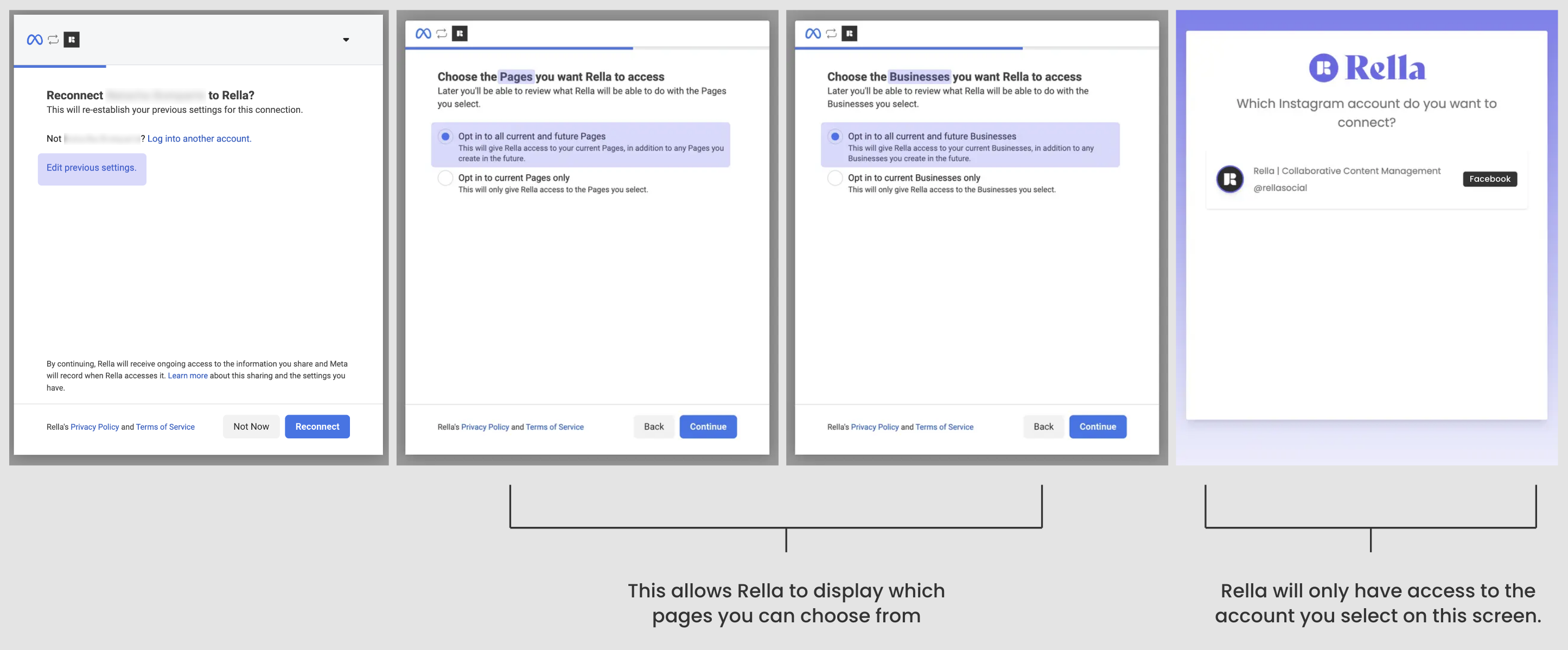
Meta platforms have a highly specific permissions flow. To prevent your Facebook and Instagram accounts from disconnecting and to avoid auto-posting issues, you must grant Rella full list visibility during the authentication process.
Choosing the opt-in options does not give Rella access to manage or post to all of your client accounts. It simply enables Meta to display the lists of businesses and Pages you manage so you can select the correct one inside Rella on the final screen. Rella will only ever have access to the specific account you choose to connect.
Connecting Your Accounts
Navigate to Space Settings > Social Links (or click your space header and select the social account settings).
Locate the platform card you wish to link (Facebook or Instagram) and click Connect.
When the secure Facebook authorization window opens:
If you have connected before, click the Edit previous settings button on the first screen.
If this is a new link, click Continue.
In the permissions wizard, complete these critical steps:
Step 1: Select Opt in to all current and future Pages.
Step 2: Select Opt in to all current and future Businesses (or Opt in to current and future Businesses & Pages).
Step 3 (for Instagram): Select Opt in to all current and future Instagram accounts.
On the final step of the connection wizard, select the specific business Page or Instagram account you want to connect to Rella.
Click Confirm and complete the flow to return to Rella.
How to Refresh a Disconnected Account
If your account is already marked as disconnected, you can restore its connection with a quick re-link.
Navigate to Space Settings > Social Links.
Locate the disconnected account card showing the warning.
Click the re-link button (marked as Relink or Reconnect).
Follow the authentication prompts for that platform. For Meta platforms, remember to click Edit previous settings and opt in to all current and future Pages, Businesses, and accounts before confirming your target profile.
Once complete, Rella will update your token, and your scheduled queue will resume immediately.
Account Connection FAQs
Why can't I see the "Opt in to current and future Businesses & Pages" option?
If this option is missing on your Meta connection screen, your browser has cached your previous Facebook session permissions. To reveal the options, click Edit previous settings on the very first screen of the Facebook linking popup to reset your selections.
Will opting in to "all current and future Businesses" let Rella post to my other client pages?
No. Opting in simply grants Rella visibility to read the list of accounts you manage so you can select the right one. Rella is strictly prohibited from editing or posting to any Pages or Instagram profiles unless they are explicitly selected by you on the final linking screen inside your Social Space.
If my account disconnects, what happens to my scheduled Content?
Any Content set to Auto Publish will fail to post if the account token is expired or disconnected at the scheduled time. Rella will send you a failure email. Once you re-connect your account, you must reschedule the failed post to a future slot and toggle Auto Publish back to On.
Do I need to disconnect my account before re-linking it?
No. You do not need to delete the disconnected link first. Simply clicking the re-link button on the existing account card will refresh the security token without losing any of your scheduled draft data or channel statistics.