Collaborate with Clients in Rella
Last updated: June 4, 2026
Coordinating reviews, copy edits, and final sign-offs across multiple clients can get disorganized fast. Rella provides two distinct methods to bring your clients into your creative loop: sending frictionless public links for quick approvals or adding them as team members to your workspace. Choosing the right method ensures your clients get exactly the level of access they need without overwhelming them or exposing your internal team's discussions.
About Client Collaboration
Rella is built to support agencies, freelancers, and in-house marketing teams who manage content for different businesses. Inside each Social Space, you can plan posts, organize media folders, and assign tasks.
When it comes to sharing this work with your clients, you can tailor their experience based on how closely they collaborate on your daily operations:
Public Links: Best for stakeholders, executives, or clients who just need to view, comment on, and approve drafts without logging in.
Team Members: Best for co-creators, in-house marketing managers, or clients who want to actively browse your calendar, manage tasks, and co-plan alongside your team.
Option A: Share via Public Links (No Account Needed)
Public links are secure, direct web URLs that let anyone view your draft work, leave feedback, and sign off on posts without needing to create a Rella account.
Open the Content post, Social Space, Project, or Note you want to share.
Click the Share button in the top action bar to open the Share Dialog.
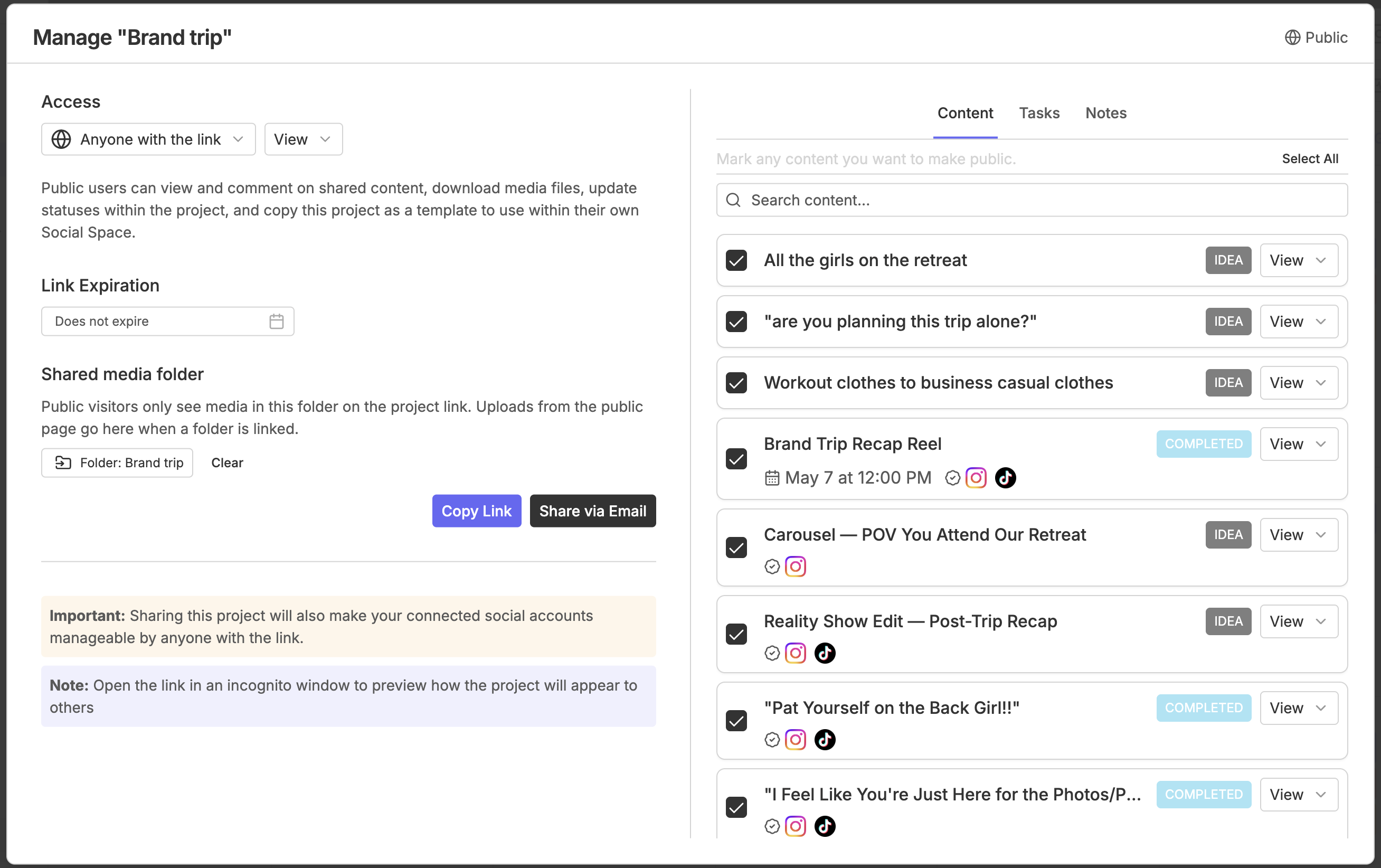
Toggle Public Sharing to on.
Customize your sharing options:
Allow AI Assistance: Check this if you want your public viewers to be able to ask Ella for copy tweaks or alternate caption suggestions directly on the shared page.
Share Expiration: Set an optional calendar date when the public link will automatically deactivate and expire.
Under Invite via Email, enter your client's email address and click Send to deliver a direct notification, or simply click Copy Link to save the URL to your clipboard and send it manually via Slack or email.
Option B: Invite Your Client as a Workspace Member
If your client wants to log in, browse the master Calendar, view your media folders, or directly update task checklists, you can invite them as an internal member of your Social Space.
Navigate to Settings > Members from your desktop browser.
Click Invite Members in the top-right corner.
Enter your client's email address in the input field.
Under Social Space Access, select which brands or client workspaces they are allowed to see.
Assign a Role that limits their dashboard capabilities:
Viewer: This is the recommended role for most clients. It allows them to log in and view all content, tasks, and notes across their assigned spaces, but prevents them from editing captions, creating new posts, or managing team settings.
Collaborator: This gives them limited, custom editing access (such as marking tasks completed or uploading media files) without allowing them to create new projects or modify your integrations.
Click Send Invite to deliver an email invitation. Your client will receive a link to accept the invite, set up their profile, and join your workspace.
Resource: 📄 Add Team Members to Your Workspace
Key Differences: Public Links vs. Workspace Members
Use this comparison table to decide which collaboration style matches your client's workflow:
Feature | Public Links | Workspace Members |
|---|---|---|
Account Required? | No account or login required | Must create a Rella profile and log in |
View Internal Data? | Strictly isolated to shared items only | Can browse the assigned Social Space calendar |
Discussion Tab | Only see and write in the Public tab | Can access both Private and Public comment logs |
Task Management | Cannot view or mark tasks completed | Can view and check off assigned Tasks |
Ideal For | Busy executives, external sign-off managers | In-house partners, co-planners, heavy collaborators |
Client Collaboration FAQs
Can a client viewing a Public link see our internal team comments?
No. Rella enforces a strict security boundary inside the Activity Log. Any comments, design critiques, or publishing notes written under the Private tab are completely hidden from public links. Clients can only see and participate in conversations within the Public tab.
What happens if a public link expires?
If you configured a Share Expiration date, the link will deactivate automatically on that day. Any client attempting to visit the link will see an expiration screen. To restore access, simply open the Share Dialog inside Rella, extend the expiration date, or toggle public sharing off and back on to generate a fresh link.
Will adding a client as a Workspace Member charge my account?
Yes, depending on your subscription seat limits. Workspace members consume user seats inside your Organization. If inviting your client as a Viewer or Collaborator exceeds your plan's included seat count, your account will automatically be billed for the additional seat on your next invoice. Sharing work via Public Links is entirely free and does not consume any user seats.
Can clients see my other clients' workspaces?
No. Your clients can only see the specific Social Spaces you explicitly check when inviting them or sharing links. They will never have access to other clients' calendars, folders, or assets.