Manage Content for Multiple Brands with Social Spaces
Last updated: June 4, 2026
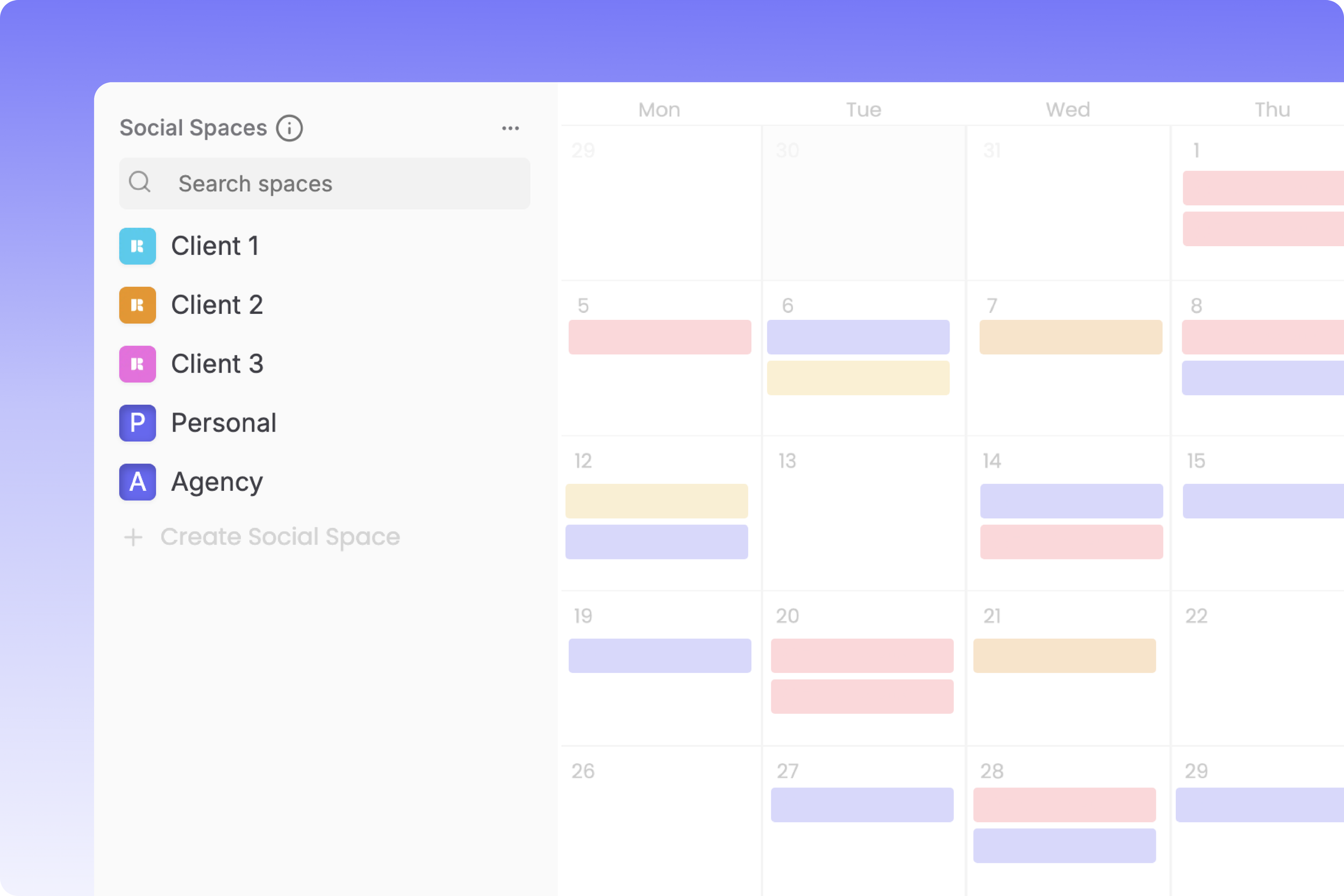
What are Social Spaces?
A Social Space is an isolated workspace tailored for a specific brand or client. When you switch between Social Spaces on your sidebar, Rella completely transitions your active workspace to display only that client's:
Connected social channels and auto-publish tokens.
Drafting calendars and board views.
Campaign Projects and team production Tasks.
Brand-specific Media libraries and folders.
By keeping these databases isolated, client review links and team commentary remain securely bound to the active brand, preventing collaborators on Brand A from ever seeing assets or draft files for Brand B.
Each Social Space includes:
The best part about Social Spaces? You can continue to create as many Social Spaces as needed at no extra cost!
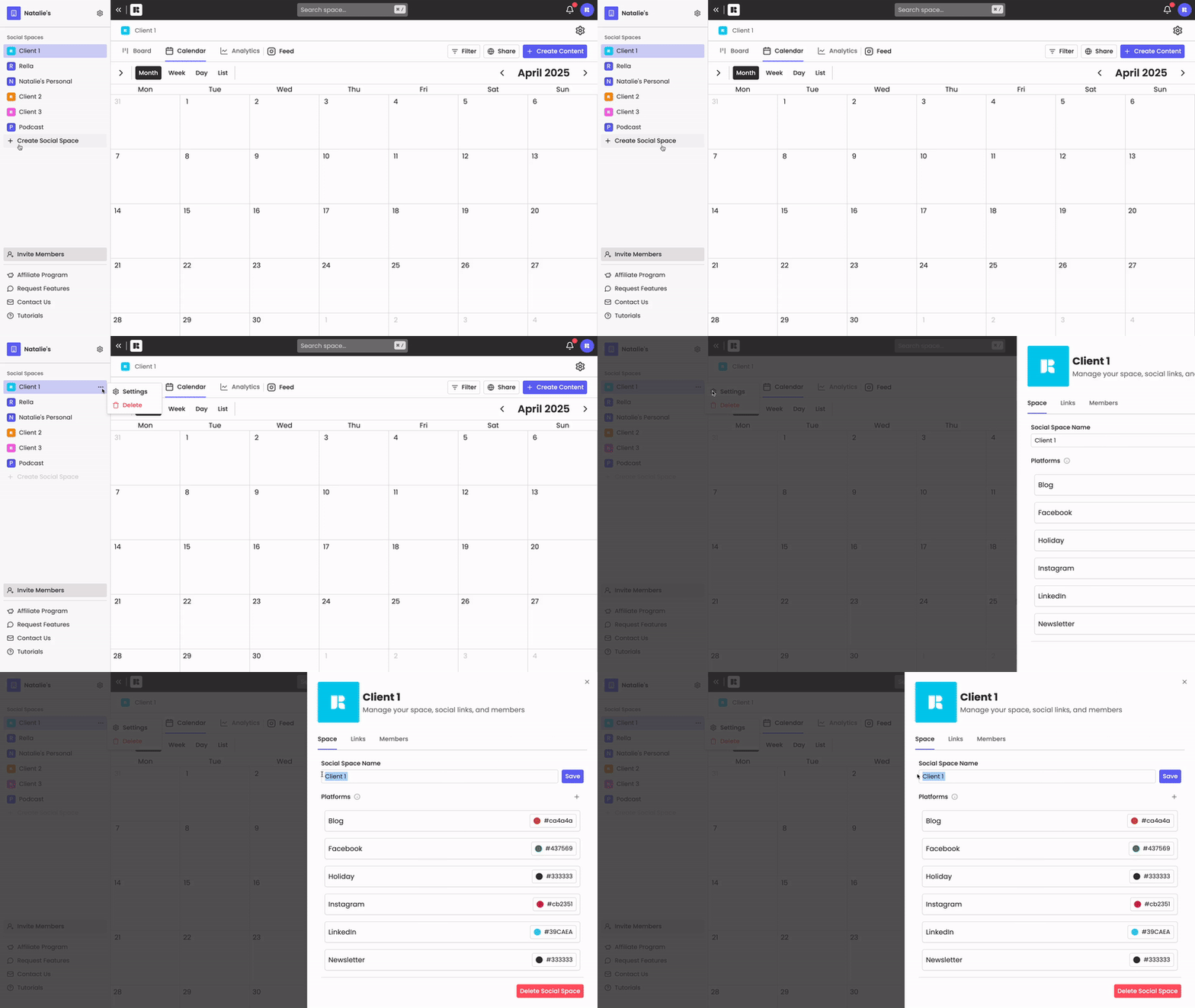
Organizing Multiple Clients in Your Sidebar
1. Create a Dedicated Space for Each Brand
For every new client you onboard, create a fresh Social Space rather than grouping them together under a single calendar. See the Create a Social Space support doc for step-by-step instructions.
2. Reorder Your Client List
Keep your most active clients at the top of your navigation panel:
Click and hold the drag handle next to any Social Space in your left sidebar.
Drag the space up or down to customize your list order. Rella automatically saves your custom position preferences.
3. Customize Branding & Logos
Upload distinct avatars for each space to help your team distinguish between client calendars in the sidebar:
Open your space’s Space Settings sheet.
Under the Space tab, click your current avatar and upload your client's brand logo (recommended as a JPEG or PNG file).
Archiving & Deleting Inactive Spaces
When a client contract concludes or a seasonal campaign ends, you can archive or delete their Social Space to keep your sidebar clean.
Archiving a Social Space (Recommended)
Archiving hides the Social Space, its projects, and its content from your active sidebar list while preserving all data, comment history, and uploaded assets in your database.
Requirement: Archiving spaces is available on Rella's Premium and Premium Plus plans.
How to archive: Open Space Settings, click Archive, and click confirm.
Important Archiving Gotcha: If you unarchive and restore a Social Space later, any scheduled content inside that space will not auto-publish or receive notifications until you explicitly reschedule them on the calendar.
Deleting a Social Space (Permanent)
Deleting permanently purges the Social Space and all contained folders, social links, calendars, and tasks. This action cannot be undone.
Permission: Only users with the Admin or Organization Owner role can delete a space.
How to delete: Open Space Settings, navigate to the delete controls, type the space name to confirm, and click Delete.
Limitation: Your Organization must contain at least one active Social Space at all times. Rella will block you from deleting your last remaining Social Space.
Multi-Client Management FAQs
Can my clients see my other client spaces?
No. When you invite clients to Rella as Managers or Editors, you must assign them to specific Social Spaces. They will only see and access the spaces you explicitly grant them permission to view, keeping your other client rosters completely private.
Can I copy a post from one client space to another?
Yes. If you have an Admin role or belong to both spaces, you can use the Repurpose tool inside the post editor to duplicate a post layout and copy it directly into another Social Space's calendar.