Connect ClickUp to Rella via MCP
Last updated: September 29, 2026
Follow the provided steps to allow ClickUp's AI to use Rella's available tools.
Click on "AI" in the left navigation
Click on "Connections" in the AI tab's left navigation bar
Scroll down to the bottom to find the "Custom MCP" section
Click "Add new"
Select "Just for me" and click Next
Fill out the connection form with the following details
Name: "Rella"
URL: "https://app.getrella.com/api/mcp"
Authentication Method: OAuth
Description is optionalClick Next, and Rella should open prompting you to choose the organization you wish to use the MCP connection with (Note: This can be changed later in the integration settings within Rella). If you are not yet logged in, it will prompt you to do this prior to seeing the consent screen.
Once you click "Approve", you should be redirected back to ClickUp where you should see this screen:
Once you click done, you should now see rella in your MCP Servers within your Apps
Now you can use the MCP! To do this, open a chat window and click the "+" icon
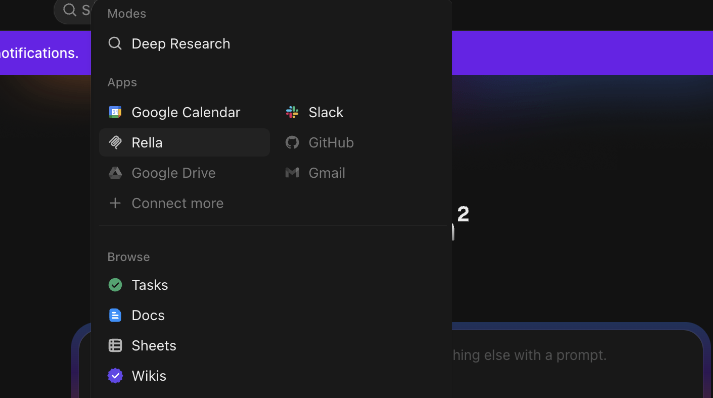
Select "Rella", listed under "Apps" in the popover. You should then see it within the chat box:
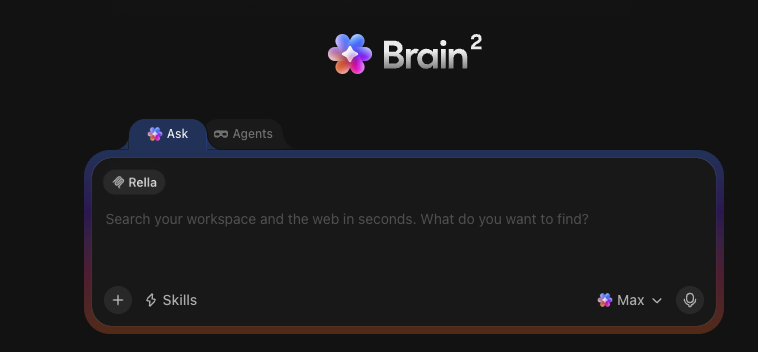
Now you are ready to utilize any of the available tools within this chat! If your agent can't find Rella's tools, please always double check that you've added the Rella app to you chat session.