Connect Claude to Rella via MCP
Last updated: June 4, 2026
Managing your social media workflow across multiple tabs can quickly feel like a juggling act, especially when you need to coordinate client briefs, write captions, schedule posts, and track metrics. Connecting Claude to Rella via the Model Context Protocol (MCP) bridges this gap, turning Claude into a hands-on operator for your social workspace.
By integrating Claude directly with your workspace, you can manage your campaigns, plan posts, and coordinate your team without ever leaving your chat interface.
About the Claude MCP Integration
Rella's Claude integration uses the Model Context Protocol (MCP), a secure protocol that allows Claude to connect directly to your workspace tools. Rather than acting as a simple chatbot that only writes copy, Claude becomes an active collaborator capable of performing real tasks directly inside your Rella account.
Even better, Claude's connection is not limited to Rella alone. When connected via MCP, Claude can coordinate with your other everyday tools (such as your email inbox, CRM, or document managers) to sync details seamlessly. For example, you can ask Claude to read a client email brief and automatically convert it into structured Rella Tasks and scheduled Content.
Before You Start
Plan Requirements: The Claude MCP integration is available exclusively on Premium and Premium Plus plans. If you need to upgrade your plan, navigate to your sidebar, click your organization logo to open Organization Settings, and select the Billing tab to click Manage Subscriptions.
Access Control: Only the owner or administrators of an Organization can authorize the initial Claude connection, but team members can be granted access depending on your permissions settings.
How to Connect Claude via MCP
You can connect Claude using either Claude Web (claude.ai) or the Claude Desktop application. The setup flow remains identical for both.
Log in to your Rella account.
Navigate to your Profile Settings > Integrations > Claude.
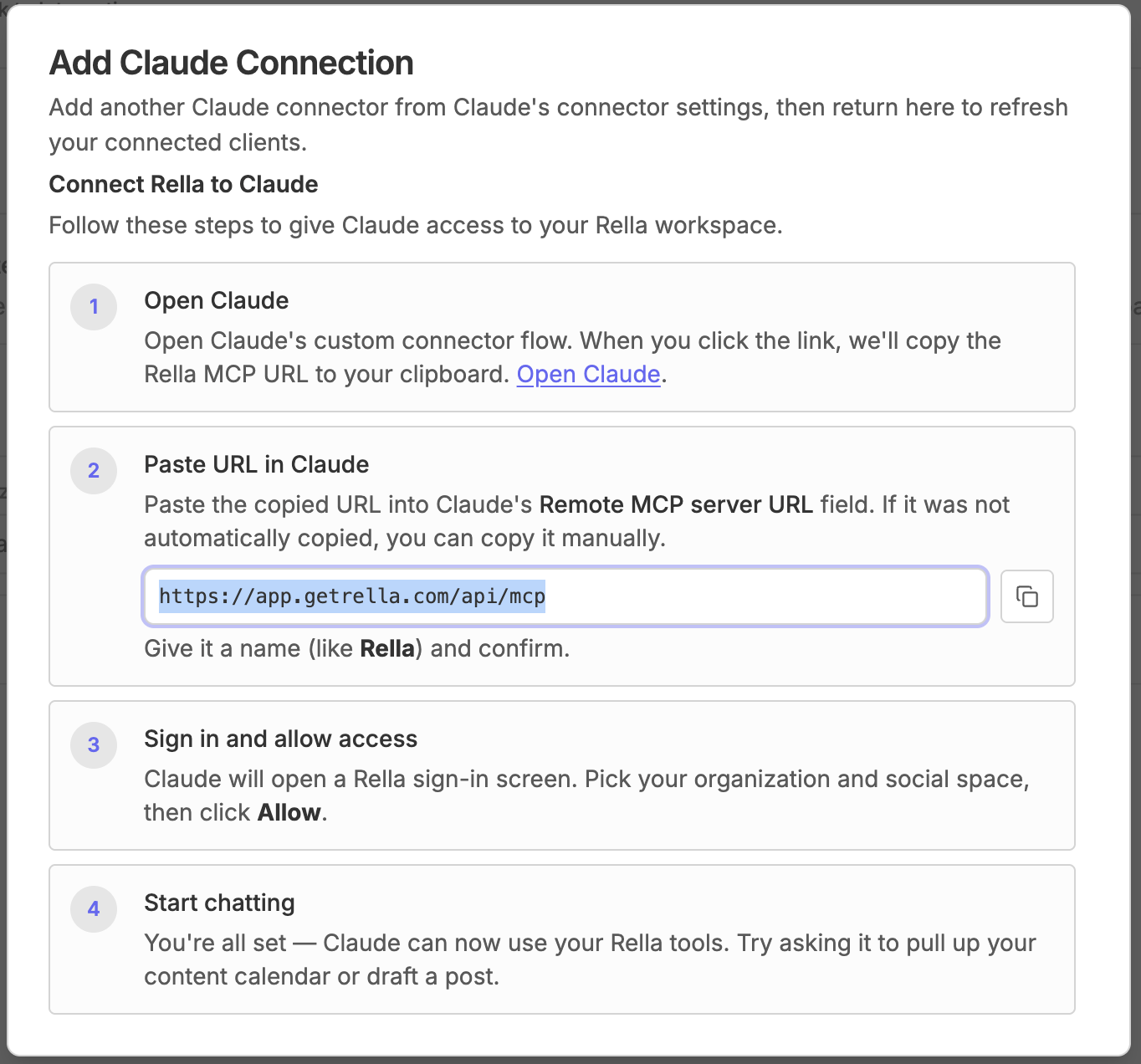
Click the Open Claude button.
In Claude, locate the Remote MCP server URL field and paste the connection URL (https://app.getrella.com/api/mcp) you just copied.
Give the connection a recognizable name, such as "Rella", and click Confirm.
Sign in to your Rella account when prompted.
Choose your workspace details: Pick the Organization and the specific Social Space you want Claude to work in, then click Approve.
Switch back to Claude and start chatting
What Claude Can Do in Your Workspace
Once connected, Claude communicates with Rella's built-in Skills and Connectors to handle almost any action you can perform manually. You can ask Claude to:
Draft and Create Content: Generate post captions, select hashtags, attach media files, and apply appropriate tag links in your exact brand voice.
Manage Your Content Calendar: Schedule new posts, view upcoming draft slots, or reschedule existing posts directly across your Calendar view.
Search Your Workspace: Search through existing Content, Tasks, Notes, Media, and tags using keyword queries or advanced filters.
Analyze Performance: Pull your social platform analytics and ask Claude to interpret the data, highlight trends, or write executive summaries.
Organize Projects & Tasks: Create Projects, update custom Statuses, and assign Tasks to team members to keep campaigns on track.
Manage Media Assets: Upload new files from your device into your Rella gallery, or attach existing Media to draft posts.
In-App Editing: Ask Claude to open any item in Rella's built-in editor with a single click for a hands-on, manual review.
Managing Permissions and Settings
You maintain full control over what Claude can see and do inside your Rella account.
Switching Social Spaces
You can change which Social Space or Organization Claude currently has access to at any time. This can be adjusted manually inside your Rella Integration settings, or you can simply ask Claude to switch spaces within your chat window (e.g., "Switch my active Social Space to the Brand Launch space").
Configuring Action Permissions
To control whether Claude can perform actions automatically or if she must check with you first, you can adjust your tool permissions on Claude's side:
Inside Claude, open your Connectors settings.
Select Tool permissions.
For each available Rella tool, set the permission level to:
Always allow: Claude will execute tasks immediately without prompting you.
Needs approval: Claude will explain the action she wants to take and wait for you to click approve before proceeding.
Blocked: Claude will be prohibited from performing that action entirely.
Revoking Access
If you ever need to disconnect Claude from your workspace, navigate back to Profile Settings > Integrations > Claude inside Rella, and click Disconnect to immediately revoke all active session tokens and permissions.
Claude MCP FAQs
Does Claude have access to all of my Organizations?
No. Claude only has access to the specific Organization and Social Space you select during the connection authorization process. If you want to allow Claude to work across multiple spaces, you must authorize them or ask Claude to switch to an approved space.
Is my data secure when using the Claude integration?
Yes. The Model Context Protocol (MCP) establishes a secure, private connection between Claude and Rella. Your workspace data, Content, and analytics are only accessed on-demand to fulfill your explicit chat requests and are never used to train public models.
Why is Claude failing to find a specific task or post?
If Claude is unable to find an item, double-check that you have selected the correct Social Space. Because Claude can only view data within her active authorized space, she will not be able to search or edit items residing in other spaces until you switch her active workspace.