Request Content Approvals
Last updated: October 27, 2026
Use Content Approvals to ask a space member, or anyone with the public link, to sign off before a post goes live.
About Content Approvals
The Approvals field chooses who must sign off. Approval is separate from Status. When Auto Post is on, Only if approved waits for sign-off. Only if status allows is a separate hold. Waiting for approval is only the approver gate.
Choose one mode:
None: Approvals are off for this post.
Anyone: Anyone with the public content link can Approve or Reject. They are not each a required approver.
Space members: Each space member you add must approve. One Reject means the content is not approved.
Anyone cannot be combined with space members. Contacts and email addresses are notify recipients for Anyone, not approvers.
Before you start
Available on Premium and Premium Plus.
You need Editor access or above to request approval.
Premium allows Anyone or one space member. Premium Plus allows unlimited space members.
Set space defaults in Tailor Content Approval Settings when the same people review most posts.
Request approval
Open the content from Calendar, Board, or Table.
Find Approvals and click Select content approvers.
Choose None, Anyone, or a space member. The search placeholder is Find a member….
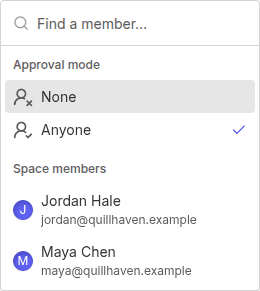
Adding a member requests approval for that person right away. Create-time default approvers stay Not sent until you click Send.
Anyone
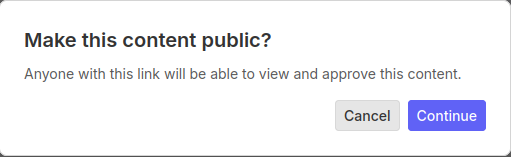
If the post is private or the link is expired, choosing Anyone asks you to confirm Make this content public? Anyone with the link will be able to view and approve the content. Click Continue to make it public, or Cancel to leave it private.
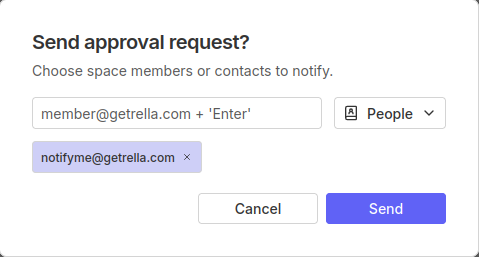
Send on the Anyone row opens Send approval request? Choose space members or contacts to notify. Those people are emailed or notified. They are not added as approvers. If a request was already sent, the dialog title is Re-send approval request?
Copy Link in the Approvers panel copies the public content URL.
Space members
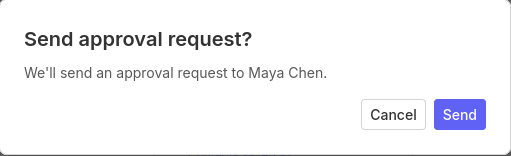
Send on a member row confirms We'll send an approval request to {name}. A later send says We'll send another approval request to {name}. Use Send All or Re-send All for every space member you added who can be notified.
When that member's email notifications are on, they get Approval Requested or Reminder: Approval Needed with Review & approve. Space members also get an in-app notification. Copy approver link on the row copies that person's link. It includes ?a= and is separate from Copy Link.
Track approval status
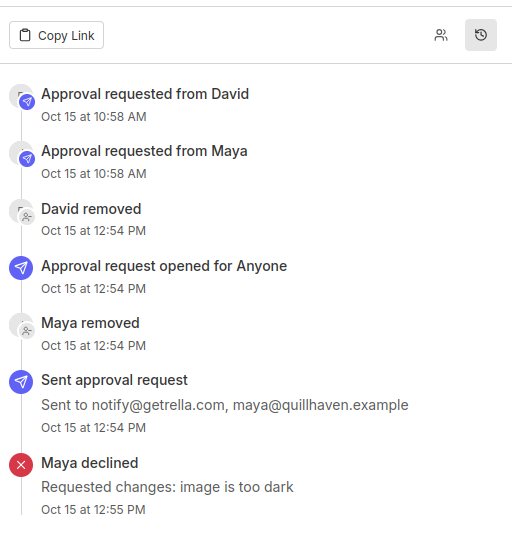
Open Approvers. The tabs are Status and History.
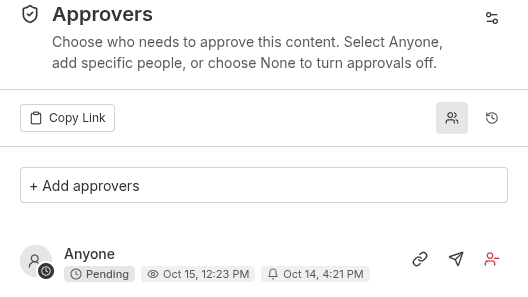

Each row can show:
Pending
Approved
Not approved
Removed
Not sent
The History tab records requests, decisions, and removals. Examples include Approval request opened for Anyone, Approval requested from {name}, and {name} approved.
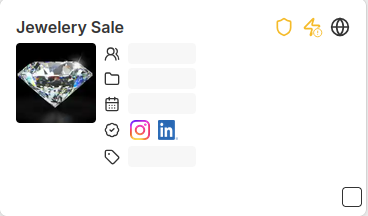
On Calendar, Board, and Table, a shield shows pending, approved, or rejected.
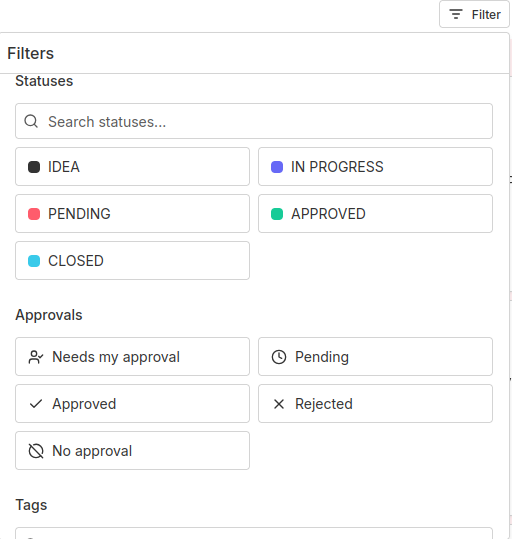
Filter with Approvals: Needs my approval, Pending, Approved, Rejected, and No approval.
Resend or remove approvers
Open Approvers.
Click Re-send for one person, or Re-send All.
Confirm the dialog, or click Cancel to leave it unsent.
Click Remove to drop someone from the required set.
Click Clear all to set Approvals back to None.
Removing the last space member, or removing Anyone, turns approvals off until you select Anyone or add members again.
Require approval for Auto Post
When Auto Post is on, turn on Only if approved if this post should wait until it is fully approved. The line under the switch shows the approval state, such as Waiting · 0 of 1. Readiness shows Waiting for approval until then. That message is only the approver gate.
Turn on Only if status allows to hold scheduled Auto Post while the status is non-publishable. The line under that switch names the status, such as IDEA blocks auto post. Readiness then says Move this content to a status that allows posting.
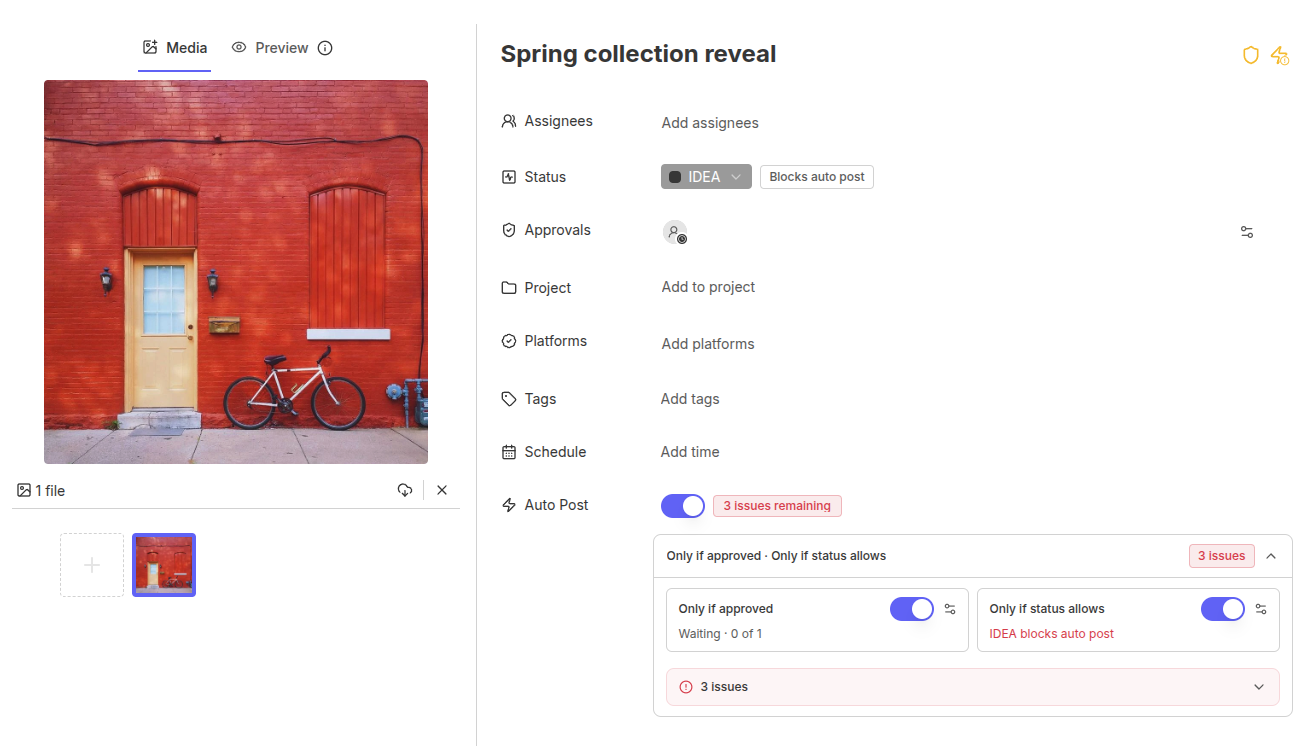
Approve and Reject stay in the content header. They are not on the Auto Post readiness row.
To choose which statuses can auto-post, use Publishable and Non-publishable in Space Settings > Autopost. That hold applies only when Only if status allows is on. It does not prevent posting manually.
Approval FAQs
Does moving a post to an Approved column count as approval?
No. Use Approve or Reject in the content header. Status can move automatically only if you set that under Automatic status updates.
Watch how approvals differ from statuses.
What is the difference between Anyone and a space member?
Anyone lets people with the public link decide. Use the notify dialog if you also want to email members or contacts. That email does not make them required approvers. Space members you add each get Review & approve when their email notifications are on, and each one must approve.
Is sharing a link the same as requesting approval?
No. A share link lets someone view the post, update its status, and comment. Request approval from the Approvals field when you need Approve or Reject.
Can I take back an Approve or Reject?
Selecting the same decision again does nothing. Switching from Approve to Reject, or the reverse, is allowed. To ask again after edits, use Re-send.
What is included on each plan?
Pro: Approve and Reject are not available. Clients can update status from a shared link. Watch how it works.
Premium: Anyone or one space member.
Premium Plus: Anyone or unlimited space members.
Details are in Tailor Content Approval Settings.
Learn more