Assign Content to Team Members
Last updated: June 4, 2026
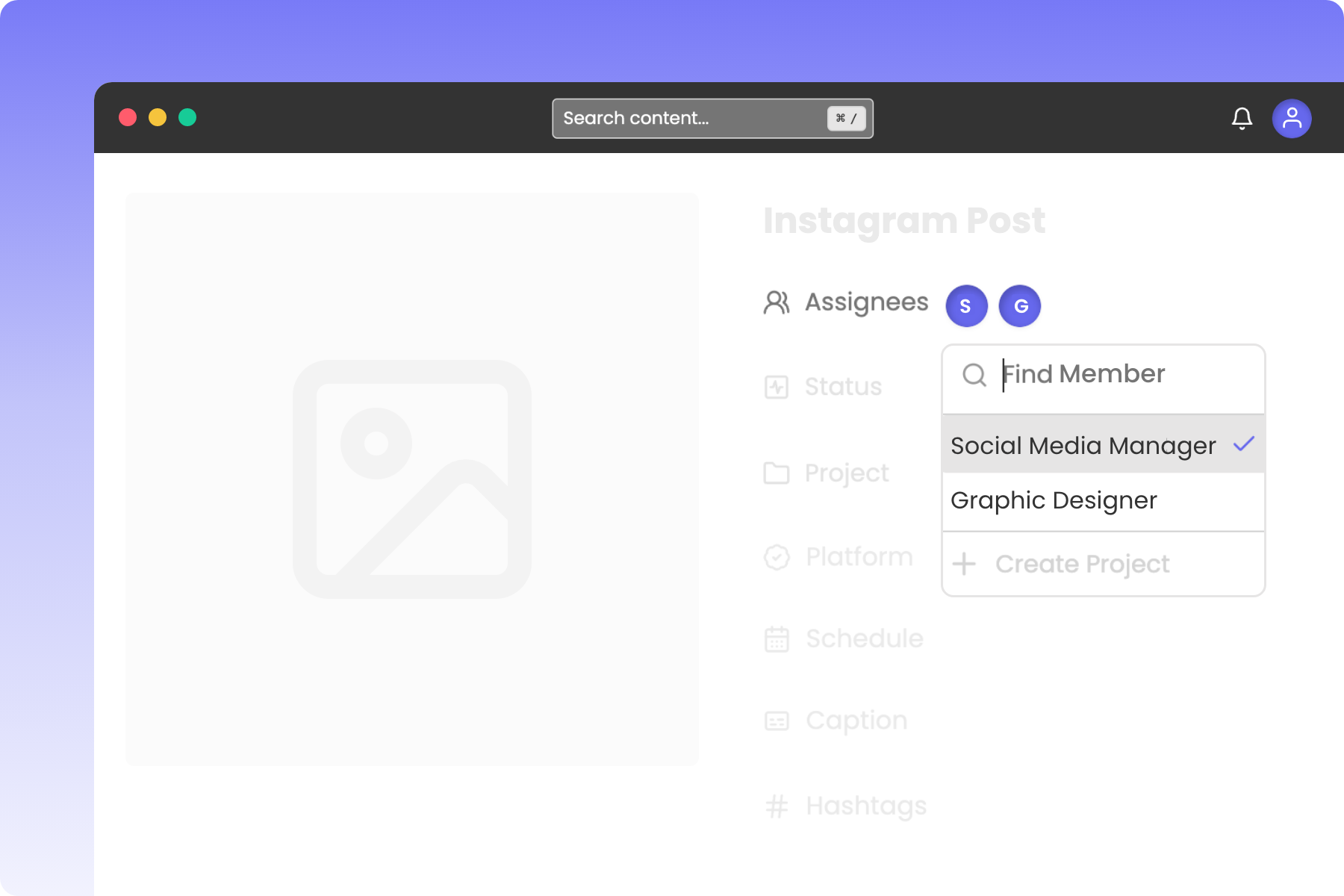
Delegating drafts, copywriting, and approvals ensures your team and clients stay aligned on scheduled campaigns. Rella’s Assignees tool lets you tag specific team members on any post so they can easily track their production responsibilities on the Calendar and Board.
Before You Start
You must hold an Admin, Organization Owner, or Manager role in your active Social Space to assign posts.
Teammates must first be invited to your Organization and added as members of the active Social Space before you can assign them to posts.
Resource: 📄 Add Team Members to Your Workspace
Steps to Assign Team Members to a Post
1. Open the Content Editor
Open the Calendar or Board view in your active Social Space.
Double-click the post you want to delegate to open the Content editor.
2. Open the Assignees Picker
Locate the Assignees field in the primary details panel on the right side of the screen.
3. Select Team Members
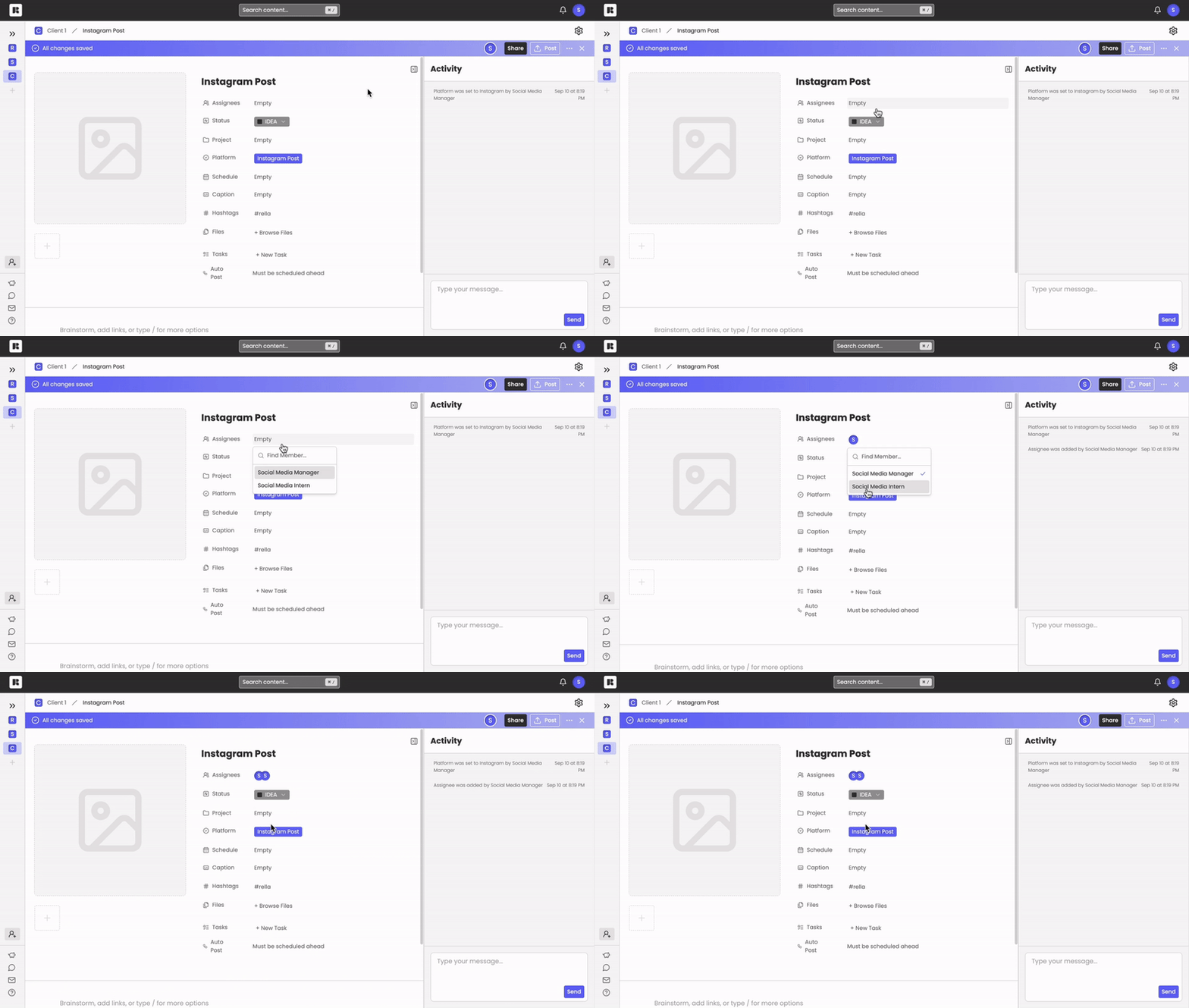
Click the Assignees field (which displays your current active team member avatars).
A search popover will display, listing all active members in your current Social Space.
Scroll through the roster or type a colleague's name in the search bar.
Click a team member's card to assign them to the post. A checkmark will appear next to their name.
Click anywhere outside the popover to close the menu.
4. Remove an Assignee or Clear All
To remove a specific assignee: Open the dropdown menu and click their card again to uncheck them.
To clear all assignees: Click the Clear button at the bottom of the dropdown menu to remove all assigned team members at once.
Tracking Assignments Across Your Workspace
Once a teammate is assigned to a post:
Visual Avatars: Their profile picture or initials will display directly on the post's card inside the Calendar and Board dashboards.
Filtering by Assignee: You can use the main Filters menu in the top-right header of your calendar to view only posts assigned to yourself or specific teammates.
Activity & Notifications: Assigned members receive notifications (via their preferred email or in-app preferences) whenever updates or comments are posted on that specific draft.
Content Assignment FAQs
Can I assign multiple team members to a single post?
Yes. Rella supports multi-member assignments. You can check as many team members as needed inside the dropdown list to ensure writers, designers, and managers can collaborate on the same post.
Why is a teammate's name missing from the Assignees list?
If you cannot find a colleague's name in the dropdown list, ensure they have been invited to your overall Organization and explicitly added as a member of the active Social Space. If they do not belong to that specific Social Space, they cannot be assigned to its content.
Can clients be assigned to posts?
Clients invited to Rella with a Manager or Editor role can be assigned to posts. Clients who access your calendar via shared public guest links cannot be assigned to content, as they do not have full Rella member accounts.