Add Custom Fields to Your Content
Last updated: November 25, 2026
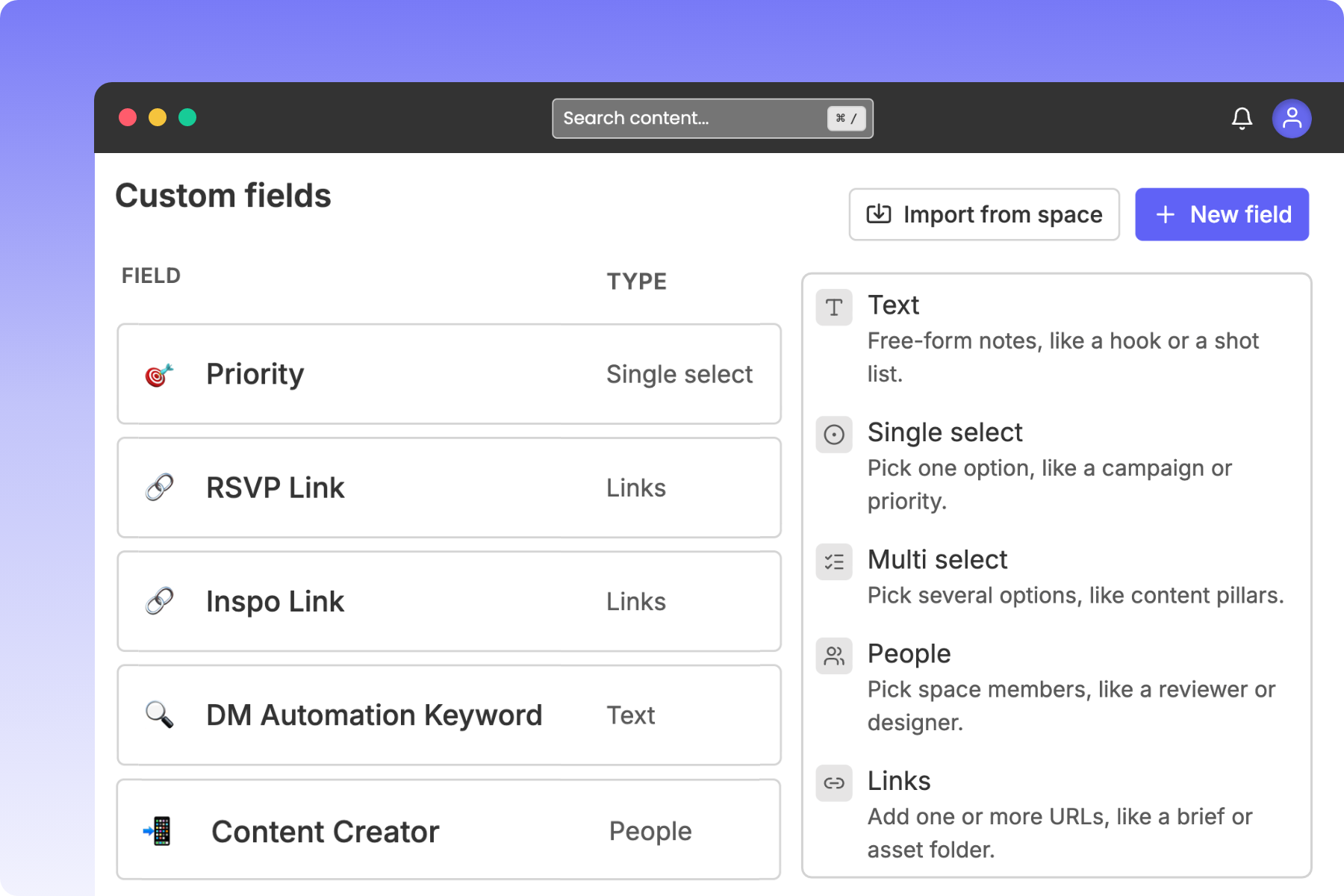
Use custom fields to track the details your team cares about on every post, such as a campaign, a content pillar, a reviewer, or a link to the brief.
Before You Start
Custom fields are available on Premium and Premium Plus.
Social Space Managers and Admins create, edit, and delete fields. Anyone who can edit Content can fill them in.
About Custom Fields
Each Social Space has its own set of custom fields, and every post in that Social Space shows them. Fill them in from the post or straight from the Table.
Field type | Use it for | Example |
|---|---|---|
Text | Free-form notes | A hook or a shot list |
Single select | Picking one option | Campaign or priority |
Multi select | Picking several options | Content pillars |
People | Picking Social Space members | Reviewer or designer |
Links | One or more URLs | A brief or an asset folder |
How to Create a Custom Field
Open your Social Space settings, then select Custom fields under Content.
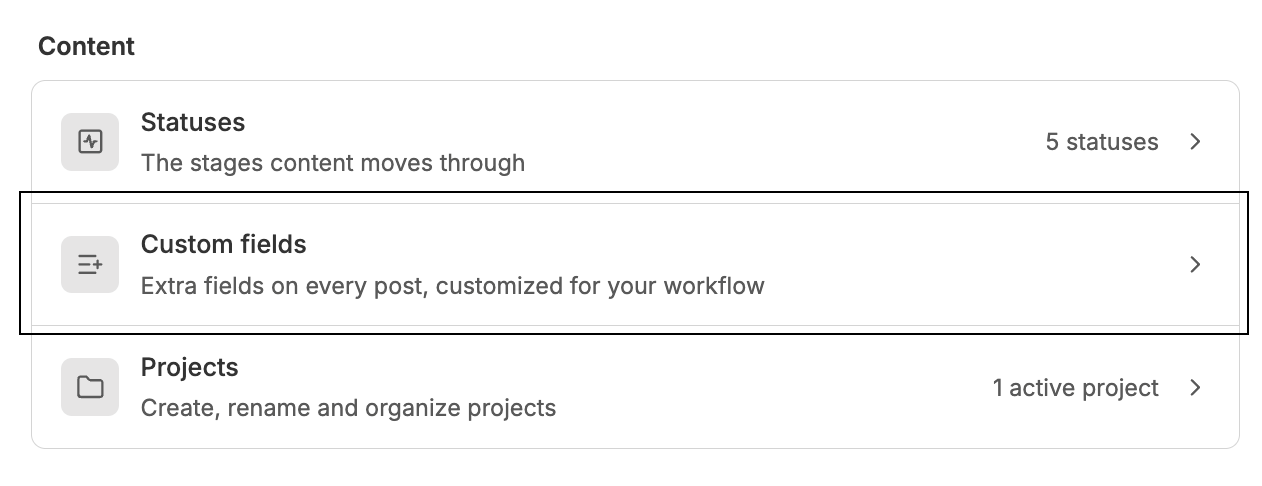
Click New field and choose a field type.
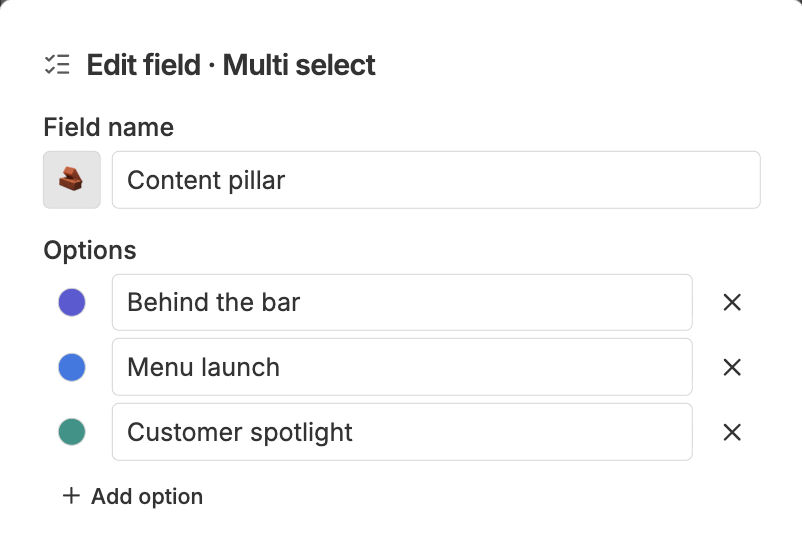
Enter a Field name. Click the icon next to the name to choose a different emoji.
For Single select and Multi select fields, type your options. Click Add option for each extra option, and click an option's color dot to change its color.
Click Create field.
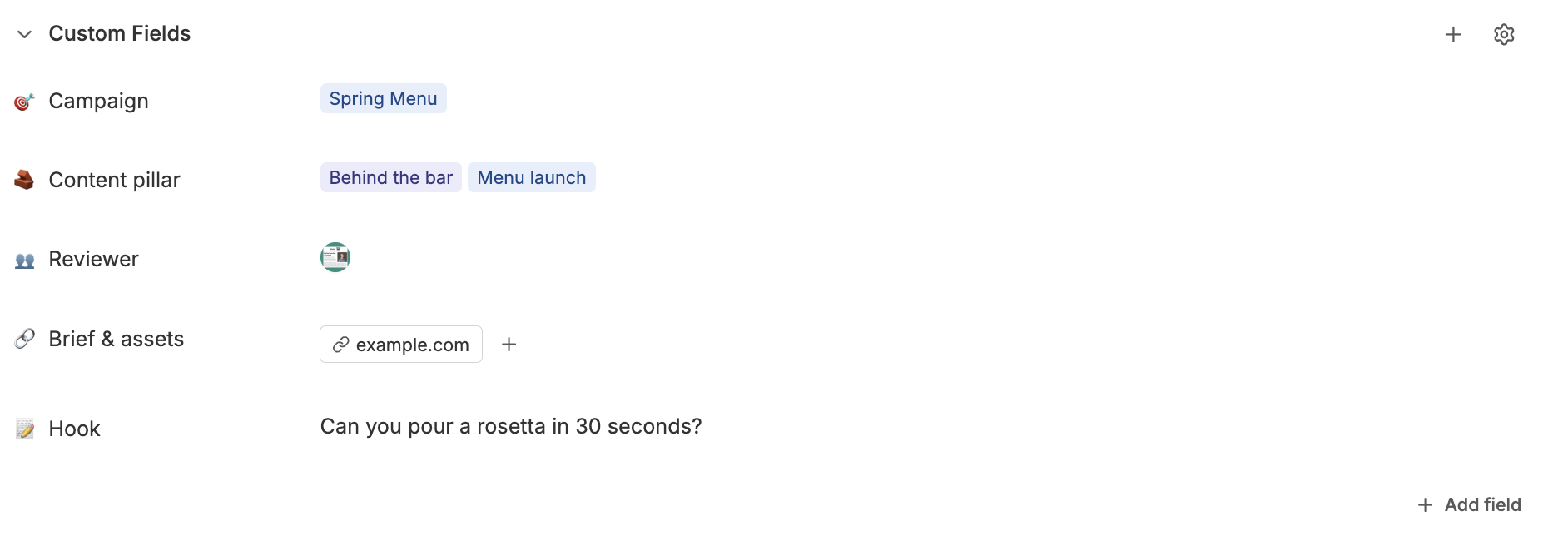
The field appears on every post in the Social Space.
To add a field without leaving a post, scroll to the Custom Fields section and click + in its header or Add field at the bottom.
How to Fill In Custom Fields
In a Post
Open the post and scroll to the Custom Fields section, below Tasks and Files.
Click the empty value next to a field:
Single select or Multi select: Choose from the list. A Multi select list stays open so you can choose several options.
People: Choose one or more Social Space members.
Links: Click + URL, paste a link, and press Enter. Click + to add another link.
Text: Type your text, then click outside the field to save.
To clear a value, hover over the field and click X.
Click the Custom Fields header to collapse or expand the section. Rella remembers your choice. Teammates see your changes without refreshing.
How to Manage Custom Fields
Open Custom fields in your Social Space settings to see each field, its type, and how many posts use it.
Reorder: Drag a field by its handle. Posts and the Table follow this order.
Edit: Rename a field, change its icon, or add, rename, and recolor options. A field's type can't be changed after it's created.
Delete: Click the trash icon. The confirmation shows how many posts have a value in the field. Deleting removes the field and its values from every post in the Social Space, and can't be undone.
How to Copy Custom Fields to Another Social Space
When You Create a Social Space
Click Create Social Space.
Open the Custom fields tab, next to Statuses.
Under Copy from, choose a Social Space.
Untick any fields you don't want, then click Create and Navigate.
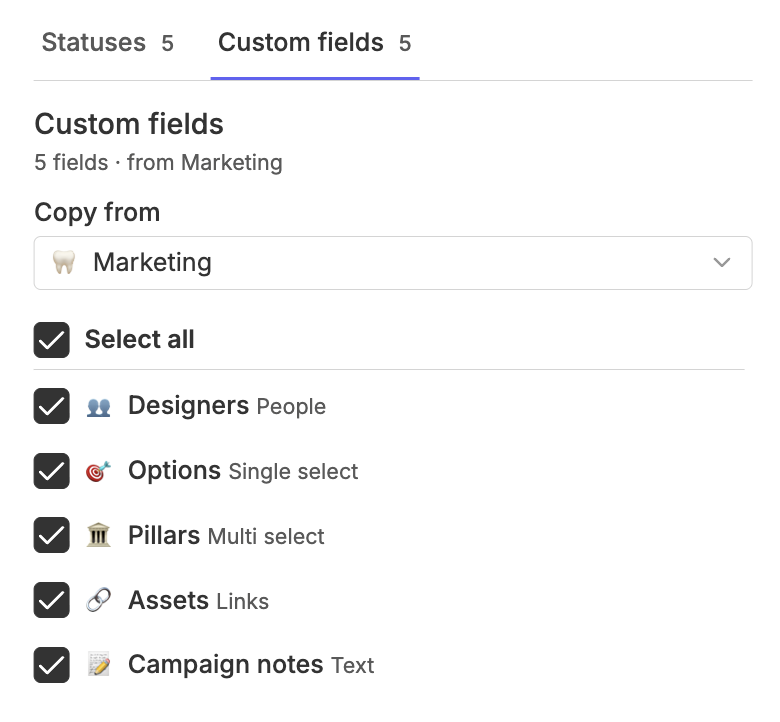
Field setups are copied. Values aren't.
Into an Existing Social Space
Open Custom fields in the settings of the Social Space you want to copy into.
Click Import from space.
Choose a Social Space under From space, select the fields, and click Import.
Fields with the same name as an existing field are skipped, and Rella lists which ones.
Custom Fields on Shared Links
Custom fields are hidden on shared links until you choose to show them, and People fields are never shared. To pick which custom fields visitors see, follow Choose What Clients See on Shared Links.
Custom Fields FAQs
Can I use custom fields on the Pro plan?
No. Custom fields are available on Premium and Premium Plus.
Who can create or change custom fields?
Social Space Managers and Admins. Editors can fill in values but can't add, edit, or delete fields. See Understanding Member Permissions for every role.
Do custom fields show on the Board or Calendar?
No. Custom fields appear in the post and in the Table.
Can I sort or filter by a custom field?
No. Custom field columns in the Table can't be sorted, and custom fields aren't available as filters or groupings.
What happens to custom field values when I duplicate or repurpose a post?
They're copied with the post. If the copy goes to another Social Space, a value is kept only where that Social Space has a field with the same name and type.
Are custom field changes recorded?
Yes. Changes appear in the post's Activity Log with the field name.
What happens to my custom fields if I downgrade below Premium?
The fields will no longer show on any of your content or shared links. If you upgrade again, the fields will reappear with the values they contained prior to downgrading.
How many custom fields can I add?
Up to 50 per Social Space. Each Single select or Multi select field can have up to 100 options, and a Links field holds up to 20 links.