Choose What Clients See on Shared Links
Last updated: November 25, 2026
Choose which views, post fields, and custom fields clients see when you share a Social Space, Project or Content. Your team always sees everything.
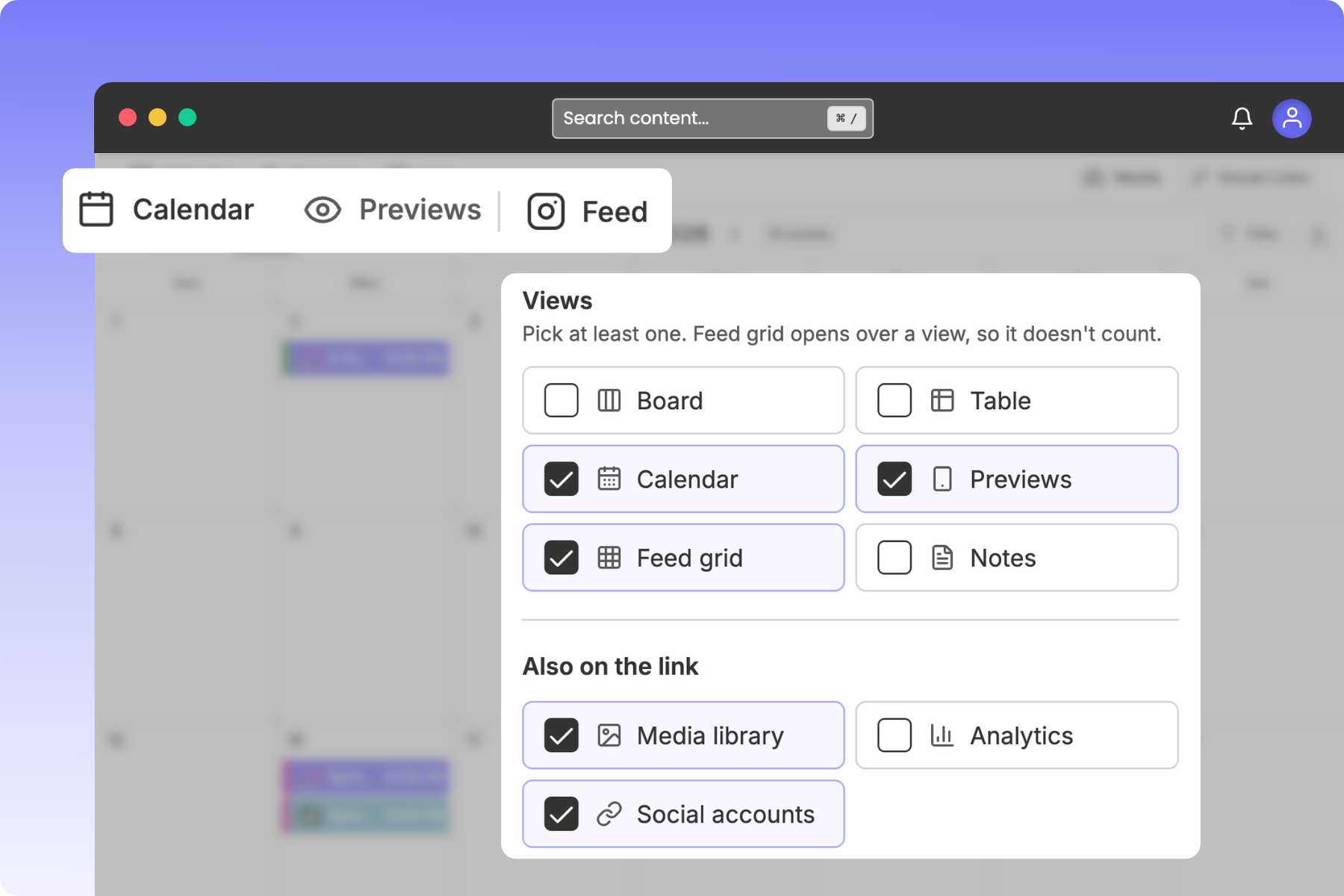
About Shared Link Settings
Shared link settings live in Space settings > Sharing. They control what visitors see: anyone who opens a shared link without being a member of the Social Space, such as clients and collaborators. Each setting applies to every shared link in the Social Space and never hides anything from space members.
Space settings > Sharing has three pages:
Social Space: who can open the Social Space link, and which views and extras it shows.
Project links: which views every shared Project shows.
Content fields: which post fields and custom fields visitors see on any link.
Before You Start
Choosing views on Social Space and Project links is available on Premium Plus.
Choosing post fields and custom fields on Content fields is available on Premium and Premium Plus.
You need to be a Manager or above in the Social Space to change these settings.
To share posts, Projects, Tasks, or Notes in the first place, see Share Content & Receive Approvals.
How to Choose Which Views Visitors See
Open Space settings.
Under Sharing, click Social Space to set up the Social Space link, or Project links to set up every shared Project.
Under Show, check Content, Tasks, or both.
Under Views, check the views visitors can open: Board, Table, Calendar, Previews, Feed grid, and Notes.
Under Also on the link, check any extras visitors can open, such as Media library, Analytics, and Social accounts.
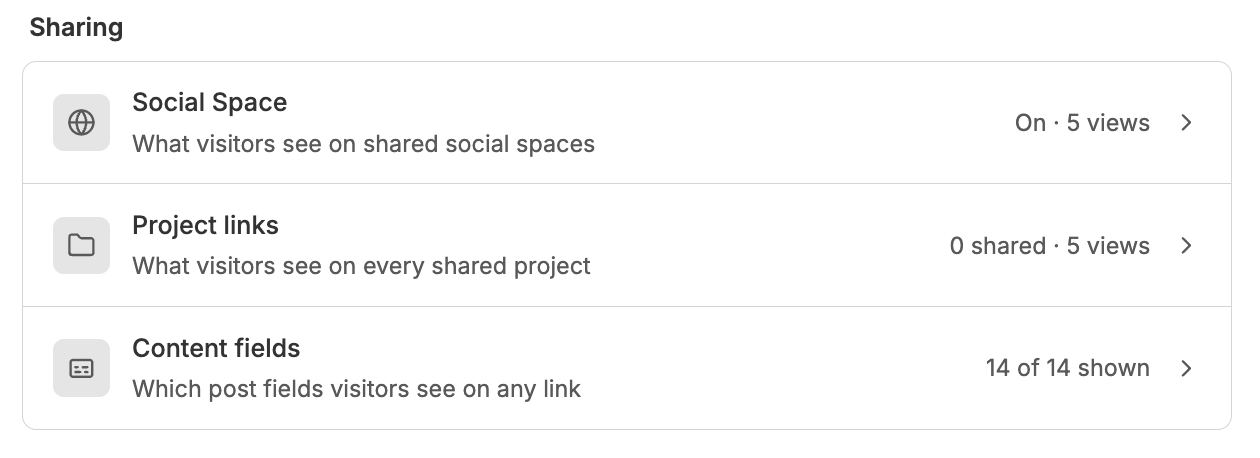
Each change saves as soon as you check or uncheck a box.
Project links is one setting for every shared Project in the Social Space, including Projects you share later and Projects a visitor opens from a shared Social Space link.
Analytics, Social accounts, and the Persona appear only on the Social Space link.
When a view or extra is unchecked, visitors do not get its content. For example, with Notes unchecked, visitors do not see the Social Space's Notes.
With Social accounts checked, visitors can connect the Social Space's social accounts, or reconnect one to a different account.
Click Reset to default to turn every view and extra back on.
How to Choose Which Post Fields Visitors See
Open Space settings.
Under Sharing, click Content fields.
Under Fields, check the fields visitors should see and uncheck the ones to hide.
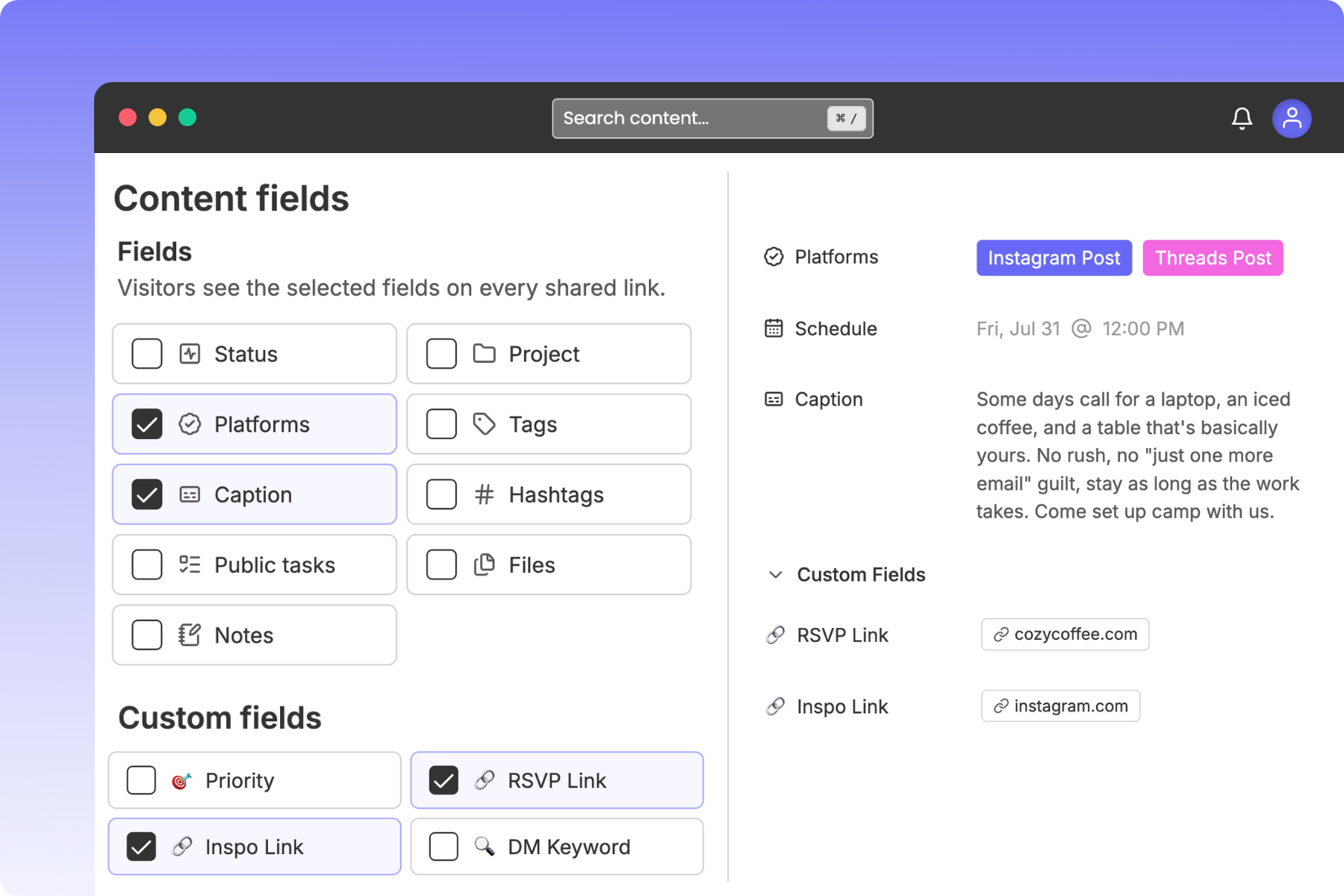
These settings apply to every shared link in the Social Space, including post, Project, Social Space, and approval links.
Field group | Fields |
|---|---|
Always shared | Title, Public comments, Schedule, Media, Approval status |
You choose | Status, Platforms, Caption, Tasks, Notes, Project, Tags, Hashtags, Files |
Never shared | Assignees, Auto Post, Internal comments, Activity |
Visitors cannot see or change a hidden field.
Some views need a field. For example, Board needs Status. When a field can't be hidden because a view on a shared link needs it, its checkbox stays checked and shows why.
Sharing Approval status does not share the list of approvers.
Click Reset to default to show every field you can choose again. Reset also hides every custom field.
How to Show Custom Fields on Shared Links
Custom fields are hidden on shared links until you choose to show them.
Open Space settings.
Under Sharing, click Content fields.
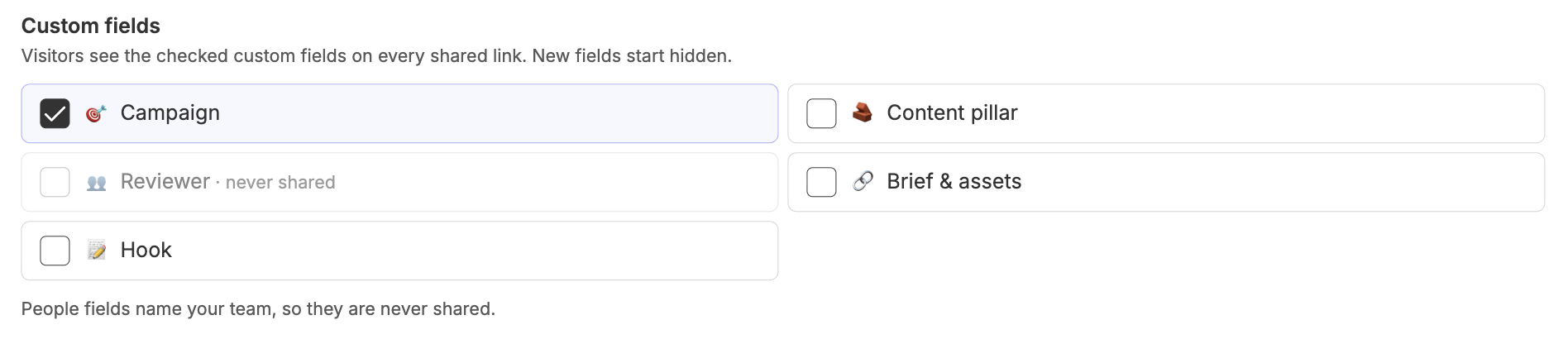
Under Custom fields, check each custom field visitors should see.
New custom fields start hidden.
People fields name your team, so they are never shared. Their checkbox shows never shared and can't be checked.
If the Social Space has no custom fields yet, click Add custom fields to create one.
To create and manage custom fields, see Add Custom Fields to Your Content.
Shared Link Settings FAQs
Why can't I change these settings?
Choosing views is available on Premium Plus, and choosing post fields and custom fields is available on Premium and Premium Plus. You also need to be a Manager or above in the Social Space.
What happens to my settings if I change plans?
Your choices are saved, but they stop applying on a plan that doesn't include them. Visitors see every view and every post field that can be shared until the Organization is back on the required plan.
Do these settings hide anything from my team?
No. Space members always see the full post and every view. These settings only change what visitors see on shared links.
Can I share a single Task when Tasks is hidden on the Social Space link?
Yes. A Task shared on its own link still opens for anyone with that link, even when Tasks is unchecked for the Social Space link.
Related
Share Content & Receive Approvals for sharing posts, Projects, and Social Spaces, setting link expiry, and removing access.
Request Content Approvals for collecting Approve or Reject from clients.
How to Use Rella as a Client for what a client sees when they open a link.
Add Custom Fields to Your Content for creating and managing custom fields.